If you’ve ever gotten an interview invite and thought, “Wait… which version of my resume did I send them?” you’re not disorganized—you’re experiencing a normal failure mode of modern job searching: high volume, multiple job boards, multiple resume variants, and disappearing job descriptions.
And the stakes are real. Most large employers use applicant tracking systems (ATS). Jobscan reports that 98.4% of Fortune 500 companies used a detectable ATS in 2024 (HIGH confidence; source: Jobscan).
https://www.jobscan.co/blog/fortune-500-use-applicant-tracking-systems/
That means your resume version choices (keywords, titles, formatting) can affect whether you ever get to the human screen—and humans move fast, too. The Ladders’ eye-tracking research found recruiters spent about 7.4 seconds on an initial resume scan (HIGH confidence; source: TheLadders PDF).
https://www.theladders.com/static/images/basicSite/pdfs/TheLadders-EyeTracking-StudyC2.pdf
So if you’re tailoring, you need a way to prove what you sent, recreate it instantly, and learn which versions perform best.
In this guide, you’ll learn:
- A “resume version control” system that works whether you apply to 10 jobs or 300
- Exactly what to track (and what’s a waste of time)
- How to reconstruct which resume you sent on LinkedIn, portals, and email
- A copy/paste tracker template (spreadsheet + tool-based approach)
- How to connect resume versions to outcomes (interviews, offers, rejections)
What does “track which resume you sent” actually mean?
Tracking which resume you sent is the practice of keeping a verifiable record of the exact resume file/version used for each application—so you can:
- Respond confidently in interviews (“Yes—my resume notes Kubernetes + Terraform because…”).
- Follow up intelligently (with the right talking points and attachments).
- Avoid mistakes (sending a finance resume to a data analyst role, or the wrong location/version).
- Optimize your job search by learning which resume versions produce interviews.
A complete “which resume did I send?” record usually includes:
- A resume version ID (your naming system)
- The file name and/or a link to where it’s stored
- The job description snapshot you tailored to (PDF/screenshot/text)
- The application channel (LinkedIn Easy Apply, Workday, email, referral)
- The date applied and current status
Why this matters even more in 2026 (with data)
1) ATS use is nearly universal in big companies
As noted above, Jobscan reports 98.4% of Fortune 500 companies used a detectable ATS in 2024 (HIGH confidence; Jobscan).
https://www.jobscan.co/blog/fortune-500-use-applicant-tracking-systems/
If you tailor keywords for one role (say, “forecasting” and “variance analysis”) but forget and send that version to a different role (say, “growth marketing”), you can unintentionally weaken your match.
2) Recruiter attention is extremely limited
The Ladders’ eye-tracking research found an initial scan of 7.4 seconds (HIGH confidence; TheLadders PDF).
https://www.theladders.com/static/images/basicSite/pdfs/TheLadders-EyeTracking-StudyC2.pdf
That encourages tailoring—but tailoring increases the number of versions you must track.
3) Hiring timelines can stretch long enough that you’ll forget details
SHRM reported the average time to fill roles fell from 48 days (2023) to 41 days (2024) (MEDIUM confidence; SHRM is authoritative, but this metric varies by role/industry and may be based on a particular report they cite).
https://www.shrm.org/topics-tools/news/talent-acquisition/recruiters-express-optimism-for-2025
Even ~41 days is long enough for you to apply to dozens of roles and lose track of what you sent where—unless you systematize it.
4) Candidates often hear back quickly—or not at all—so your follow-up system must be ready
Indeed reports 37% hear back within one week and 44% within a couple of weeks after applying (MEDIUM confidence; Indeed is credible career guidance, but “hear back” varies by sector).
https://www.indeed.com/career-advice/finding-a-job/how-long-should-you-wait-to-hear-back-about-a-job
That means you should be able to open your tracker and immediately see:
- Which resume you used
- What the job asked for
- What your planned follow-up is
5) Job search outcomes are often “ratio-driven,” so you need clean data
HiringThing (an HR/recruiting vendor blog) reports that a candidate gets one interview request for every six applications and the average job-seeker applies to twenty-seven companies (LOW–MEDIUM confidence; it’s a secondary source and may aggregate other research).
https://blog.hiringthing.com/job-application-statistics
Even if the exact ratio isn’t perfect, the takeaway is reliable: job search is often a volume + conversion problem—so tracking resume versions is how you identify what improves conversion.
The core system: “Resume Version Control” (RVC) for job seekers
The goal is to create a lightweight system that gives every tailored resume a stable identity you can log in 5–15 seconds.
The RVC rules
- Every resume you send gets a version ID.
- Every application record stores that version ID.
- You save a snapshot of the job description (because postings disappear).
- Your folder structure mirrors your tracker (so you can find files fast).
This is the same idea software teams use with version control—but simplified for job hunting.
How to track which resume you sent: Step-by-step (the full workflow)
Step 1: Create a resume “base set” (don’t tailor from scratch every time)
Most job seekers end up with 2–6 “base” resumes aligned to role types.
Examples:
- BASE-SE (Software Engineer)
- BASE-DA (Data Analyst)
- BASE-PM (Project Manager)
- BASE-GM (Growth Marketing)
Pro tip: If you’re applying across two role families (e.g., Product + Ops), separate bases prevent “keyword drift.”
Step 2: Choose a resume version naming convention you can stick to
You need something:
- Consistent
- Sortable
- Easy to log
- Easy to search
Option A (simple): Version ID + company + date
R-DA-014__Acme__Analyst__2026-01-20.pdf
Option B (ultra-fast): Version ID only (details live in tracker)
R-014.pdf (and your tracker stores company/role)
Option C (role-first): If you apply to many roles at one company
Acme__Analyst__R-014.pdf
Recommendation: Use Option A if you’re manually managing files. Use Option B if your tracker is rock-solid and you store everything else there.
Pro tip: Avoid names like resume_final_FINAL2.pdf. Your future self will hate you.
Step 3: Save the job description at the moment you apply
Job postings get edited or removed. If you don’t save them, you’ll lose:
- The exact keywords you tailored to
- The responsibilities you can reference in interviews
- The original comp range and location notes
Minimum viable approach:
- Save as PDF (print to PDF)
- Or copy/paste into a note doc
- Or take a full-page screenshot
File name idea: JD__Acme__Analyst__2026-01-20.pdf
Step 4: Log the application (with the resume version ID)
This is the moment most people skip—and the moment that creates “which resume did I send?” chaos later.
Log these fields every time:
- Company
- Job title
- Date applied
- Source (LinkedIn / company site / referral / recruiter email)
- Status (Applied / Interview / Rejected / Offer)
- Resume version ID (critical)
- Job description link/snapshot location
- Next follow-up date
You can do this in:
- A spreadsheet
- Notion/Trello
- A dedicated job tracker tool
Step 5: Attach proof (so you can reconstruct later)
“Proof” means something you can retrieve in 10 seconds:
- Link to the stored resume file
- Link to the submitted application confirmation email
- Link to the LinkedIn “Submitted resume” page (if Easy Apply)
- Screenshot/PDF of the “application submitted” page if needed
This matters when:
- A recruiter asks for “the resume you submitted”
- You want to resend the same version in a follow-up
- You discover an error and want to decide whether to correct it
Step 6: Run a weekly “reconciliation” check
Once a week (15 minutes):
- Review all applications from the last 7 days
- Confirm each has a resume version ID
- Confirm the JD snapshot exists
- Add follow-up dates
This is how you prevent small gaps from turning into total confusion.
A plug-and-play tracker template (copy/paste)
Create these columns in Google Sheets / Excel / Airtable:
Required columns (the “never guess again” set)
- Company
- Job Title
- Job ID / Requisition ID (optional but helpful for Workday/Greenhouse)
- Date Applied
- Source (LinkedIn / Company site / Recruiter / Referral)
- Status (Applied / Interview / Rejected / Offer / Accepted)
- Resume Version ID (e.g., R-014)
- Resume File Link (Drive/Dropbox/local path)
- JD Snapshot Link (PDF/screenshot/doc)
- Last Action Date
- Next Action (Follow up / Prep / Thank you / Nothing)
- Next Action Date
- Notes (names, talking points, compensation, location)
Optional “optimization” columns (for learning what works)
- Resume angle (Generalist vs. Leadership vs. Technical Depth)
- Keyword focus (e.g., “SQL + dashboards”)
- Interview result (Pass/Fail + stage)
- Why rejected (if known)
- Referral? (Y/N)
Pro tip: If filling this feels heavy, you’re tracking too much. The only non-negotiable is Resume Version ID + JD snapshot.
How to figure out which resume you sent (after the fact)
Sometimes you didn’t track properly. Here’s how to reconstruct.
1) LinkedIn Easy Apply: view the “Submitted resume”
LinkedIn provides a help article explaining how to view the resume used for an application: go to My jobs → Applied jobs → select an application → “Submitted resume” (HIGH confidence; LinkedIn Help).
https://www.linkedin.com/help/billing/answer/a506680
Workflow:
- LinkedIn → Jobs
- My jobs
- Applied
- Open the application
- Download/view Submitted resume
- Rename it to your version naming convention and log it
2) Company career portals (Workday/Greenhouse/Taleo/etc.)
Many portals allow you to log in and view your submitted materials—but the UI varies widely.
What to try:
- Log into the candidate portal
- Open the submitted application
- Look for “Attachments,” “Documents,” or “Resume”
- Download what they have on file
If you can’t download it, search your computer/cloud for:
- The closest matching date modified
- The file you likely uploaded
3) Your email “Sent” folder (if you applied by email)
Search your Sent mail for:
- Company name
- Recruiter email
- Subject lines like “Application for…”, “Resume attached”, “Referred by…”
Then:
- Find the attachment in the sent email (many email clients preserve it)
- Save it into your resumes folder and assign a version ID
4) Your application confirmation emails
Even if they don’t include the resume, confirmations give you:
- Date/time
- Job title
- Job ID/requisition
- The link you used
Use that to align your resume file by date.
Best practices: the “resume chain of custody” checklist (10 rules)
- Always save the job description when you apply.
- Always assign a resume version ID to any resume you submit.
- Never overwrite a resume you’ve already sent. Create a new version instead.
- Keep a single “source of truth” folder (Drive/Dropbox/local)—not scattered downloads.
- Track channel (LinkedIn vs portal vs referral) because outcomes differ by channel.
- Log follow-up dates in the tracker—don’t rely on memory.
- Store recruiter names + emails (even if you never use them, you’ll be glad you did).
- Don’t keyword-stuff—tailor for relevance, not 100% match-rate obsession.
- Don’t use risky “tracking” tricks (like hidden text or questionable images). Some ATS and security scanners can flag weird formatting.
- Weekly reconciliation prevents “tracker debt.”
Common mistakes that cause “which resume did I send?” problems
Mistake 1: Saving only one file called “Resume.pdf”
Fix: Use a naming convention + version IDs.
Mistake 2: Tailoring inside a doc… then exporting without preserving the exact sent copy
Fix: Export a locked “sent copy” every time (PDF) and store it.
Mistake 3: Not saving job descriptions
Fix: Print to PDF at application time.
Mistake 4: Tracking jobs but not tracking materials
Many trackers capture company/title/status but omit:
- Resume version
- Cover letter version
- JD snapshot
Fix: Add “Resume Version ID” and “JD snapshot link” columns.
Mistake 5: Relying on job boards to keep history
Job boards can change UI, remove postings, or fail to show submitted materials reliably.
Fix: Your tracker is your archive.
Tools to help you track which resume you sent (honest options)
Spreadsheet (Excel / Google Sheets)
Best for:
- Total control
- Custom columns
- Easy filtering
Downside:
- Manual entry
- Easy to fall behind
Notion / Trello
Best for:
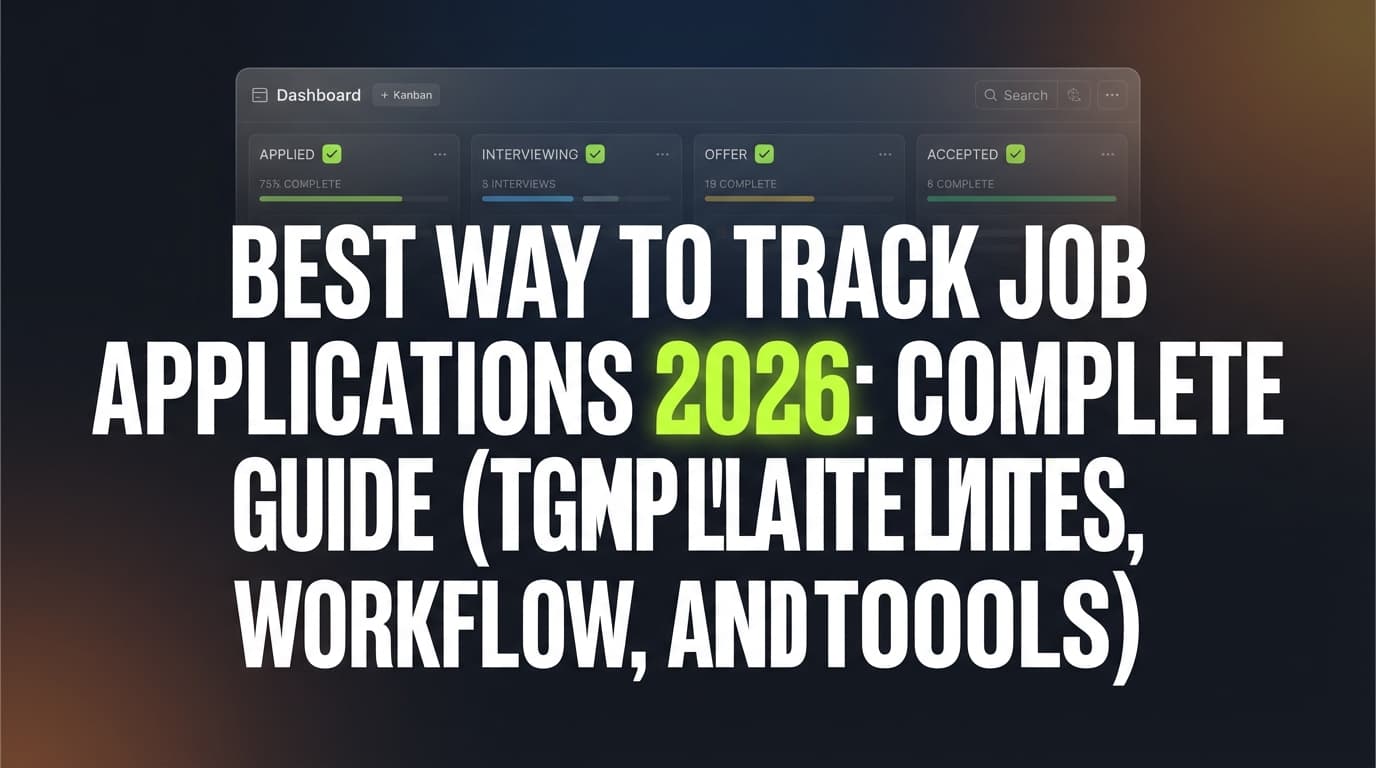
- Kanban visualization (Applied → Interview → Offer)
- Notes and checklists
- Linking files
Downside:
- Can become messy without a disciplined template
LinkedIn (for Easy Apply history)
Best for:
- Re-checking submitted resume (when available)
- Seeing applied jobs list
Downside:
- Limited customization
- Not a complete job search CRM
JobShinobi (job tracker + resume versioning + email-forwarding automation)
JobShinobi is built for job seekers who want less manual tracking and more structure around both applications and resume versions.
What it can accurately help with (based on supported features):
- Track job applications in a dashboard (Applied / Interview / Rejected / Offer / Accepted).
- Export your job applications to an Excel (.xlsx) file.
- Build and edit resumes in LaTeX and compile them to PDF inside the app.
- Maintain resume version history (so you can revert and compare versions).
- If you’re a JobShinobi Pro subscriber, you can forward job-related emails to your unique JobShinobi address and have the system parse them and log/update job applications automatically (Pro-gated feature).
- Pricing is $20/month or $199.99/year.
- The pricing page mentions a “7-day free trial,” but trial mechanics aren’t fully verifiable from public code—so treat that as not guaranteed.
Where it fits into the “which resume did I send?” problem:
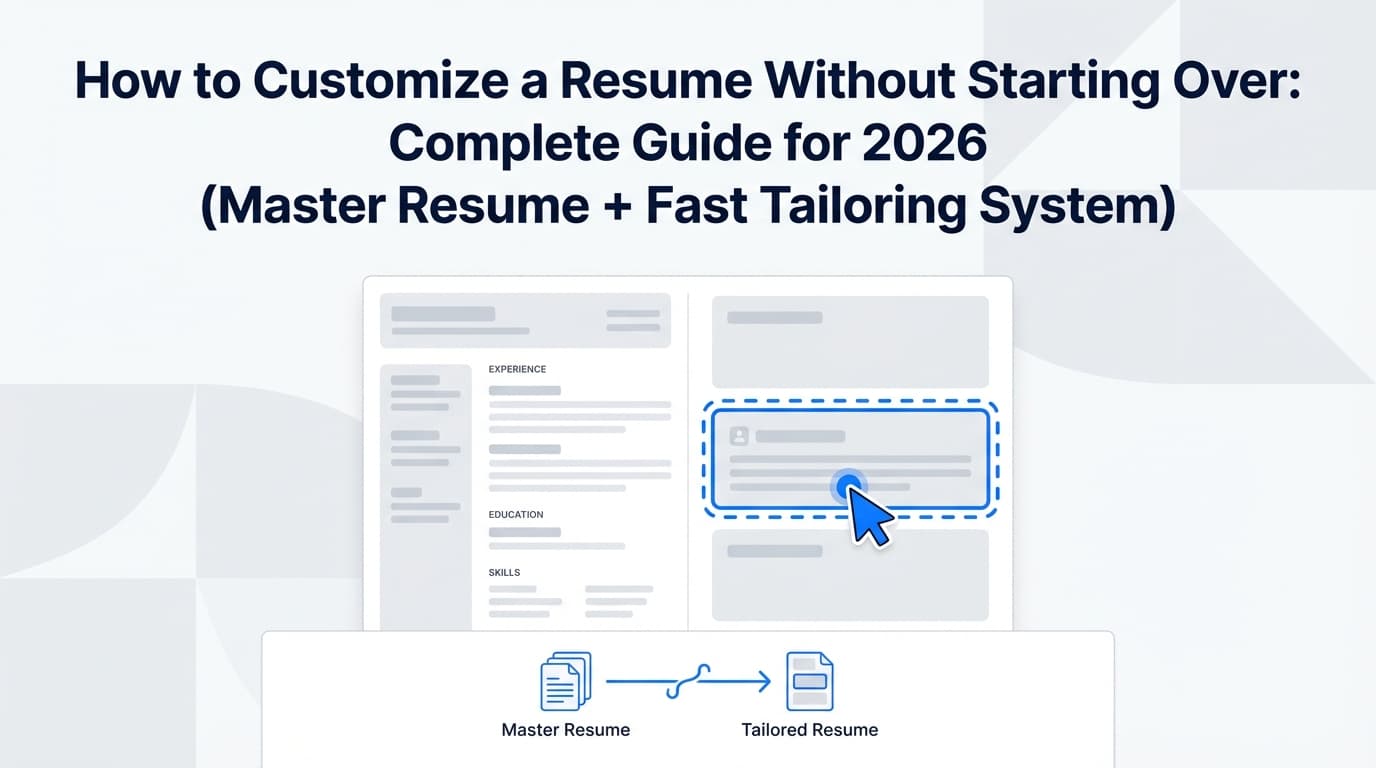
- Use JobShinobi’s resume version history to keep your resume variants organized.
- Use the job tracker to maintain a clean application log.
- Add the resume version ID you used to the application record (e.g., in notes) so you can connect “this application” ↔ “this resume version” without guessing later.
- If you apply via email confirmations, forwarding those emails (Pro) can reduce manual status updates so you can spend your time on the resume-version discipline instead.
(If you prefer a spreadsheet system, that’s totally valid—just don’t skip the version ID field.)
A simple “minimum effort” system (for high-volume applicants)
If you’re applying fast and hate admin work, do this:
- Create a column in your tracker: Resume ID
- When you tailor, export a PDF named: R-###.pdf
- Put it in one folder:
/Resumes/Sent/ - In the tracker, put:
- Resume ID: R-###
- Link to file
- Link to JD PDF
- Weekly: reconcile missing resume IDs
That’s it. This alone eliminates most “which resume did I send?” stress.
Follow-up timing (how tracking helps you act at the right time)
Because follow-up depends on what you applied with, when, and to whom.
Indeed reports:
- 37% hear back within one week
- 44% hear back within a couple of weeks
(MEDIUM confidence; source: Indeed)
https://www.indeed.com/career-advice/finding-a-job/how-long-should-you-wait-to-hear-back-about-a-job
A practical follow-up approach:
- Day 0: Apply (log resume version + JD snapshot)
- Day 5–7 business days: If no response, follow up (especially for smaller companies or referred roles)
- Day 10–14: Second follow-up if role is still open and you have a contact
- After 2–4 weeks: Archive or low-priority unless you have new info
Tracking prevents you from following up with the wrong resume attached (it happens more than people admit).
FAQ (for featured snippets)
How can I see which resume I sent on LinkedIn?
LinkedIn lets you view the resume used for some applications by going to My jobs → Applied jobs → open the application → “Submitted resume” (HIGH confidence; LinkedIn Help).
https://www.linkedin.com/help/billing/answer/a506680
Should I save the job description when I apply?
Yes. Job postings often change or disappear. Saving a PDF/screenshot ensures you can prep for interviews and understand what you tailored your resume to.
What if I accidentally sent the wrong resume?
If you applied through a recruiter email or a small company, you can often reply with a brief correction and attach the correct resume. If it’s a large ATS portal, follow the employer’s process—some portals let you update documents; others don’t. Your best move depends on how far along the process is.
How do I track multiple resume versions without losing my mind?
Use a version ID system (R-001, R-002…) and log that ID in your tracker for every application. Save a “sent copy” PDF for each version so you can always retrieve the exact file.
How long do recruiters spend looking at a resume?
The Ladders’ eye-tracking study found an initial scan around 7.4 seconds (HIGH confidence; source: TheLadders PDF).
https://www.theladders.com/static/images/basicSite/pdfs/TheLadders-EyeTracking-StudyC2.pdf
Key takeaways
- The fastest reliable fix is adding a Resume Version ID column and using it every time.
- Always save a job description snapshot at the moment you apply.
- You can often reconstruct the submitted resume on LinkedIn Easy Apply via “Submitted resume.”
- A weekly 15-minute reconciliation prevents “tracker debt.”
- Tools can help (spreadsheets, Notion, dedicated trackers). If you want automation for email-based job status tracking, JobShinobi Pro supports forwarding job emails to a unique address to log/update applications—while also giving you resume version history for your resume variants.