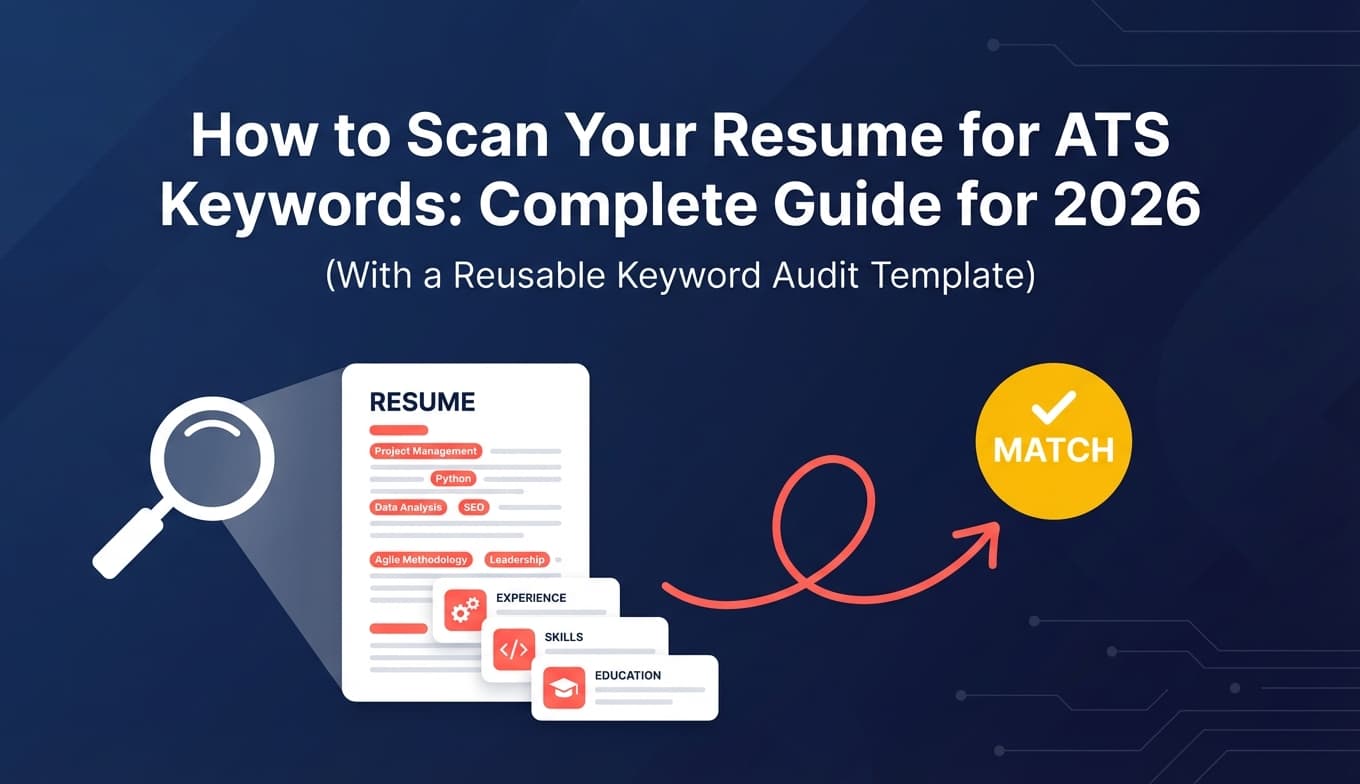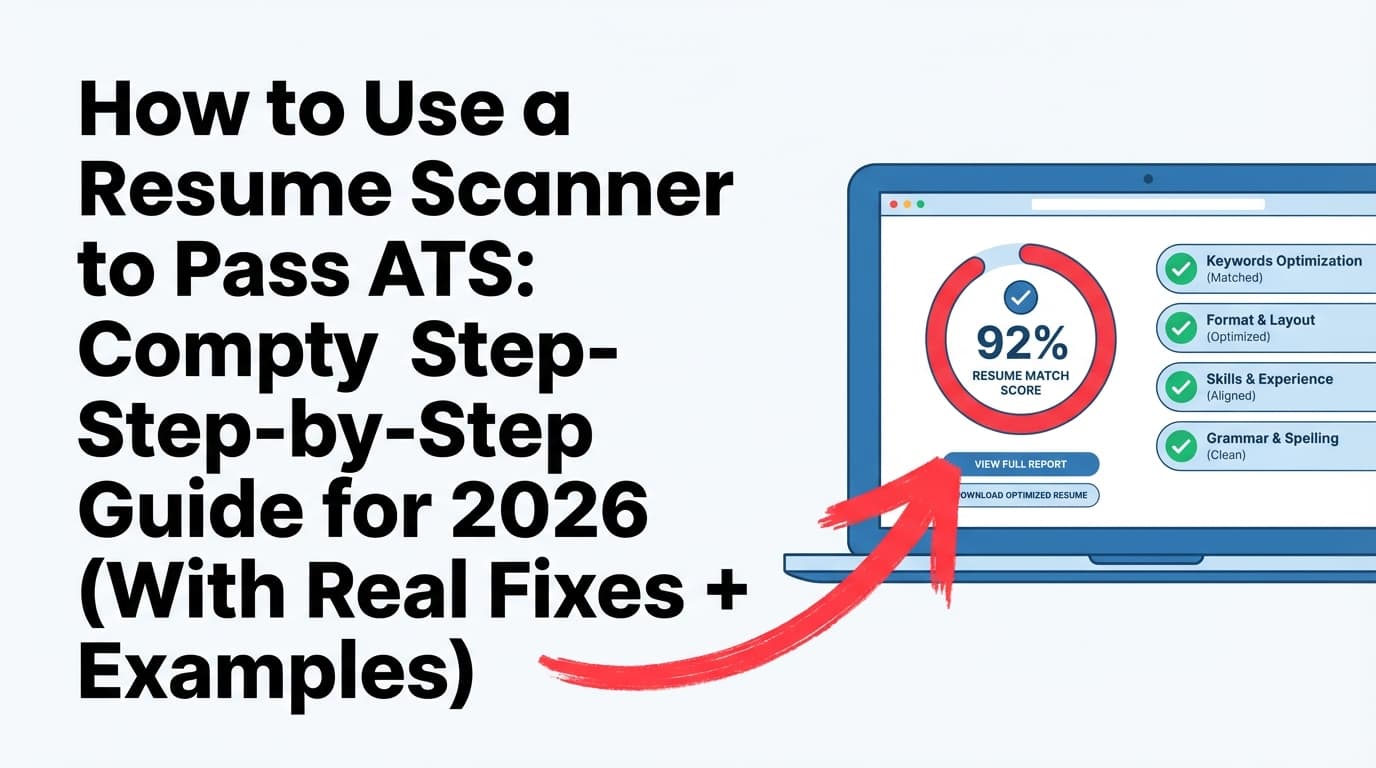
Most job seekers don’t lose opportunities because they’re “unqualified”—they lose because their resume doesn’t match the language recruiters and applicant tracking systems (ATS) search for.
- 98.4% of Fortune 500 companies use an ATS (Tufts University Career Center). Confidence: Medium (credible source; also widely corroborated across the hiring software space). Source: https://careers.tufts.edu/resources/everything-you-need-to-know-about-applicant-tracking-systems-ats/
- Recruiters spend about 7.4 seconds on an initial resume screen in an eye-tracking study (The Ladders, also summarized by HR Dive). Confidence: High (two independent sources pointing to the same study). Sources:
- In CareerPlug’s 2024 analysis, employers received an average of 180 applicants per hire. Confidence: Medium (single primary source, but method published). Source: https://www.careerplug.com/how-to-use-recruiting-metrics-to-hire-better/
If you’re applying at volume and hearing nothing back, learning how to “speak the job description” (without lying or keyword stuffing) is one of the highest-ROI fixes you can make.
In this guide, you’ll learn:
- What resume scanners actually measure (and what they can’t know)
- A repeatable system to extract and prioritize job description keywords
- Exactly where to place keywords so both ATS and humans find them
- A real before/after example (plus a keyword map you can copy)
- The biggest mistakes (including the “white text” trick) that can backfire
What is a resume scanner (and how does it match job description keywords)?
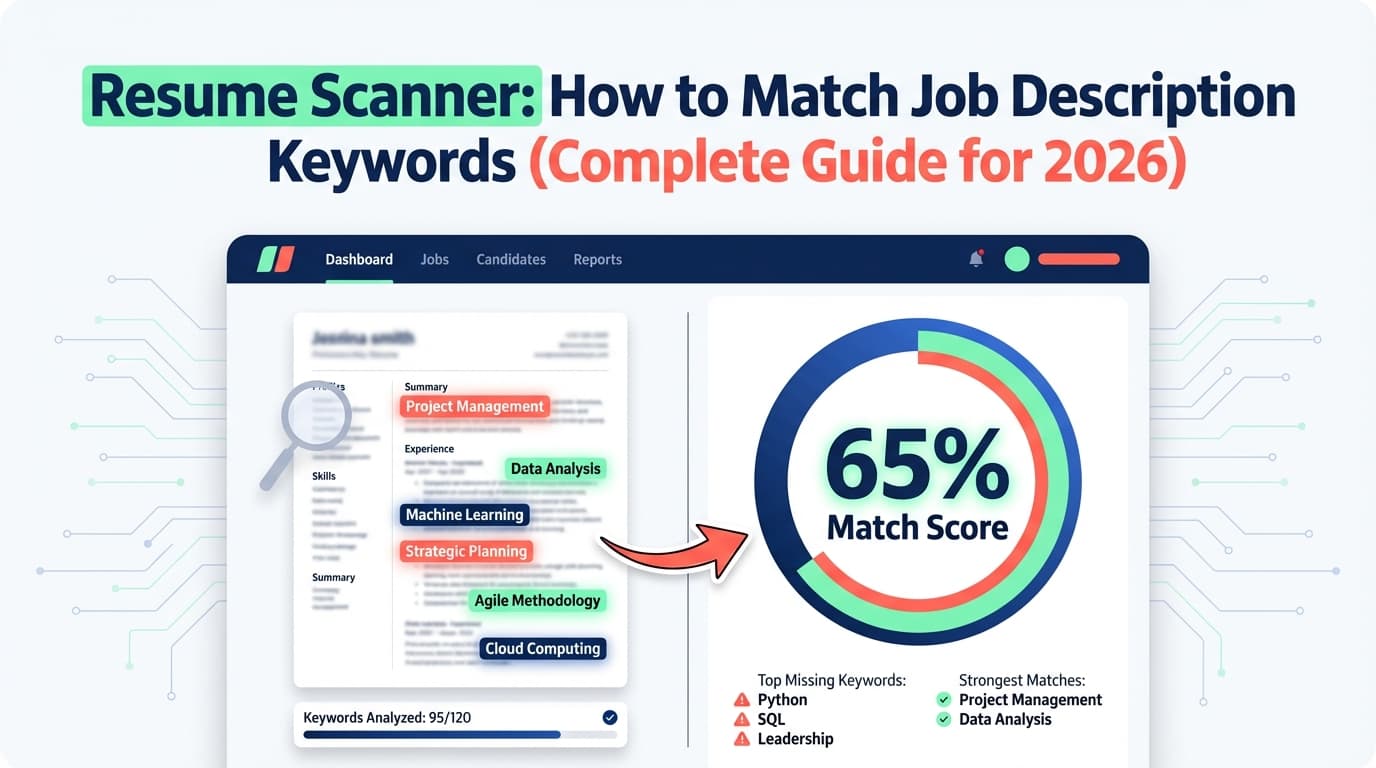
A resume scanner (sometimes called an ATS resume checker, resume keyword scanner, or resume-to-job match tool) compares:
- Your resume text (skills, titles, tools, achievements, certifications)
- A job description (requirements, responsibilities, keywords)
…and outputs some combination of:
- A match score (e.g., 0–100%)
- Missing keywords/skills
- Formatting or parsing warnings
- Suggestions for how to tailor content
What a resume scanner is good at
- Finding exact text matches (e.g., “SQL,” “Tableau,” “stakeholder management”)
- Spotting obvious gaps (job asks for “Python,” resume never mentions it)
- Flagging formatting patterns that often break ATS parsing (tables, columns, headers/footers)
What a resume scanner is not good at
- Knowing whether you can actually do a skill you listed
- Understanding nuance like “I used Snowflake once in 2021” vs. “I build pipelines in Snowflake daily”
- Predicting the outcome in a specific company’s ATS (systems and configurations vary)
Your goal isn’t to “game the bots.” It’s to make your resume searchable, scannable, and credible—fast.
Why keyword matching matters (especially in 2026)
A few trends make keyword matching even more important now:
-
ATS usage is normal at scale. Even Workday’s own explainer notes that more than 98% of Fortune 500 companies use an ATS. Confidence: Medium (vendor marketing content, but consistent with university + industry references). Source: https://www.workday.com/en-us/topics/hr/applicant-tracking-system.html
-
Applicant volume is high. CareerPlug reports 180 applicants per hire on average (2024 dataset). When recruiters face volume, the quickest filter becomes “does this resume match what we need?” Source: https://www.careerplug.com/how-to-use-recruiting-metrics-to-hire-better/
-
Humans skim even faster than software. The Ladders eye-tracking research repeatedly gets cited because it reflects an uncomfortable truth: your first impression window is measured in seconds, not minutes. Sources:
Keyword matching is really about making it effortless for:
- the ATS to parse your resume into the right fields, and
- the recruiter to see “yes, this person fits” immediately.
How to match job description keywords with a resume scanner: Step-by-step
This is the process I recommend if you want scanner results that translate into real interviews—not just a prettier score.
Step 1: Copy the job description into a “clean text” document
Job posts often contain:
- repeated boilerplate (“equal opportunity employer”)
- legal language
- benefits blocks
- unrelated “nice-to-haves” copied from older postings
Do this instead:
- Paste the job description into Google Docs / Notion / a text editor
- Delete anything not related to the job:
- EEO statements, location boilerplate, benefits fluff
- “About our company” paragraphs (unless it includes must-have domain keywords)
Pro tip: Keep the original in a separate tab. You’ll want to double-check you didn’t remove a real requirement.
Step 2: Extract keywords and organize them into a “keyword map”
Instead of hunting random words, build a simple map with 4 buckets:
Bucket A: Role and level keywords (titles + scope)
These are “who you are” keywords:
- “Data Analyst,” “Senior Data Analyst,” “Business Analyst”
- “IC” vs “Lead” vs “Manager”
- “stakeholder” / “cross-functional” / “executive-ready” (scope indicators)
Bucket B: Hard skills / tools / technologies
These are the easiest ATS filters:
- “SQL,” “Python,” “Tableau,” “Power BI,” “Excel,” “Snowflake”
- “Salesforce,” “HubSpot,” “GA4,” “Meta Ads”
- “AWS,” “Docker,” “React,” etc.
Bucket C: Methods and deliverables
These show how you work:
- “A/B testing,” “dashboarding,” “forecasting”
- “ETL,” “data modeling,” “pipeline monitoring”
- “requirements gathering,” “roadmapping,” “user research”
Bucket D: Requirements signals (certifications, domains, compliance)
- “CPA,” “PMP,” “CompTIA Security+”
- “HIPAA,” “SOX,” “GDPR”
- “fintech,” “healthcare,” “B2B SaaS”
A fast manual technique:
Highlight every noun phrase that answers:
- “What do they want me to know?”
- “What do they want me to do?”
- “What will they search for in the ATS?”
Step 3: Prioritize keywords (must-have vs nice-to-have)
Most scanners treat keywords as a flat checklist. Recruiters do not.
Use this prioritization:
- Must-have keywords: explicitly required (e.g., “3+ years SQL,” “Tableau,” “stakeholder management”)
- Weighted keywords: repeated 2–3+ times (usually core to the role)
- Nice-to-have keywords: “bonus if,” “preferred,” “plus”
- Noise keywords: generic fluff (“hardworking,” “team player”)—don’t chase these
Pro tip: If a keyword appears in the first 1/3 of the job description or in a bullet list of requirements, treat it as higher priority than something buried at the bottom.
Step 4: Run a resume scan (but use the output like a checklist, not gospel)
At this point you can use:
- a resume scanner tool (upload/paste resume + job post), or
- a manual scan (Ctrl+F each must-have keyword in your resume)
You’re looking for three categories:
- Missing keyword: not present anywhere
- Weak keyword placement: present once, buried, no proof
- Unsupported keyword: present, but no evidence in experience bullets
Your best wins usually come from category #2 (improving placement + proof), not from jamming brand-new keywords everywhere.
Step 5: Add keywords where they “count” (placement framework)
A lot of people keyword-match only by stuffing the Skills section. That’s incomplete.
Use this placement hierarchy:
1) Professional Summary (high visibility)
Add 3–6 of the highest-priority keywords naturally.
Example (Data Analyst):
Data Analyst with 5+ years using SQL, Tableau, and Excel to build dashboards, automate reporting, and partner with cross-functional stakeholders to drive decisions.
2) Skills section (ATS search-friendly)
Make it easy to parse:
- Put tools on their own (e.g.,
SQL, Python, Tableau, Power BI) - Avoid weird formatting that turns your skills into images or columns
3) Experience bullets (most persuasive)
This is where keywords become believable.
Use the Keyword + Evidence rule:
- Keyword = “SQL”
- Evidence = “Wrote SQL queries to create a daily revenue pipeline; reduced reporting time 40%.”
4) Projects (great for “nice-to-have” skills)
If you’re missing a requirement but have a legitimate project, projects can close the gap faster than rewriting your job history.
Step 6: Convert keywords into achievement bullets (so you don’t sound fake)
Keyword matching fails when you do this:
“SQL, Tableau, dashboards, stakeholders, A/B testing…”
Instead, convert keywords into outcomes using one of these templates:
Template A: Action → Tool → Output → Result
Built a Tableau executive dashboard to track funnel conversion; reduced weekly reporting time by 6 hours.
Template B: Problem → Method → Result
Analyzed churn drivers using cohort analysis and SQL; identified top 3 drivers and improved retention by X%.
Template C: Scope → Stakeholders → Impact
Partnered with Sales and RevOps stakeholders to define KPIs and automate pipeline reporting in Salesforce.
Step 7: Use both acronyms and spelled-out versions (when relevant)
Some systems and recruiters search differently. A safe best practice is:
Structured Query Language (SQL)
This captures both forms.
Sources that recommend spelling out acronyms (then adding the acronym):
- Coursera (ATS guidance). Confidence: Medium (career content, not a study; consistent with widespread best practice). https://www.coursera.org/articles/applicant-tracking-system
- Career advising guidance also repeats this pattern in ATS tips (example: NDSU career advising appears in search results, but Coursera is sufficient for a sourced guideline).
Step 8: Fix ATS formatting issues that break parsing (before you obsess over keywords)
If your resume doesn’t parse cleanly, keyword matching becomes irrelevant because the system may scramble or drop sections.
Common ATS-safe formatting guidance includes:
- Avoid graphics/icons/images
- Avoid tables, text boxes, and complex layouts
- Prefer clear headings like “Experience,” “Skills,” “Education”
MIT Career Advising explicitly recommends avoiding graphics and tables/text boxes for ATS readability. Confidence: High (university career office guidance). Source: https://capd.mit.edu/resources/make-your-resume-ats-friendly/
Also note: some guidance warns that ATS may not properly read info placed in headers/footers—so keep critical info in the main body. Confidence: Medium (multiple career resources say this; exact behavior varies by ATS). Source example: https://topresume.com/career-advice/what-is-an-ats-resume
Step 9: Re-scan and stop chasing 100%
Many tools promote a “match rate” mindset. Jobscan, for example, publicly recommends aiming around 80% match rate (and notes some people succeed at ~75%). Confidence: Medium (vendor guidance; useful as a heuristic, not a guarantee). Source: https://www.jobscan.co/blog/what-jobscan-match-rate-should-i-aim-for/
Important reality:
- 100% matching can push you toward keyword stuffing
- Overfitting to one job description can make your resume less readable
- Recruiters still need clarity, not a thesaurus explosion
A practical goal:
- Match all must-haves
- Cover most repeated terms
- Keep the resume readable to humans in a 7–10 second skim
A simple “keyword map” template you can copy
Paste this into a doc and fill it out:
Job Title Target:
Company:
Link / Source:
Must-have keywords (required)
Weighted keywords (repeated / emphasized)
Nice-to-have keywords
Tools/tech stack
Deliverables / outcomes
- dashboards / reports / pipelines / campaigns / etc.
Proof you’ll add (where it will appear)
- Summary:
- Skills:
- Experience bullet #1:
- Experience bullet #2:
- Project:
This forces you to connect keywords to evidence—exactly what recruiters want.
Worked example: matching job description keywords without keyword stuffing
Example job description excerpt (Data Analyst)
Let’s say the JD includes:
- “3+ years experience with SQL”
- “Build dashboards in Tableau”
- “Partner with cross-functional stakeholders”
- “Experience with A/B testing preferred”
- “Strong Excel skills”
Step 1: Keyword map (prioritized)
Must-have: SQL, Tableau, stakeholder management, Excel
Nice-to-have: A/B testing
Step 2: “Before” resume bullets (generic)
- Responsible for reporting and dashboards
- Worked with teams to provide insights
- Used Excel and SQL for analysis
These are vague and don’t prove anything.
Step 3: “After” resume bullets (keyword + evidence)
- Built and maintained weekly KPI dashboards in Tableau, enabling Sales leadership to track pipeline and conversion in real time
- Wrote SQL queries to automate reporting datasets; reduced manual Excel cleanup and improved report turnaround time by 40%
- Partnered with cross-functional stakeholders (Sales, RevOps, Marketing) to define metrics, document requirements, and align dashboards to decision workflows
- Used Excel (pivot tables, lookups) for ad hoc analysis and QA of dashboard data
- Supported A/B testing analysis by tracking experiment cohorts and summarizing lift metrics (CTR, conversion) for stakeholders
Notice what changed:
- Keywords appear naturally
- Each keyword is attached to a real action
- “A/B testing” is framed as support if it wasn’t your primary job
That’s how you improve scan results and credibility at the same time.
Best practices: how to get better scanner results without harming recruiter readability
-
Mirror the job title (when accurate).
If you were “Business Analyst” but the role is “Data Analyst,” you can reflect the target title in your summary (without changing your official historical title). Example:Business Analyst (Data Analyst focus)…
-
Use standard section headings.
“Work Experience” beats “My Journey” if you care about parsing. -
Front-load your strongest matches.
Put your most relevant bullets and skills in the top third of the resume. Remember the 7.4-second skim window (The Ladders / HR Dive). -
Repeat core keywords 2–3 times across sections (naturally).
Once in Skills, once in a bullet, maybe once in a project—done. -
Prefer multi-word keyword phrases when the JD uses them.
Example: “stakeholder management,” “requirements gathering,” “cross-functional collaboration”
These phrases often carry more meaning than single words. -
Use a “proof line” for every critical skill.
If “SQL” is required, at least one bullet should clearly demonstrate SQL work. -
Keep a master resume, then tailor a copy.
Tailoring shouldn’t mean reinventing your entire history. It should mean selecting the most relevant parts and describing them in the JD’s language.
Common mistakes to avoid (they can backfire—even if your score goes up)
Mistake 1: Keyword stuffing (especially the “hidden text” / white font trick)
The “paste the job description in white text” hack shows up on Reddit and TikTok constantly—and it can look deceptive.
Multiple sources warn against it, including industry articles discussing hidden prompts/hidden text behavior. Confidence: Medium (varies by ATS; consistently viewed as dishonest by humans). Example source: https://www.ihire.com/resourcecenter/jobseeker/pages/ask-a-resume-writer-does-white-fonting-work-on-resumes
A good rule:
- If you wouldn’t say it out loud in an interview, don’t put it in your resume.
Mistake 2: Adding keywords you can’t defend
Scanners can’t verify truth. Recruiters can.
If you add “Kubernetes” because the JD says it, but you can’t explain what a deployment is, you’re setting yourself up for a fast reject later.
Mistake 3: Keeping keywords only in the Skills section
Recruiters trust experience bullets more than keyword lists.
Use skills for scan-ability, but prove skills in bullets.
Mistake 4: Using formatting that breaks parsing (tables, text boxes, icons)
If your skills are in a sidebar or table, an ATS may jumble them.
University career guidance (MIT) explicitly calls out avoiding tables/text boxes/graphics for ATS-friendliness: https://capd.mit.edu/resources/make-your-resume-ats-friendly/
Mistake 5: Chasing a perfect match score instead of the actual job requirements
Some match tools suggest aiming for high scores (often ~80% as a heuristic), but a score isn’t a guarantee.
Better goal:
- Every required keyword is present and supported
- Your resume reads clearly to a human
Tools that can help you match job description keywords
There’s no single “best” resume scanner—tools vary by workflow, accuracy, and how much they push upsells. Here are options, with honest positioning.
JobShinobi (product mention—accurate)
If you want an integrated workflow (build → scan/analyze → tailor), JobShinobi supports:
- Building resumes using LaTeX templates with in-app PDF compilation and preview
- AI resume analysis (scores + detailed feedback)
- Matching your resume to a job description (paste a job URL or job text, then get match insights and keyword gaps)
Pricing: JobShinobi Pro is $20/month or $199.99/year. (The site’s marketing mentions a “7-day free trial,” but trial mechanics aren’t fully verifiable from code—treat as unconfirmed.)
Internal links: /login, /subscription
Other common resume scanner / keyword match tools
- ResyMatch (Cultivated Culture): widely used resume-vs-JD scanner workflow (their page is very comprehensive and long-form, including FAQs). https://cultivatedculture.com/resume-scanner/
- Resume Worded – Targeted Resume: popular “compare resume to job posting” tool. https://resumeworded.com/targeted-resume
- SkillSyncer: resume scanner + matching positioning. https://skillsyncer.com/
- Jobalytics (Chrome extension): job description keyword analysis workflows via browser extension listing. https://chromewebstore.google.com/detail/jobalytics-resume-keyword/fkiljfkkceaopbpfgfmjdnkiejaifkgd?hl=en
How to choose a tool:
- If you need keyword gap lists quickly: use a scanner that highlights missing terms
- If you need end-to-end editing: use a builder + matching workflow so you can implement changes fast
- If you’re skeptical of scores (healthy!): use the tool as a checklist, then rewrite for humans
FAQ (People Also Ask-style)
How to match keywords in a resume?
- Extract keywords from the job description (tools, skills, deliverables).
- Prioritize must-haves and repeated terms.
- Add them in Summary + Skills + Experience bullets (not just Skills).
- Prove each major keyword with a specific achievement.
- Re-scan and refine without keyword stuffing.
What keywords do resume scanners look for?
Most scanners look for:
- Exact matches for hard skills and tools (SQL, Excel, Python, Tableau)
- Job titles and seniority terms (Senior, Lead, Manager)
- Certifications (PMP, CPA)
- Domain keywords (healthcare, fintech) They may also flag missing section headings or formatting issues that break ATS parsing.
How do you scan a job description for keywords?
Use a two-pass method:
- Pass 1: highlight tools, certifications, and must-have requirements
- Pass 2: highlight repeated phrases and deliverables (dashboards, forecasting, stakeholder management)
Then group them into “must-have,” “weighted,” and “nice-to-have.”
What is a good resume match score?
As a general heuristic, some tools recommend around 80% match (Jobscan publishes guidance around that range). Confidence: Medium (tool-specific; not universal). Source: https://www.jobscan.co/blog/what-jobscan-match-rate-should-i-aim-for/
In practice, focus on: “Do I match every required qualification, and is the proof clear?”
Is keyword stuffing bad for ATS?
Yes—especially if it harms readability or looks deceptive (e.g., hidden/white text). Even if a scanner score rises, humans may reject it quickly if it looks manipulated. Example source discussing white fonting concerns: https://www.ihire.com/resourcecenter/jobseeker/pages/ask-a-resume-writer-does-white-fonting-work-on-resumes
Should I submit PDF or Word to ATS?
It depends on the employer system and how the resume is generated. The safest approach is:
- Follow the application instructions
- Test your resume by uploading it and reviewing the “parsed” preview when available
- Use simple formatting (no tables/text boxes) regardless of file type
Key takeaways
- Resume scanners are best used as a gap checklist, not as the final authority.
- The winning formula is keywords + evidence, not keywords alone.
- Put important keywords in Summary, Skills, and Experience, and prove them with outcomes.
- Fix formatting first (tables/text boxes/graphics can break parsing), then optimize keywords.
- Don’t chase 100% match—chase must-have alignment + recruiter clarity.
If you want, share:
- your target role, and
- a pasted job description excerpt (requirements section),
…and I’ll generate a prioritized keyword map (must-have vs nice-to-have) plus 3–5 example bullets that include the keywords without sounding stuffed.