If you’re using Jobscan’s resume scanner with a Microsoft Word resume (.docx), your biggest win usually isn’t “adding more keywords.”
It’s making sure your resume parses cleanly and communicates value fast—because recruiters skim quickly. A widely cited eye-tracking study (covered by HR Dive) found recruiters spend about 7.4 seconds on average during an initial resume review. (Source: HR Dive summary — https://www.hrdive.com/news/eye-tracking-study-shows-recruiters-look-at-resumes-for-7-seconds/541582/; original Ladders PDF hosted by BU — https://www.bu.edu/com/files/2018/10/TheLadders-EyeTracking-StudyC2.pdf. Confidence: High—two direct sources.)
That’s why Word formatting choices that seem harmless—tables, columns, headers/footers, text boxes—can quietly tank your results. Jobscan may flag them as parsing issues, and some ATS platforms can scramble them too.
In this guide, you’ll learn:
- How to use Jobscan resume scanner for Microsoft Word resumes (step-by-step workflow)
- The Word formatting choices most likely to cause ATS parsing issues
- How to interpret Jobscan Match Rate without keyword-stuffing your resume
- A troubleshooting playbook for upload failures and weird scan results
- Tools and workflows to tailor faster (including an optional JobShinobi workflow for AI analysis + job matching + application tracking)
What is Jobscan’s resume scanner (in plain English)?
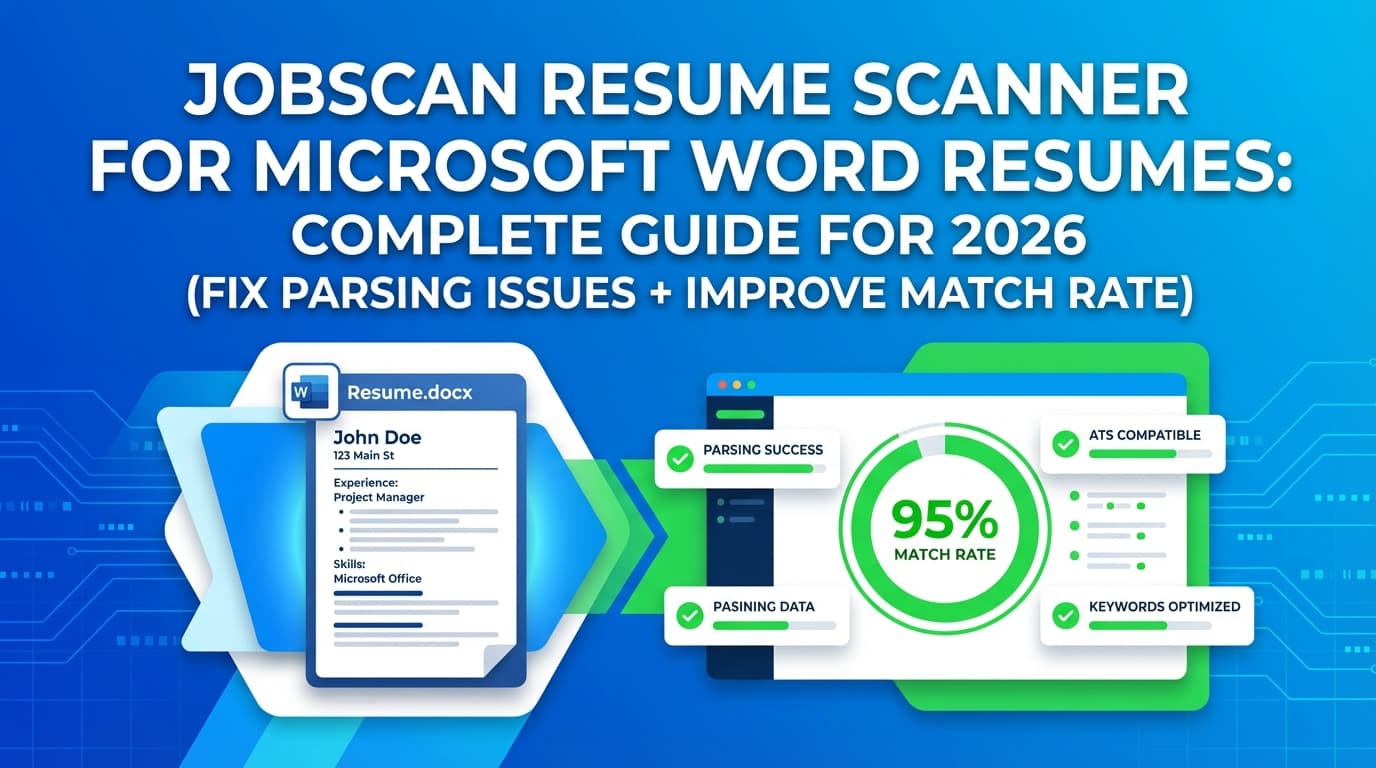
Jobscan’s resume scanner is a resume-to-job-description comparison tool. You upload (or paste) your resume, paste a job description (or job link), and Jobscan generates a report that typically includes:
- A match score / match rate
- Keyword matches and gaps
- Formatting / “ATS-friendly” checks
- Best-practice suggestions
When people search “jobscan resume scanner for microsoft word resumes,” they’re usually trying to do one of these:
- Upload a .docx Word resume and get a reliable scan
- Fix a scan that’s clearly wrong (missing sections, scrambled dates, missing contact info)
- Improve match rate without ruining readability
This guide is built around those real-world problems.
Why this matters in 2026 (ATS adoption is high, and parsing still fails)
A few stats explain why job seekers spend time on ATS formatting and scanners:
-
98.4% of Fortune 500 companies use an ATS (reported by Tufts University’s career center).
(Source: https://careers.tufts.edu/resources/everything-you-need-to-know-about-applicant-tracking-systems-ats/ — Confidence: High) -
75% of recruiters use an ATS or other tech-driven recruiting tool, according to SelectSoftware Reviews’ ATS statistics roundup.
(Source: https://www.selectsoftwarereviews.com/blog/applicant-tracking-system-statistics — Confidence: Medium; SSR aggregates multiple studies, but it’s still a widely referenced summary.) -
94% of recruiters say ATS improved their hiring process, also reported in that SSR roundup.
(Source: https://www.selectsoftwarereviews.com/blog/applicant-tracking-system-statistics — Confidence: Medium.) -
A 2024 ATS stats roundup from HiringThing repeats several commonly cited adoption numbers (e.g., 70% of large companies and 35% of SMBs using ATS).
(Source: https://blog.hiringthing.com/2024-applicant-tracking-system-stats — Confidence: Medium; secondary summary.) -
Recruiters skim quickly: ~7.4 seconds average in the Ladders eye-tracking research, as summarized by HR Dive and available via BU PDF hosting.
(Sources above — Confidence: High.)
What this means for a Word resume: You’re optimizing for two readers:
- The ATS parser (structure + text extraction)
- The human reviewer (clarity + proof + prioritization)
Jobscan can help you sanity-check both—but only if your Word doc is built in a way that scanners can reliably read.
How to use Jobscan resume scanner with Microsoft Word (.docx) resumes (step-by-step)
Step 1: Create a “scan-ready” Word resume (2–5 minutes)
Before uploading your resume to Jobscan, do these quick checks in Microsoft Word:
A) Save as a clean .docx
- Go to File → Save As → Word Document (.docx)
- Avoid odd exports (Google Docs → Word can introduce hidden formatting)
B) Turn off Track Changes and remove comments
- Review → Track Changes (Off)
- Review → Accept → Accept All Changes
- Delete comments if any remain
C) Remove parsing landmines These are the most common causes of “Jobscan says it can’t read my resume correctly”:
- Tables (including “invisible” tables used for alignment)
- Two-column layouts
- Text boxes / shapes
- Icons (especially icon fonts)
- Important info inside the header/footer
Multiple career resources explicitly warn against putting critical info in headers/footers because ATS may not read them.
(Source example: Santa Clara University career toolkit — https://www.scu.edu/careercenter/toolkit/job-scan-common-ats-resume-formatting-mistakes/ — Confidence: Medium, but aligns with common ATS guidance.)
D) Run a plain-text sanity check This isn’t perfect, but it’s fast:
- Copy your entire resume (Ctrl+A, Ctrl+C)
- Paste into a plain-text editor (Notepad on Windows; TextEdit in plain text mode on Mac)
If your content becomes scrambled (dates jump around, skills vanish, sections reorder), an ATS parser may struggle too—and Jobscan may flag it.
Step 2: Choose the right job description input (most “bad match rate” scans start here)
A Jobscan scan is only as good as the job description you provide.
Do this:
- Paste the full job description, including requirements/qualifications
- Keep a copy of the exact job description you used (so you can compare scans fairly)
Avoid this:
- Scanning against a short LinkedIn preview with missing sections
- Scanning against an old version of the job post
- Mixing two roles (e.g., “Data Analyst” JD for a “Product Analyst” resume)
Step 3: Upload the Word resume to Jobscan (and what to do if upload fails)
Jobscan typically allows you to:
- Upload a file (like .docx)
- Or paste resume text
If your upload fails, Jobscan’s support docs list common reasons such as unsupported formats, scan limits, or file issues.
(Sources:
- https://support.jobscan.co/hc/en-us/articles/41334611347091-Why-can-t-I-upload-my-resume-to-scan
- https://support.jobscan.co/hc/en-us/articles/41334642533523-Why-can-t-I-perform-a-resume-scan
Confidence: High—official support pages.)
Quick diagnostic tip: If upload fails, try paste mode. If paste mode works, your Word file likely has structural or corruption issues (not just “bad keywords”).
Step 4: Read the scan report in the right order (format → keywords → proof)
To get better outcomes faster, follow this order:
- Fix parsing/formatting warnings first
- Address must-have keyword gaps (role-specific hard skills, requirements)
- Strengthen proof and impact (metrics, scope, outcomes)
A clean resume that proves results will beat a keyword-stuffed resume with a higher score but weaker content.
Step 5: Iterate with a controlled method (so you don’t burn hours)
Use this repeatable loop:
- Change one section (e.g., Skills, Summary, or a specific job’s bullets)
- Re-scan
- Confirm:
- Keyword gaps improved
- Formatting didn’t regress
- Resume still reads naturally to a human skimmer in ~10 seconds
What Jobscan Match Rate should you aim for?
Jobscan has published guidance on match rate targets. In their own article, they state they generally recommend 80%, and note many users see success with 75% as well.
(Source: https://www.jobscan.co/blog/what-jobscan-match-rate-should-i-aim-for/ — Confidence: Medium; direct from Jobscan, but “success” can vary widely by role and market.)
The mistake: treating Match Rate like a video game score
If you chase 90–100% by copying phrases everywhere, you can:
- Make the resume repetitive and unnatural
- Reduce clarity (and hurt human review)
- Inflate soft skills without proof
A better framework: “Must-have coverage” + “proof density”
Aim for:
- The job’s required skills and tools to appear naturally
- Each major requirement to be backed by a bullet that proves you’ve done it
Practical target: Use 75–80% as a signal you’re not missing key requirements—then focus on impact and clarity.
Microsoft Word parsing problems Jobscan often exposes (and how to fix each one)
Problem 1: Two columns (or a “fake two-column” table) scrambles your resume
Symptom: Jobscan (or your plain-text test) shows dates out of order, employers merged, or skills separated from headings.
Why it happens: Many parsers read left-to-right, top-to-bottom. Columns and tables can break extraction order.
Fix (best): Convert to single column.
- Put skills into a single Skills section
- Put tools/tech into bullets or a single line under each role
Fix (fast rebuild):
- Copy table content
- Paste as Keep Text Only
- Rebuild spacing using:
- Paragraph spacing (not tab spam)
- Indents
- Consistent heading styles
Problem 2: Contact info in header/footer disappears
Symptom: Your name, phone, email, or LinkedIn doesn’t show in parsed output.
Fix: Put contact info in the main document body, top of page 1 (not in header/footer).
Career resources explicitly warn against headers/footers for critical info.
(Source example: SCU toolkit — https://www.scu.edu/careercenter/toolkit/job-scan-common-ats-resume-formatting-mistakes/ — Confidence: Medium.)
Problem 3: Text boxes, shapes, icons (common in “designer” Word templates)
Symptom: Entire sections (skills, summary) vanish in a scan.
Fix: Replace text boxes with normal paragraphs and headings.
A university ATS checklist explicitly recommends a single column format with no tables/multiple columns/text boxes.
(Source: UIC career services PDF — https://careerservices.uic.edu/wp-content/uploads/sites/26/2017/08/Ensure-Your-Resume-Is-Read-ATS.pdf — Confidence: Medium; it’s institutional guidance and aligns with common ATS advice.)
Problem 4: Bullets turn into weird symbols or get flattened
Symptom: Bullets become squares/boxes, or all bullets run together.
Fix:
- Use standard bullet formatting in Word
- Use common fonts (Calibri, Arial, Times New Roman)
- Avoid icon fonts and copied symbols from the web
Problem 5: Jobscan says you’re “missing keywords” you definitely included
Common reasons:
- The keyword is inside a header/footer or text box
- The keyword is split across formatting elements
- Acronym vs full term mismatch
Fix: Use the “both forms once” method:
- “Applicant Tracking System (ATS)”
- “Customer Relationship Management (CRM)”
- “Search Engine Optimization (SEO)”
This helps match both acronym-heavy and full-term job descriptions.
Upload errors: “Why can’t I upload my .docx resume to Jobscan?”
Jobscan’s support pages mention causes like unsupported formats, scan limits, or file problems.
(Sources:
- https://support.jobscan.co/hc/en-us/articles/41334611347091-Why-can-t-I-upload-my-resume-to-scan
- https://support.jobscan.co/hc/en-us/articles/41334642533523-Why-can-t-I-perform-a-resume-scan
Confidence: High.)
A real troubleshooting checklist (do this in order)
- Save a fresh copy
- Open the resume
- File → Save As a new filename
- Upload the new file
- Copy into a brand-new document
- Open a blank Word doc
- Paste using Keep Text Only
- Re-apply headings and bullets
- Save as .docx and upload
-
Try Word’s “Open and Repair” (if you suspect corruption) Microsoft documents an “Open and Repair” method for corrupted files.
(Source: Microsoft Support — https://support.microsoft.com/en-us/office/open-a-document-after-a-file-corruption-error-47df9d48-2165-4411-a699-1786ac734bc3 — Confidence: High.) -
Remove heavy formatting
- Remove images, shapes, icons
- Avoid columns/tables/text boxes
- Paste mode as a fallback If paste mode works but upload doesn’t, your content is probably fine—your file structure isn’t.
DOCX vs PDF for ATS: which should you use?
There isn’t a single universal answer because ATS behavior varies by system and by how the employer configured it.
Use the employer’s instructions first. If they request .docx, send .docx.
A practical “two-file strategy” that reduces risk
Keep two versions ready:
- ATS-safe DOCX (single column, no tables/text boxes, contact info in body)
- Clean PDF exported from that DOCX (to preserve formatting for human readers)
Then submit the format the application portal asks for.
A Word resume structure that usually scans well (template you can copy)
Here’s a clean, ATS-friendly structure you can recreate in Word without tables or columns:
Header (in the document body)
Full Name
City, ST • Phone • Email • LinkedIn • Portfolio (optional)
Summary (2–3 lines)
Role + niche + proof snapshot
Example:
Data Analyst with 5+ years building KPI dashboards and automating reporting in SQL/Tableau. Reduced weekly reporting time by 40% and improved forecast accuracy by 15% through data quality initiatives.
Skills (grouped, not stuffed)
- Analytics: SQL, Excel, Tableau, Power BI
- Data: dbt, Snowflake, ETL, data modeling
- Methods: A/B testing, cohort analysis, KPI design
Experience (reverse chronological, consistent date format)
Job Title — Company | City, ST | MM/YYYY–MM/YYYY
- Action + scope + metric
- Action + tool + metric
- Action + stakeholder + outcome
Education + Certifications
Keep formatting plain and predictable.
How to improve Jobscan results without keyword stuffing (with examples)
1) Mirror the job’s “must-have” language—once—then prove it
If the JD says “stakeholder management,” include that exact phrase once in a relevant bullet—then show what you did.
Before (generic):
- Worked with teams to deliver reports.
After (keyword + proof):
- Led stakeholder management across Product and Sales to define KPI requirements; built Tableau dashboards used by 30+ weekly users.
2) Upgrade “responsibility bullets” into “outcome bullets”
Scanners reward relevance, but humans reward results.
Before:
- Responsible for weekly reporting.
After:
- Automated weekly reporting in SQL, cutting turnaround time from 2 days to 4 hours and reducing manual errors.
3) Place keywords where they matter most
If a keyword is a core requirement, it should appear in:
- Skills (as a quick scan)
- At least one Experience bullet (as proof)
Common mistakes to avoid (especially for Microsoft Word resumes)
Mistake 1: Using a “beautiful” two-column Word template
It may look great—and still parse poorly.
Fix: Single column + consistent headings + spacing via paragraph settings (not tables).
Mistake 2: Putting contact details in the header/footer
Some systems may ignore it.
Fix: Put contact info in the document body at the top.
Mistake 3: Copy/pasting the entire job description (including white-text “hacks”)
This can backfire. It reduces credibility and can trigger application-review skepticism.
Fix: Use the JD as a map, not a script. Include terms naturally and prove them.
Mistake 4: Changing everything at once, then re-scanning
You won’t know what actually helped.
Fix: Change one section → scan → validate.
Tools to help (including an optional JobShinobi workflow)
Jobscan
Good for resume-to-job-description scanning, keyword gaps, and a match score workflow.
-
Official help docs for upload/scan issues:
https://support.jobscan.co/hc/en-us/articles/41334611347091-Why-can-t-I-upload-my-resume-to-scan
https://support.jobscan.co/hc/en-us/articles/41334642533523-Why-can-t-I-perform-a-resume-scan -
Match rate target guidance:
https://www.jobscan.co/blog/what-jobscan-match-rate-should-i-aim-for/
Microsoft Word “Open and Repair” (for corrupted docx)
If your Word resume won’t upload anywhere, repair steps can help.
(Source: https://support.microsoft.com/en-us/office/open-a-document-after-a-file-corruption-error-47df9d48-2165-4411-a699-1786ac734bc3)
JobShinobi (when your problem is bigger than “scan my Word resume”)
If you’re applying at volume and struggling to keep versions organized, JobShinobi can fit as a parallel workflow:
- AI resume analysis (ATS-focused scoring + structured feedback)
- Job description extraction + resume matching (paste job text or a job URL and get match feedback)
- Resume version history (iterate without losing previous drafts)
- Job application tracking (with Excel export)
- Email-forwarding job tracking (forward job-related emails to a unique address; requires JobShinobi Pro)
Important accuracy notes (so you don’t choose the wrong tool):
- JobShinobi is not a Microsoft Word editor. It’s a LaTeX resume editor that compiles to PDF inside the app.
- Pricing: JobShinobi Pro is $20/month or $199.99/year.
- Marketing mentions a 7-day free trial, but trial mechanics are not clearly verifiable in enforcement logic—treat it as “mentioned,” not guaranteed.
If you want to explore JobShinobi’s resume workflow, start here: /dashboard/resume
If you want to see the tracker workflow: /dashboard/job-tracker
If you’re evaluating Pro: /subscription
Key takeaways
- For Word resumes, parsing issues (tables/columns/text boxes/headers) are often the real reason Jobscan scans look “wrong.”
- Fix formatting first, then keywords, then impact.
- Jobscan’s own guidance suggests aiming around 75–80% match rate, but readability and proof matter more than chasing 100%.
- Keep two versions ready: ATS-safe DOCX + clean PDF.
- If you need version control + AI analysis + job matching + job tracking, consider a system workflow (e.g., JobShinobi)—but note it’s LaTeX-to-PDF, not Word.
FAQ (People Also Ask)
Is Jobscan good for Microsoft Word resumes?
It can be, as long as your Word resume is built in a way that parses reliably (single column, no tables/text boxes, contact info in the document body). If Jobscan can’t read the file correctly, fix formatting first before trusting keyword feedback.
Is Jobscan resume scanner free?
Jobscan promotes a “free resume scan” experience, but scan limits and what’s included can vary by plan over time. Check Jobscan’s current pricing/limits in-app before relying on it as a full workflow.
What is a good Jobscan Match Rate?
Jobscan’s published guidance generally recommends 80%, and notes many users see success at 75% as well.
(Source: https://www.jobscan.co/blog/what-jobscan-match-rate-should-i-aim-for/)
Does Microsoft Word have an ATS resume template?
Word has resume templates, but “ATS-friendly” depends on how the template is built. Templates that use columns, tables, icons, or text boxes can increase parsing risk. A simple single-column format is typically safer.
Why can’t I upload my Word resume to Jobscan?
Jobscan support pages point to issues like unsupported formats, scan limits, and file problems/corruption.
(Sources: https://support.jobscan.co/hc/en-us/articles/41334611347091-Why-can-t-I-upload-my-resume-to-scan and https://support.jobscan.co/hc/en-us/articles/41334642533523-Why-can-t-I-perform-a-resume-scan)
How do I fix a corrupted .docx resume that won’t upload?
Try Microsoft Word’s Open and Repair workflow and/or copy the content into a brand-new document and re-save as .docx.
(Source: https://support.microsoft.com/en-us/office/open-a-document-after-a-file-corruption-error-47df9d48-2165-4411-a699-1786ac734bc3)
Do ATS systems read headers and footers?
Many career resources recommend not placing critical information in headers/footers because some systems may not read them reliably.
(Source example: https://www.scu.edu/careercenter/toolkit/job-scan-common-ats-resume-formatting-mistakes/)
How common are ATS systems, really?
High—especially among large employers. For example, Tufts University’s career center reports 98.4% of Fortune 500 companies use an ATS.
(Source: https://careers.tufts.edu/resources/everything-you-need-to-know-about-applicant-tracking-systems-ats/)
How long do recruiters spend looking at a resume?
A widely cited eye-tracking study reports an average of about 7.4 seconds during initial review, summarized by HR Dive and available via a BU-hosted PDF of the study.
(Sources: https://www.hrdive.com/news/eye-tracking-study-shows-recruiters-look-at-resumes-for-7-seconds/ and https://www.bu.edu/com/files/2018/10/TheLadders-EyeTracking-StudyC2.pdf)