Recruiters skim fast. The Ladders’ eye-tracking research found recruiters spent about 7.4 seconds on an initial resume screen. (Source: The Ladders Eye-Tracking Study PDF; see also HR Dive’s write-up.) Confidence: High (multiple independent sources report the same figure).
- https://www.theladders.com/static/images/basicSite/pdfs/TheLadders-EyeTracking-StudyC2.pdf
- https://www.hrdive.com/news/eye-tracking-study-shows-recruiters-look-at-resumes-for-7-seconds/541582/
That’s why Word formatting problems are so painful: you can have strong experience, but if your DOCX parses weirdly (jumbled order, missing dates, broken bullets), your application can get “lost” before a human ever sees your best work.
In this guide, you’ll learn:
- What a “resume scanner for Word formatting problems” actually checks (and what it can’t)
- The most common Word-specific ATS parsing breakpoints (columns, text boxes, headers/footers, symbols, and more)
- A step-by-step Word cleanup process + a “plain-text test” you can do in minutes
- Tools to validate your fixes (without obsessing over a single “ATS score”)
What is a “resume scanner for Word formatting problems”?
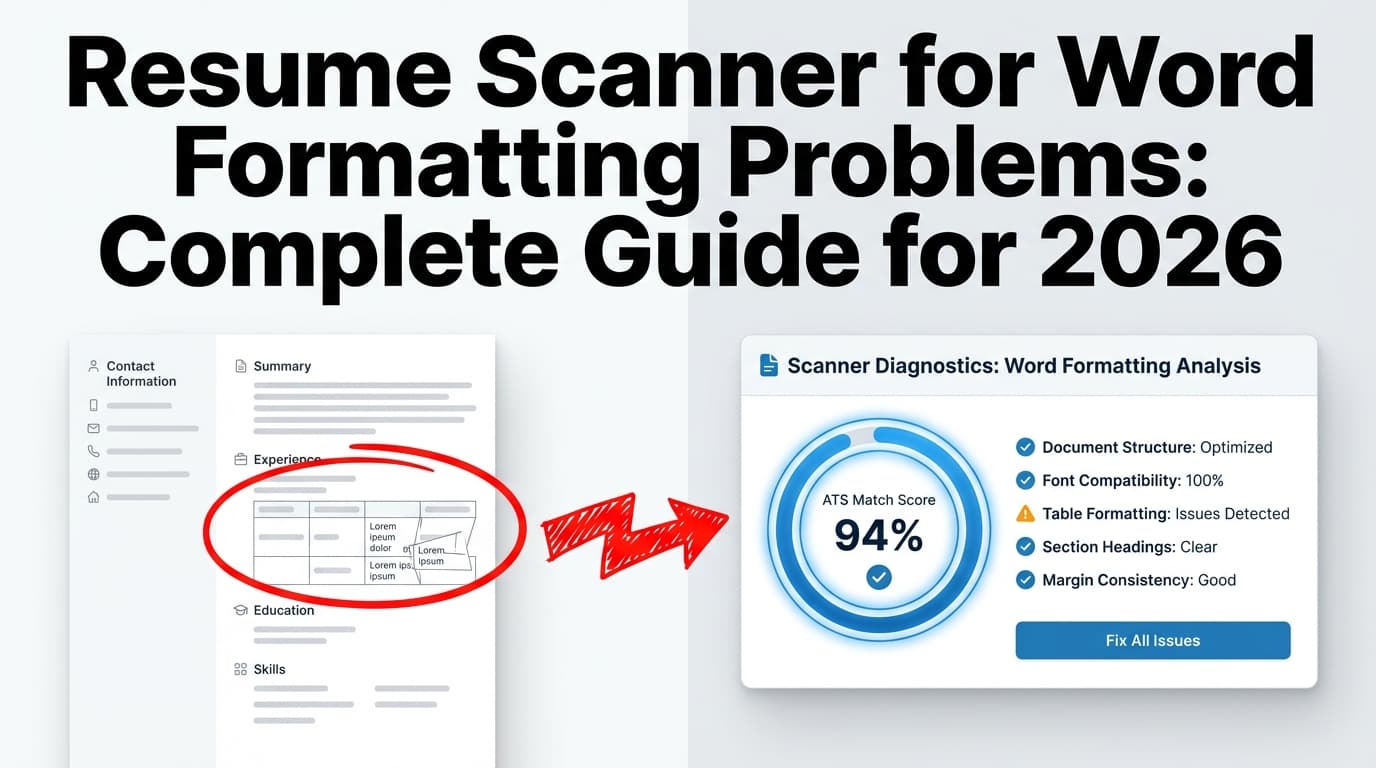
A resume scanner for Word formatting problems is any tool or test that helps you spot issues in a Microsoft Word resume (usually .docx) that can cause:
- ATS parsing errors (e.g., your experience dates land under the wrong company), and/or
- Broken application autofill (e.g., your Work History field fills with your Skills section), and/or
- Unreadable text extraction (e.g., bullets turn into black squares or random characters)
Some scanners are web tools that “grade” your resume. Others are simpler but surprisingly effective manual checks, like converting to plain text and verifying reading order.
What a scanner can usually detect
- Two-column layouts that read left-to-right in plain text
- Tables used for layout (skills grids, two-column headers)
- Text boxes / shapes (common in many Word templates and Canva-style layouts)
- Headers/footers holding key info (name, phone, email)
- Non-standard characters (icons, fancy bullets, unusual symbols)
- Inconsistent date formats (which can confuse parsers)
What it can’t guarantee
- That your resume will “pass every ATS” (ATS products and configurations vary)
- That a high “match score” = interviews
- That formatting alone will get you rejected automatically
(Many recruiting teams don’t auto-reject based on format—but bad parsing can still reduce your chances because your profile becomes hard to search and review.)
Why Word formatting problems matter in 2026
ATS usage is widespread
-
MIT Career Advising states that about 99% of Fortune 500 companies use some form of ATS. Confidence: Medium (credible institution; “about” indicates rounding and may vary by year).
https://capd.mit.edu/resources/make-your-resume-ats-friendly/ -
Jobscan has reported very high ATS adoption among the Fortune 500 (e.g., 97.8% detected in a 2025 report). Confidence: Medium (strong claim from a relevant vendor; best treated as “according to Jobscan”).
https://www.jobscan.co/blog/fortune-500-use-applicant-tracking-systems/
Parsing failures are common enough that ATS vendors document them
Greenhouse (a widely used ATS) explicitly lists resume formatting issues as a cause of unsuccessful parsing—and notes it can’t parse resumes larger than 2.5MB. Confidence: High (official vendor documentation).
https://support.greenhouse.io/hc/en-us/articles/200989175-Unsuccessful-resume-parse
“75% of resumes are rejected by ATS” is debated
You’ll see dramatic numbers like “75% rejected by ATS” across the internet. But that statistic is widely criticized as unclear or unverified. For example, some writers have published rebuttals arguing there’s not strong empirical evidence that ATS universally auto-rejects resumes at that rate. Confidence: Medium (good skepticism; but “what’s true” varies by employer workflow).
https://www.davron.net/ats-systems-explained-75-percent-resumes-rejected/
Practical takeaway: Don’t panic about a mythical universal rejection percentage. Do focus on making your resume parse cleanly so your experience shows up correctly.
How ATS parsing breaks in Word (the short version)
Many ATS systems transform your DOCX/PDF into plain text and/or structured fields. If your resume relies on layout tricks (columns, text boxes, tables), that transformation can scramble content.
Typical symptoms job seekers see:
- Your name or contact info disappears during autofill
- Your dates jump to the wrong job
- Your job titles merge with bullets
- Bullets become
■or? - Sections repeat or appear in a bizarre order
How to use a resume scanner for Word formatting problems: Step-by-step
This section is designed so you can follow it like a checklist.
Step 1: Run the “Plain-Text Test” (fastest way to catch reading-order bugs)
MIT Career Advising recommends testing your resume by saving it as plain text (.txt) to see what an ATS may “see” (since ATS focuses on text extraction). Confidence: High (credible institution guidance).
https://capd.mit.edu/resources/make-your-resume-ats-friendly/
Do this in Word:
- Open your resume in Word.
- Click File → Save As
- Choose Plain Text (.txt)
- Open the
.txtfile in Notepad/TextEdit.
What to look for:
- Missing text (often from text boxes, shapes, or graphics)
- Wrong order (common with columns and tables)
- Weird symbols where bullets/icons used to be
- Run-on lines (e.g., “CompanyNameJobTitle2019–2022”)
Pro tip: If the .txt looks messy, you don’t always need it to look “pretty.” You need it to keep correct content and correct sequence (name → headline → experience → education → skills).
Step 2: Check for the “Big 4” Word formatting traps
These four issues cause a huge portion of Word parsing problems:
1) Two columns (or faux columns)
If your resume has a left sidebar (skills) and a right main area (experience), plain-text reading order often goes left column first, then right column—scrambling the story.
Fix: convert to a single-column layout. Keep “skills” as a normal section, not a sidebar.
2) Tables used for layout
A “skills matrix” table (e.g., 3 columns of skills) can turn into a garbled sequence.
Fix: Replace table layouts with:
- simple bullet lists, or
- one line per skill cluster (e.g.,
Python, SQL, Tableau, dbt)
3) Text boxes & shapes
Many Word templates place headings, contact info, or section labels inside text boxes.
Fix: Put all important text in the main document body, not floating objects.
4) Header/footer contact info
Some ATS systems may ignore or misread content in headers/footers. The UIC career services ATS handout explicitly advises: do not use headers (including for contact info) and footers. Confidence: Medium (university guidance; ATS capabilities vary, but this is a common safe rule).
https://careerservices.uic.edu/wp-content/uploads/sites/26/2017/08/Ensure-Your-Resume-Is-Read-ATS.pdf
Fix: Move your name, phone, email, LinkedIn to the top of page 1 in the main body.
Step 3: Clean up Word typography that breaks parsing (bullets, symbols, and special characters)
Replace “fancy” bullets and icons
Unicode-heavy bullets and icons can turn into squares or question marks during parsing.
Safer choices:
- Standard bullet:
•(U+2022) - Simple hyphen:
- - En dash:
–(use sparingly; test it)
UIC’s handout also warns against special characters or accented words and even mentions avoiding punctuation in some contexts. Confidence: Medium (guidance is conservative; still useful for maximum compatibility).
https://careerservices.uic.edu/wp-content/uploads/sites/26/2017/08/Ensure-Your-Resume-Is-Read-ATS.pdf
Avoid decorative separators
Pipes (|), unusual dot characters, or icon fonts can break text extraction.
Instead of: Email | Phone | City
Use: Email • Phone • City or Email - Phone - City
Then re-run the plain-text test.
Step 4: Fix section headings so the ATS knows what it’s looking at
Use standard headings that parsers are trained to recognize:
- Work Experience (or Professional Experience)
- Education
- Skills
- Projects (optional)
- Certifications (optional)
Avoid creative headings like “Where I’ve Been” or “What I Bring”—they can confuse both machines and humans.
Step 5: Standardize dates (Word resumes break here a lot)
Date parsing is where formatting gets sneaky.
Use one format consistently:
Jan 2022 – Mar 2024
or01/2022 – 03/2024
Avoid mixing:
2022 - Presentin one jobFeb ‘21 – 2023in anotherSpring 2020elsewhere
If your dates are in a right-aligned column or table cell, move them inline, like:
Company — Role | City, ST | Jan 2022 – Present
Then test again in plain text.
Step 6: Reduce “invisible” Word problems (they cause weird autofill)
Even if your resume looks simple, Word can hide complexity.
Check these:
- Track Changes: Accept all changes, turn off tracking
- Comments: Remove comments
- Fields: Some auto-generated fields can export oddly
- Manual line breaks: Excessive Shift+Enter can create weird spacing in plain text
Quick Word check: turn on the paragraph marks (Home → ¶) to see hidden formatting.
Step 7: Validate with at least two different scanners (but don’t worship the score)
Reddit threads repeatedly show people getting wildly different scores from different ATS checkers. That’s normal because tools use different rules and scoring systems. Confidence: High (consistent user reports across many threads; see example SERP results).
Example Reddit discussion surfaced in searches:
https://www.reddit.com/r/resumes/comments/1fyiu23/i_ran_my_resume_through_various_ats_checkers_and/
Use scanners for:
- catching formatting/parsing problems
- spotting missing keywords you truly have experience with
Don’t use scanners for:
- chasing 100% “match rate”
- stuffing keywords you can’t defend in an interview
Common Word formatting problems (and exactly how to fix each)
Below is a practical “bug list” you can scan quickly.
Problem 1: Two-column resume (sidebar layout)
Symptom in plain text: skills section appears before your name or experience; job bullets appear out of sequence.
Fix options:
- Convert to single column
- Put skills after experience (or before, but still single-column)
- Use whitespace and bold for readability (not columns)
Problem 2: Tables used to align headings/dates
Symptom: dates appear detached from roles; lines merge together.
Fix options:
- Remove tables entirely
- Use a single line with separators:
Company — Title | City, ST | Dates - Use consistent indentation (not table cells)
Problem 3: Text boxes / shapes (especially from templates)
Symptom: entire chunks missing in .txt or during application autofill.
Fix options:
- Cut text out of the text box and paste into the main body
- Delete the shape after you move the content
- Avoid sidebar graphics, rating bars, and icon-based skills
Problem 4: Header/footer contact info
Symptom: application autofill misses your email or phone.
Fix options:
- Move contact details into the main body at the top
- Keep it one or two lines max
Problem 5: Nonstandard bullets and icon fonts
Symptom: bullets become ■ or ? or spacing becomes chaotic.
Fix options:
- Replace bullets with
•or- - Avoid icon fonts for LinkedIn/GitHub symbols; just write the URL
Problem 6: Underlines and horizontal lines
Some lines are shapes, not characters.
Symptom: sections merge; lines appear as random characters or disappear.
Fix options:
- Replace lines with whitespace and bold headings
- If you must separate sections, use a simple line of hyphens:
--------------------------------
Problem 7: Embedded images (logos, headshots)
Symptom: wasted space; parsing sometimes inserts “image” placeholders; ATS ignores it.
Fix options:
- Remove images and replace with text (company names, titles, links)
Problem 8: Excessive styling (multiple fonts, too many sizes)
Symptom: inconsistent spacing; “merged” words; weird copy/paste output.
Fix options:
- Use one font family
- Use 2–3 sizes max (name, headings, body)
- Keep body text readable (commonly 10–12pt depending on font)
A simple “resume parsing triage” decision tree (useful when you’re stuck)
If you only have 10 minutes, do this:
- Run the plain-text test
- If text is missing → check for text boxes, shapes, headers/footers, images
- If text is out of order → remove columns and tables
- If symbols are broken → replace bullets/icons with standard characters
- Re-test in plain text
- Then validate with one scanner tool
Repeat until the .txt is coherent.
Real example: What “broken Word formatting” looks like (before/after)
Before (common two-column Word resume)
Layout: Left sidebar = skills; right = experience; contact info in header.
Plain-text output often looks like:
- Skills appear first (even before your name)
- Phone/email missing (because header)
- Experience bullets interleaved with skills
After (single-column, body-based contact, no tables)
Plain-text output becomes:
- Name and contact info first
- Experience reads top-to-bottom
- Skills appear in one clean section
- Bullets remain readable
You don’t need the .txt to look like a designed resume—just accurate and searchable.
Best practices: How to make a Word resume “scanner-proof”
-
Use a single-column layout
Most “it parsed wrong” stories start with columns or sidebars. -
Keep all critical content in the main body
Avoid headers/footers for contact info. (UIC guidance)
https://careerservices.uic.edu/wp-content/uploads/sites/26/2017/08/Ensure-Your-Resume-Is-Read-ATS.pdf -
Avoid tables for layout
Skills tables are a frequent culprit. -
Use standard section headings
Make it easy for both ATS and recruiters. -
Use simple bullets and symbols
Fancy icons are a “parsing tax” you pay for aesthetics. -
Standardize dates
Pick one format and stick to it across all roles. -
Keep files reasonably small
Greenhouse notes parse issues and a 2.5MB resume parsing limit.
https://support.greenhouse.io/hc/en-us/articles/200989175-Unsuccessful-resume-parse -
Test with plain text + at least one online tool
Plain text catches order/missing text; tools catch structural/keyword issues.
Common mistakes to avoid (especially the ones Word users make)
Mistake 1: Using a “pretty” Word template built with text boxes
Many templates are designed like a poster, not like a machine-readable document.
Fix: Start from a simple template or rebuild the structure.
Mistake 2: Putting important details in the header/footer
Your resume may look professional, but your autofill may fail.
Fix: Put contact details at the top of the body.
Mistake 3: Treating “ATS score” like a final grade
Different scanners give different results—because they measure different things.
Fix: Optimize for:
- clean parsing
- clear experience
- relevant keywords used naturally
Mistake 4: Keyword stuffing (including hidden text “hacks”)
This can backfire (and some recruiters actively dislike it). Also, it can create weird parsing artifacts.
Fix: Use keywords only when they truthfully reflect your skills and accomplishments.
Tools to help with Word formatting problems (honest recommendations)
You don’t need 10 tools. A good workflow is: plain-text test → scanner tool → final proofread.
1) Plain-text test (free, built-in)
- Best for: catching reading-order issues and missing text
- How: save as
.txtor copy/paste into Notepad
MIT Career Advising explicitly recommends this type of test.
https://capd.mit.edu/resources/make-your-resume-ats-friendly/
2) ATS vendor guidance (for “what’s breaking parsing?”)
- Greenhouse Support: Unsuccessful resume parse
Useful for understanding why parsing fails (including formatting issues) and file size constraints.
https://support.greenhouse.io/hc/en-us/articles/200989175-Unsuccessful-resume-parse
3) Online resume scanners (use as a second opinion)
Examples that appear in SERPs for resume scanning/ATS checking include Jobscan, Novorésumé’s ATS checker page, and others. Use them to spot issues, not to chase perfection.
- Novorésumé ATS checker landing page (example of tool + guidance content):
https://novoresume.com/tools/ats-resume-checker
4) JobShinobi (when you want a formatting-stable rebuild + ATS-focused analysis)
If Word formatting keeps breaking (especially with templates), one practical strategy is to rebuild your resume in a format designed to be structured and consistent.
JobShinobi supports:
- Building resumes in LaTeX templates and compiling them to PDF inside the app (LaTeX editor + PDF preview).
- AI resume analysis that provides ATS-focused scoring and feedback (including formatting/ATS considerations).
- Job matching against a job description to highlight keyword gaps and tailoring suggestions.
Important pricing note: JobShinobi is a paid subscription product: JobShinobi Pro is $20/month or $199.99/year. The marketing site mentions a 7-day free trial, but trial enforcement isn’t clearly verifiable from the code, so treat it as “mentioned,” not guaranteed.
(See product constraints.)
Natural way to use it for Word problems:
- Use this guide to identify what’s breaking in Word.
- If you keep fighting Word layout issues, rebuild in a structured template (LaTeX) and export a clean PDF.
- Run the resume analysis to get ATS-oriented feedback before you apply.
Internal links:
- /dashboard/resume
- /subscription
Key takeaways
- A “resume scanner for Word formatting problems” is primarily about parsing fidelity: correct order, no missing text, readable symbols.
- The fastest fix path is: plain-text test → remove columns/tables/text boxes → standardize headings/dates → re-test.
- ATS adoption is extremely common in large companies (MIT cites ~99% of Fortune 500 using ATS; Jobscan reports similarly high detection).
- Don’t obsess over a single “ATS score.” Use scanners to catch issues, then optimize for clarity and truth.
FAQ (People Also Ask + real job seeker questions)
How to properly format a resume in Word?
Use a single-column layout, standard headings (Work Experience, Education, Skills), simple bullets, and keep contact info in the main body (not header/footer). Then run a plain-text test by saving as .txt to verify nothing is missing or out of order.
Is DOCX or PDF better for ATS?
It depends on the employer’s system and instructions. Many job seekers and guides suggest DOCX is often easier to parse, while PDFs preserve formatting. The safest approach is:
- follow the application’s requested format
- use a text-based PDF (not scanned)
- test both versions with the plain-text test / a scanner if you’re unsure
For more context, see discussions and guidance surfaced in “PDF vs Word” resources (e.g., Jobscan’s topic coverage appears in SERPs).
Can ATS read tables in Word?
Not reliably. Tables used for layout can cause scrambled or missing data during parsing. The safest move is to avoid tables for layout and use simple text + bullets instead.
Can ATS read text boxes in Word?
Often poorly. Text inside text boxes and shapes may be skipped or extracted in the wrong order. If your .txt test is missing content, text boxes are one of the first things to remove.
Can ATS read headers and footers?
Some systems may ignore or misread them. UIC’s ATS handout advises avoiding headers/footers (including for contact info).
https://careerservices.uic.edu/wp-content/uploads/sites/26/2017/08/Ensure-Your-Resume-Is-Read-ATS.pdf
Why is my resume format not working (autofill is wrong)?
Autofill errors usually come from:
- columns
- tables
- text boxes/shapes
- header/footer contact info
- unusual characters
Run the plain-text test. If the text looks jumbled there, autofill will often be jumbled too.
What does “unable to parse resume” mean?
It means the ATS couldn’t reliably extract your resume into structured fields. Greenhouse lists common causes like formatting issues and file constraints (e.g., file size).
https://support.greenhouse.io/hc/en-us/articles/200989175-Unsuccessful-resume-parse
Which of the following should be avoided when preparing a scannable resume?
Generally avoid: multiple columns, tables used for layout, text boxes, headers/footers for critical info, icons/images, and unusual symbols. Stick to simple structure and standard headings.