If you’ve ever uploaded your resume PDF and watched an application form turn your job titles into gibberish, split every bullet into a new “paragraph,” or drop your contact info entirely—you’re not imagining it. PDF parsing is one of the most common and most frustrating failure points in online job applications.
And it matters because ATS use is widespread. Workday states that “more than 98% of Fortune 500 companies use” an applicant tracking system.
Source: Workday — “What is an Applicant Tracking System?” https://www.workday.com/en-us/topics/hr/applicant-tracking-system.html (Confidence: Medium — credible brand claim, but methodology isn’t shown on-page.)
In this guide, you’ll learn:
- How PDF resume parsing actually works (and why it breaks)
- A step-by-step debugging workflow using a resume scanner + quick manual tests
- The most common PDF parsing problems (with symptoms → causes → fixes)
- When to submit PDF vs DOCX (and how to keep both ATS-safe)
- Tools to test parsing—plus a practical way to prevent issues long-term
What is “resume PDF parsing” (and what does a resume scanner really test)?
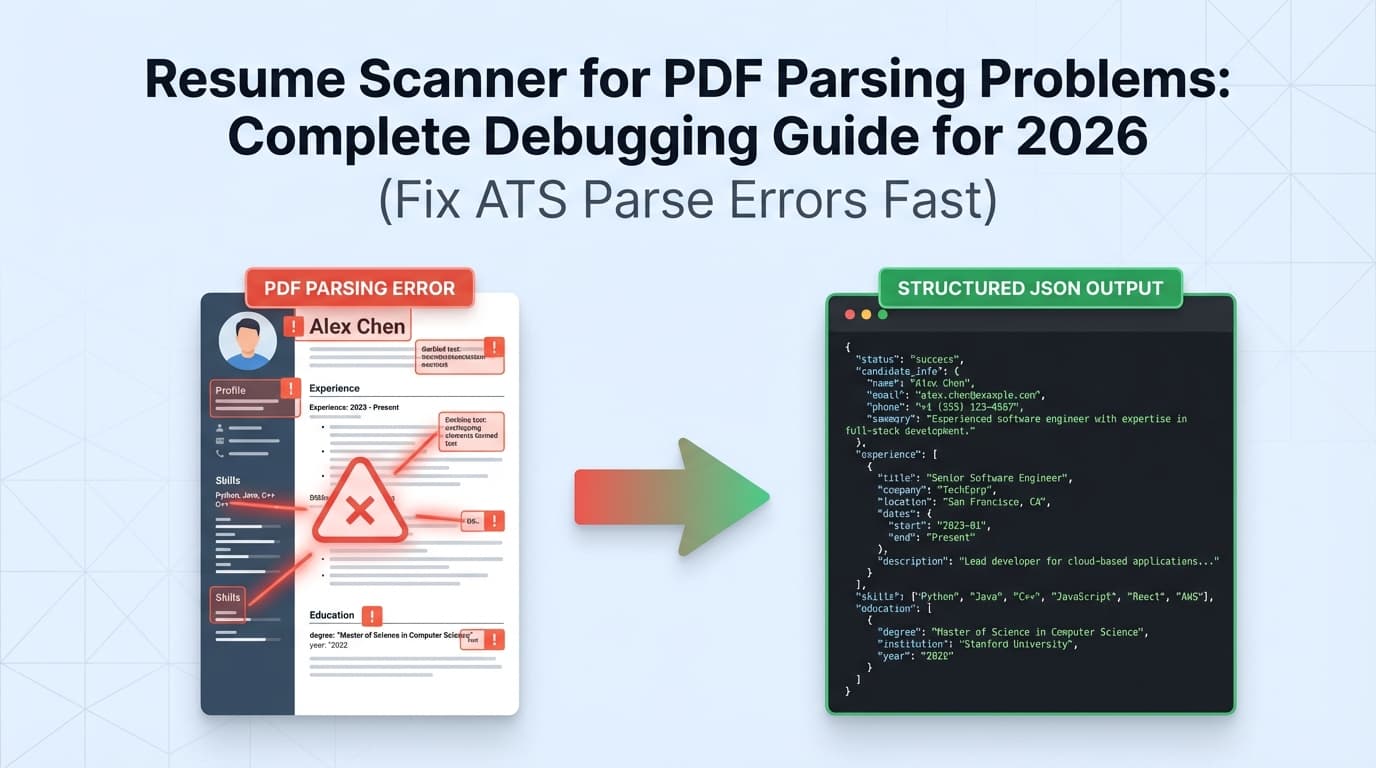
Resume parsing is the process an ATS (or application portal) uses to extract text and structure from your resume—then map it into fields like:
- Name, email, phone
- Company, title, dates
- Education details
- Skills keywords
A resume scanner (sometimes called an ATS resume checker) typically tests two things:
- Text extraction: Can the tool reliably pull readable text from your PDF?
- Structure inference: Does it detect headings/sections and interpret layout in a sensible order?
Important: scanners can be helpful, but they’re not identical to every ATS. Different systems use different parsers, rules, and heuristics—so your goal is to make your resume robust across multiple parsers.
Why PDF parsing problems happen (the non-technical explanation)
PDF is a “final layout” format. Visually, it looks perfect. But under the hood, a PDF may store text in ways that confuse parsers:
- Text can be split into many positioned fragments rather than clean lines
- Two-column layouts can be read in the wrong order
- Icons, shapes, and text boxes can interrupt reading flow
- Some PDFs aren’t text at all—they’re basically images (scanned PDFs)
If your resume’s content isn’t extracted cleanly, the ATS may:
- Put your experience under “Education”
- Drop dates
- Break bullet points into weird line-by-line chunks
- Fail parsing entirely
And yes—some systems have strict file constraints. For example, Greenhouse notes it can’t parse resumes larger than 2.5MB.
Source: Greenhouse Support — “Unsuccessful resume parse” https://support.greenhouse.io/hc/en-us/articles/200989175-Unsuccessful-resume-parse (Confidence: High — vendor support documentation.)
Why this matters in 2026 (ATS + job platform reality)
A few data points that help frame why parsing issues keep showing up:
-
More than 98% of Fortune 500 companies use an ATS, according to Workday’s ATS explainer page.
Source: Workday https://www.workday.com/en-us/topics/hr/applicant-tracking-system.html (Confidence: Medium) -
70% of large companies use an ATS, 20% of small/mid-sized businesses use an ATS, and 75% of recruiters use an ATS or another tech-driven recruiting tool, according to SelectSoftware Reviews’ ATS statistics roundup.
Source: SelectSoftware Reviews https://www.selectsoftwarereviews.com/blog/applicant-tracking-system-statistics (Confidence: Medium — reputable HR software research publisher; stats are compiled, so treat as directional.) -
In iHire’s 2024 employer research, 68.1% of companies said they use job boards/recruitment platforms for “all” or “most” of their hiring.
Source: iHire — “The State of Online Recruiting 2024” https://www.ihire.com/resourcecenter/employer/pages/the-state-of-online-recruiting-2024 (Confidence: Medium–High — survey-based, methodology typically included in report context.) -
Some systems fail parsing when files exceed size limits. Bullhorn’s knowledge base notes: if the file being parsed is larger than 4MB, parsing will be unable to complete (in that context/system).
Source: Bullhorn KB https://kb.bullhorn.com/js/Content/Internal/JS/commonTroubleshooting/4mbParsingError.htm (Confidence: High — vendor KB, system-specific.)
These don’t mean “your resume will be auto-rejected by a robot.” But they do mean online workflows and automated extraction are common—so making your resume parse cleanly is a practical advantage (and reduces time wasted fixing autofill errors).
How to use a resume scanner for PDF parsing problems: Step-by-step debugging workflow
This workflow is designed for speed: identify the failure pattern, apply the right fix, and retest.
Step 1: Run the “copy/paste reality check” (30 seconds)
Open your PDF resume and try to:
- Select all text
- Copy and paste into a plain text editor (Notepad, TextEdit)
What you’re looking for
- If you get nothing, or it pastes as an image, your PDF may be image-based (scan/export issue).
- If you get garbled characters, the PDF may have encoding/font issues.
- If the text is readable but the order is scrambled, you likely have layout problems (columns, text boxes).
Pro tip: If copy/paste produces nonsense, a resume scanner will almost always struggle too. Fix the PDF first before chasing keywords.
Step 2: Use 2 different resume scanners (don’t rely on one)
Run your PDF through at least two tools and compare:
- Extracted text preview
- Detected sections
- Any “formatting issues” warnings
Why two? Because parsing is inconsistent across engines. Your goal is to find problems that repeat across tools.
Step 3: Classify your failure type (symptom → cause)
Use this quick map:
| Symptom (what you see) | Likely cause | Typical fix |
|---|---|---|
| Form autofill puts experience in wrong fields | Nonstandard headings, columns, text boxes | Single-column layout + standard headings |
| Bullets become paragraphs / hard line breaks everywhere | Line breaks inserted manually; PDF text fragments | Rebuild bullets; avoid manual line breaks; export clean PDF |
| Contact info missing | Placed in header/footer or side column | Move contact info into main body top section |
| “Unsuccessful parse” / upload error | File too large or corrupted | Reduce file size; re-export PDF; remove images |
| Text order reads bottom-to-top or right-to-left | Multi-column or positioned text blocks | Single-column; avoid fancy templates |
Step 4: Apply the “ATS-stable formatting baseline”
Before you re-export, standardize your resume structure:
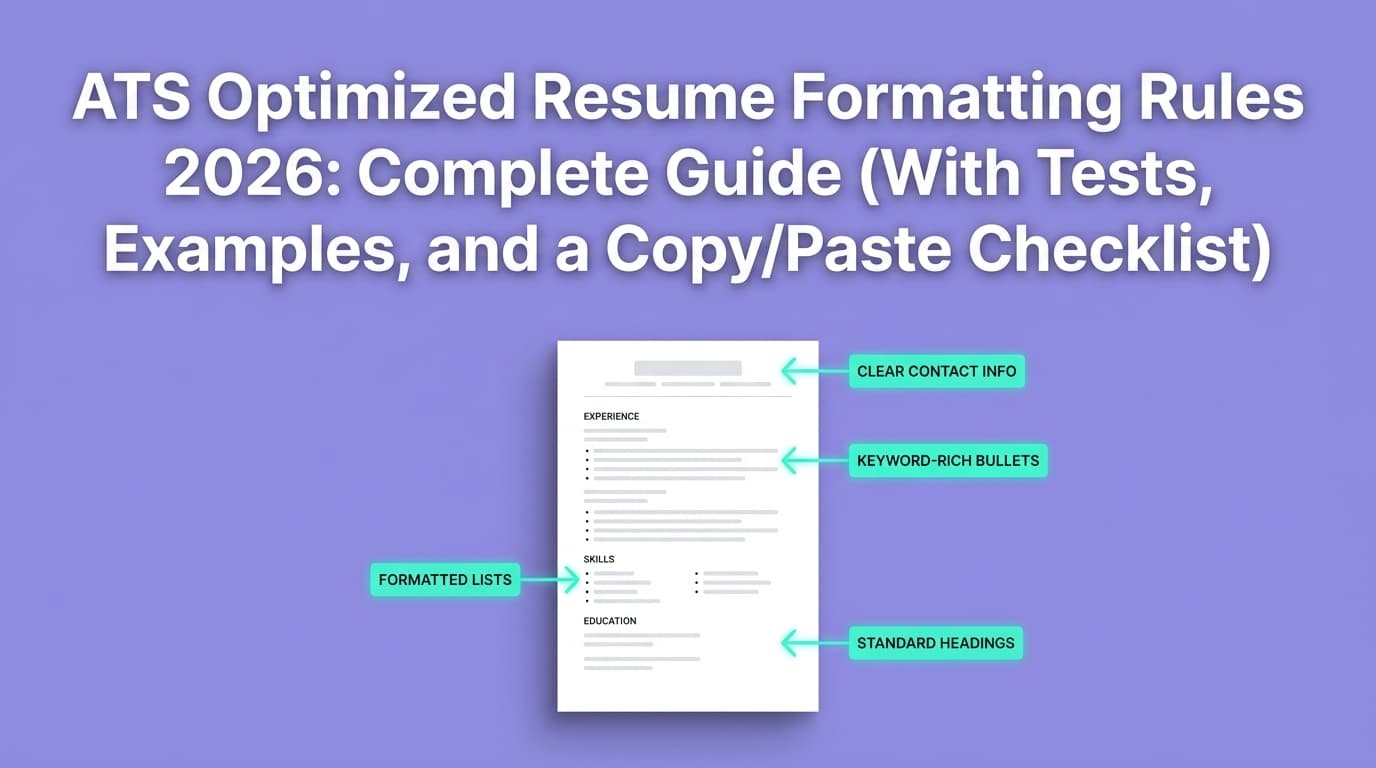
- One column
- No tables or text boxes
- Minimal icons
- Standard bullet characters
- Standard section headings (e.g., “Experience,” “Education,” “Skills”)
Step 5: Re-export properly (this is where many people fail)
Export in a way that preserves text, not images:
- Avoid “Print to PDF” settings that rasterize pages
- Avoid design tools that embed text strangely (common with heavily designed templates)
- Keep file size comfortably under common limits (aim for under ~1–2MB when possible)
Step 6: Retest and lock your “application-ready” version
After fixes, rerun scanners and repeat the copy/paste check. Keep a final “ATS-safe” master PDF and (often) a DOCX fallback.
The most common PDF parsing problems (and how to fix each)
1) Two-column layouts (the #1 scramble culprit)
What happens: Your right column gets read at the wrong time, or your section order becomes jumbled.
Why it breaks: Many parsers try to reconstruct reading order from x/y coordinates, and columns create ambiguity.
Fix:
- Convert to a single-column layout
- Move sidebar content (skills, tools, links) into a normal “Skills” section near bottom or top
2) Tables, text boxes, and “designer” templates
What happens: Skills vanish, bullets get concatenated, dates detach from jobs.
Why it breaks: Tables/text boxes can be stored as separate objects; parsers may not connect them logically.
Fix:
- Replace tables with plain text + bullets
- Use simple indentation rather than box layouts
A university career resource summarizing ATS formatting mistakes explicitly warns to avoid tables and other complex formatting elements.
Source: Santa Clara University Career Center toolkit https://www.scu.edu/careercenter/toolkit/job-scan-common-ats-resume-formatting-mistakes/ (Confidence: Medium — reputable career center guidance; not a controlled study, but aligns with common ATS behavior.)
3) Headers and footers (contact info disappears)
What happens: Your name/email/phone doesn’t populate or is missing from parsed output.
Why it breaks: Some parsers ignore header/footer regions or treat them inconsistently.
Fix:
- Put contact info at the top of the main body (not in document header/footer)
- Keep it as plain text (no icons needed)
4) Scanned PDFs (image-only resumes)
What happens: The system can’t “read” the resume at all, or it extracts nothing.
Why it breaks: If the PDF is essentially an image, you need OCR. Not every ATS does OCR well (or at all).
Fix options:
- Go back to the source document and export a text-based PDF
- If you only have a scan, run OCR in a PDF tool and verify copy/paste works afterward
5) Weird bullets, symbols, and icons
What happens: Bullets turn into squares, question marks, or random characters.
Why it breaks: Some bullet glyphs/icons don’t map cleanly across fonts/encoding.
Fix:
- Use standard bullets like
•or hyphens- - Avoid icon fonts for phone/email/location
6) Embedded fonts and text encoding issues (“gibberish paste”)
What happens: Copy/paste yields garbled characters.
Why it breaks: Some PDFs use embedded fonts/encodings that confuse text extraction.
Fix:
- Re-export from a different tool
- Avoid converting from a design tool that outlines text
- Test copy/paste again after export
7) Manual line breaks inside bullets (the “paragraph explosion”)
What happens: Every line becomes a separate paragraph when parsed.
Why it breaks: If you forced line wraps with Enter/Shift+Enter, the PDF may preserve those breaks.
Fix:
- Remove manual line breaks and let text wrap naturally
- Keep each bullet as a single continuous sentence/paragraph in the source
8) Nonstandard section headings (parser doesn’t know where things go)
What happens: Experience gets classified incorrectly.
Why it breaks: Parsers often look for common headings.
Fix:
- Use standard headings: Summary, Experience, Education, Skills, Projects, Certifications
- Avoid clever labels like “Where I’ve Been” or “What I Know”
PDF vs DOCX: which should you submit when parsing is failing?
This isn’t a one-size-fits-all answer. The safer approach is to keep both formats ready.
iHire notes that Word documents are often preferred for ATS because they are easier to parse than a PDF.
Source: iHire — “Is It Better To Send a Resume as a PDF or a Word Doc?” https://www.ihire.com/resourcecenter/jobseeker/pages/is-it-better-to-send-a-resume-as-a-pdf-or-a-word-doc (Confidence: Medium–High — established job-search publisher; guidance aligns with ATS parsing realities.)
Practical rule:
- If the portal explicitly recommends DOCX (or your PDF autofill is a mess), use DOCX.
- If you’re emailing a recruiter or submitting where formatting consistency matters, PDF can be better—as long as it’s text-based and parses well.
“Could not parse resume” errors: fast triage checklist
When the portal fails outright, run this checklist:
-
Is the file too large?
- Greenhouse: can’t parse resumes larger than 2.5MB.
Source: https://support.greenhouse.io/hc/en-us/articles/200989175-Unsuccessful-resume-parse (Confidence: High) - Bullhorn context: parsing can fail if file is larger than 4MB.
Source: https://kb.bullhorn.com/js/Content/Internal/JS/commonTroubleshooting/4mbParsingError.htm (Confidence: High)
- Greenhouse: can’t parse resumes larger than 2.5MB.
-
Is the PDF image-based?
- Copy/paste test fails → likely scanned or exported as image.
-
Does the PDF contain lots of graphics?
- Photos, heavy design elements, background shapes can increase size and reduce text clarity.
-
Is the file corrupted or exported oddly?
- Re-export from the original source (don’t repeatedly “Save as PDF” from a PDF editor).
-
Does DOCX work better in this portal?
- If yes, submit DOCX for that system.
Tools to help with PDF parsing problems (what each is good for)
Use tools for two purposes: (1) text extraction preview and (2) ATS-style feedback.
Resume scanners / parsers (candidate-facing)
-
Rezi (blog + examples): Helpful explanations of why ATS parsing fails and how to improve parse rate; includes ATS-friendly examples.
Source: https://www.rezi.ai/posts/why-your-ats-parse-failed -
OpenResume Resume Parser Playground: Useful for seeing how a parser reads PDF text and reconstructs sections. It even outlines a parsing approach (read text items → group lines → group sections).
Source: https://www.open-resume.com/resume-parser -
BeamJobs resume scanner page: Includes ATS compliance framing and FAQ (good for quick checks and common questions).
Source: https://www.beamjobs.com/resume-scanner
ATS/platform documentation (for hard limits and real-world constraints)
-
Greenhouse Support: Clear reasons parsing fails (including file size limits).
Source: https://support.greenhouse.io/hc/en-us/articles/200989175-Unsuccessful-resume-parse -
Bullhorn KB: Example of file size–related parsing failure.
Source: https://kb.bullhorn.com/js/Content/Internal/JS/commonTroubleshooting/4mbParsingError.htm
A practical “prevention” tool: build a resume that’s structurally stable
If your parsing problems come from formatting chaos, consider building from a format-first workflow rather than constantly patching exports.
- JobShinobi: Build your resume in LaTeX and compile it to a clean PDF, then run AI resume analysis and job match analysis to spot ATS-focused issues and keyword gaps.
- Pricing: JobShinobi Pro is $20/month or $199.99/year. The pricing UI mentions a 7-day free trial, but trial mechanics aren’t confirmed in code—treat it as “pricing page mentions.”
- Note: JobShinobi is not a “PDF attachment parser” for resumes; its resume workflow is about building/compiling and analyzing your resume content.
Internal links: /dashboard/resume, /subscription
Best practices: make your PDF “parser-proof” (without making it ugly)
-
Use a single-column layout
Most consistent across parsers. -
Keep section headings standard
“Experience” beats “Career Highlights” if parsing reliability is the priority. -
Avoid tables and text boxes
Use spacing, indentation, and bullets instead. -
Put contact info in the main body
Not headers/footers; not a sidebar. -
Use standard bullets and characters
Avoid icon fonts and decorative symbols. -
Export a text-based PDF (then verify it)
Copy/paste test should look clean and ordered. -
Keep file size reasonable
Some systems fail parsing at relatively low thresholds (e.g., Greenhouse’s 2.5MB parsing limit).
Source: https://support.greenhouse.io/hc/en-us/articles/200989175-Unsuccessful-resume-parse (Confidence: High) -
Maintain a DOCX fallback
If a portal struggles with your PDF, don’t waste time—submit DOCX.
Common mistakes to avoid (that cause PDF parsing problems)
Mistake 1: Assuming “PDF is always ATS-friendly”
Some PDFs are great. Some are basically unreadable to parsers. Always test.
Mistake 2: Using a two-column template because it “looks modern”
It can look modern and still parse poorly. If you want modern design, do it within a single-column structure.
Mistake 3: Hiding keywords (white text “hacks”)
Besides being risky/ethically questionable, hidden text can trigger parsing anomalies and looks bad if discovered. Focus on natural alignment instead.
Mistake 4: Chasing one scanner’s score
Different scanners disagree. Use them to detect formatting red flags, not as a single source of truth.
Mistake 5: Exporting repeatedly from random tools until it “works”
This often increases corruption/encoding problems. Fix the source document, then export cleanly once.
Key takeaways
- PDF parsing breaks most often because of layout complexity (columns, tables, text boxes) or non-text PDFs (scans/image exports).
- Use a resume scanner to spot issues, but validate with two tools plus a copy/paste test.
- Real systems have real constraints: Greenhouse cites a 2.5MB parsing limit; Bullhorn documents 4MB parsing failure in their context.
- Keep both PDF and DOCX versions ready. If a portal struggles, DOCX is often safer.
- Long-term: build from a structure-first resume format and only “style” within what parsers can reliably read.
FAQ (People Also Ask–style)
Why is my resume not parsing correctly?
Usually because the parser can’t reliably reconstruct text order and structure. Common causes include two-column layouts, tables/text boxes, header/footer contact info, unusual symbols, and scanned/image-based PDFs.
How to improve resume parsing?
Use a single-column layout, standard headings, plain bullets, and keep contact info in the main body. Then re-export a text-based PDF and retest in at least two resume scanners.
What does “unable to parse resume” mean?
It means the system couldn’t extract enough structured text to autofill fields or store the resume content correctly. It can be caused by file size limits, corrupted files, or PDFs that aren’t truly text-based.
Can ATS scanners read PDFs?
Many can—but not all PDFs are equal. Clean, text-based PDFs often parse fine; scanned or heavily designed PDFs can fail. If your PDF causes autofill chaos, try DOCX.
Should I submit PDF or Word (DOCX) if parsing is failing?
If parsing is failing in that portal, submit DOCX when allowed. iHire notes Word documents are often preferred for ATS parsing because they’re easier to parse than PDFs.
Source: https://www.ihire.com/resourcecenter/jobseeker/pages/is-it-better-to-send-a-resume-as-a-pdf-or-a-word-doc
How big should my resume file be to avoid parsing errors?
There’s no universal limit, but some systems have strict thresholds. Greenhouse notes it can’t parse resumes larger than 2.5MB, and Bullhorn documents parsing failure above 4MB in their system context.
Sources:
- https://support.greenhouse.io/hc/en-us/articles/200989175-Unsuccessful-resume-parse
- https://kb.bullhorn.com/js/Content/Internal/JS/commonTroubleshooting/4mbParsingError.htm
Do columns and tables really break ATS parsing?
They can. Columns and tables often create ambiguous reading order or split content into separate objects, which can scramble what the parser extracts. If you want reliability across systems, default to single-column + plain text structure.