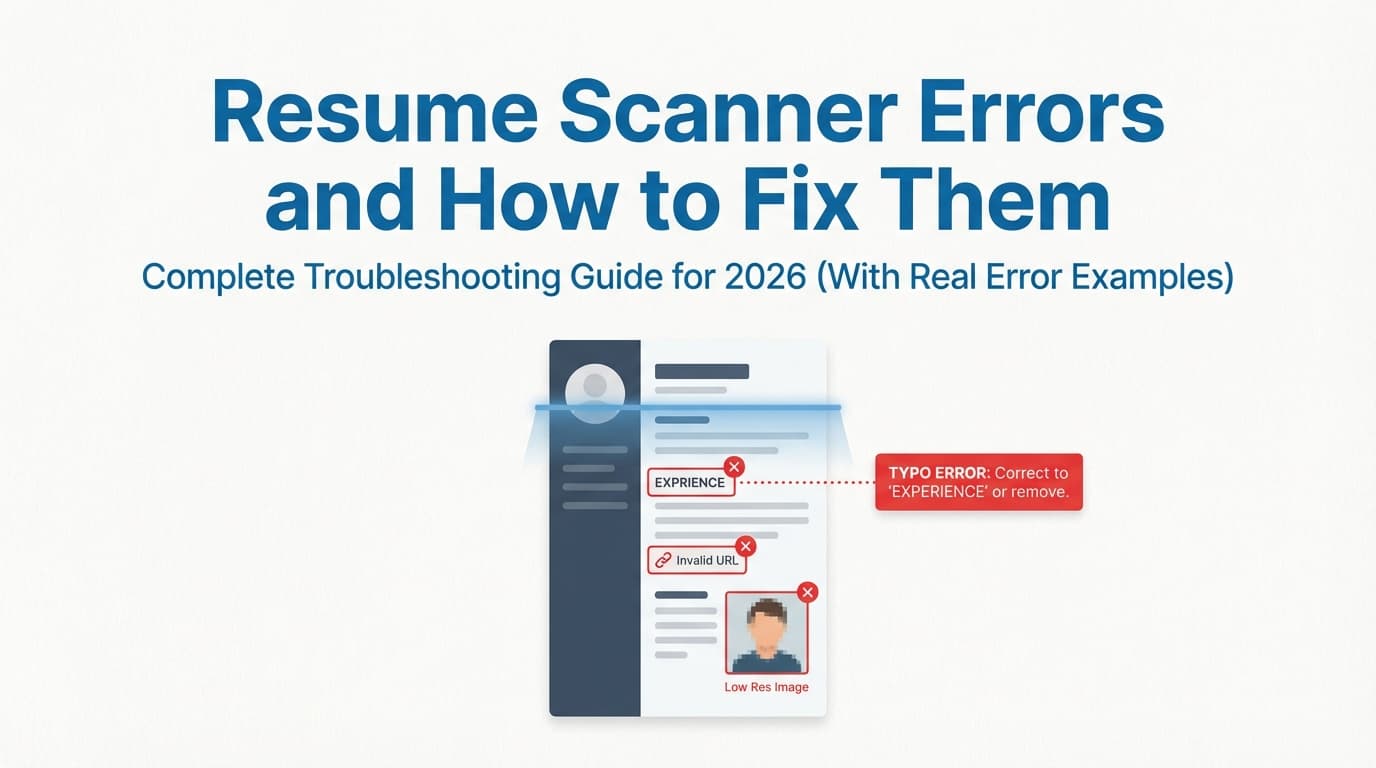
Resume scanners (ATS checkers, resume parsers, “ATS score” tools) can be wildly inconsistent. One scanner says your resume is “ATS-friendly,” another claims your Work Experience section is empty, and a third flags hundreds of spelling mistakes that you know aren’t real.
Most of the time, you’re not dealing with a “bad resume”—you’re dealing with parsing: the technical process of extracting text and mapping it into fields.
And even if the software parses correctly, humans still skim fast. The Ladders’ eye-tracking research found recruiters spend about 7.4 seconds on an initial resume scan. (Confidence: High — primary source)
Source: The Ladders eye-tracking study PDF: https://www.theladders.com/static/images/basicSite/pdfs/TheLadders-EyeTracking-StudyC2.pdf
That’s why the goal isn’t “beat one scanner.” It’s to create a resume that is:
- Machine-readable (parses cleanly in common ATS workflows), and
- Human-readable (easy to skim in ~7 seconds).
In this guide, you’ll learn:
- What “resume scanner errors” actually mean (and what they don’t mean)
- A step-by-step troubleshooting workflow (with a decision tree you can follow)
- The most common parsing failures (tables, columns, headers/footers, PDF issues, ligatures)
- Fixes for Word, Google Docs, and PDF workflows
- How to interpret ATS scores and “match rates” without spiraling
- A pre-application checklist and a “parsing test suite” you can run in under 10 minutes
What are resume scanner errors?
Resume scanner errors happen when a tool (or an applicant tracking system) tries to read your resume and fails to:
- correctly extract your text,
- correctly identify sections (Experience/Education/Skills),
- keep the correct reading order,
- interpret characters (bullets, symbols, ligatures),
- or accurately measure what’s actually in the document.
These errors show up as things like:
- “Work Experience section appears empty”
- “Education not found”
- “We found 151 spelling mistakes”
- content pasted into the wrong fields
- skills merged together (e.g.,
PythonSQLTableau)
Resume scanner vs ATS: quick clarification
A resume scanner is usually a third-party tool that:
- parses your resume,
- compares it to a job description,
- generates “scores” and recommendations.
An ATS is employer software (Workday, Greenhouse, Lever, etc.) used to store, search, filter, and manage candidates. Different ATS setups can behave differently.
So if a scanner throws an error, it doesn’t necessarily mean the employer’s ATS will reject you—but it’s still a red flag that your resume may not be reliably readable.
Why this matters in 2026 (stats you can actually cite)
ATS usage is not “only for big tech.” It’s mainstream:
-
98.4% of Fortune 500 companies use an ATS, according to Tufts University Career Center resources. (Confidence: Medium–High — credible institution; figure is widely repeated)
Source: https://careers.tufts.edu/resources/everything-you-need-to-know-about-applicant-tracking-systems-ats/ -
A 2024 ATS stats roundup reports that 98%+ of Fortune 500 companies use ATS, and also reports adoption like 70% of large companies and 35% of SMBs using ATS. (Confidence: Medium — third-party compilation; helpful directional data)
Source: https://blog.hiringthing.com/2024-applicant-tracking-system-stats -
Recruiters spend about 7.4 seconds on an initial resume scan (The Ladders eye-tracking study). (Confidence: High)
Source: https://www.theladders.com/static/images/basicSite/pdfs/TheLadders-EyeTracking-StudyC2.pdf -
77% of hiring managers say they instantly disqualify resumes with typos or bad grammar, per CareerBuilder survey reporting. (Confidence: Medium — reputable source; survey methodology details vary)
Source: https://www.careerbuilder.com/advice/blog/the-truth-about-lying-on-resumes
What this means for you: even small parsing issues can make you harder to find in searches, and small readability issues can lose you the human skim—fast.
The biggest myth: “ATS rejects 75% of resumes automatically”
You’ve probably heard some version of: “75% of resumes are rejected by ATS before a human sees them.”
This claim is widely cited in marketing, but it’s also widely disputed because the original methodology is often unclear or inconsistently sourced.
If you want a reality check (and to avoid repeating shaky stats), this critique is a useful reference: (Confidence: Medium — opinionated but cites the sourcing problem clearly)
Source: https://www.davron.net/ats-systems-explained-75-percent-resumes-rejected/
Safer way to explain the reality: ATS is widely used, and parsing/keyword filtering can affect visibility—but most “rejections” aren’t a single binary ATS decision.
The 2 types of resume scanner problems (know which one you’re fixing)
Type A: Parsing/formatting errors (technical)
Symptoms:
- missing sections,
- scrambled order,
- merged words,
- wrong headings,
- “empty experience,”
- garbled characters.
Fix: simplify structure and rebuild the document’s text flow.
Type B: Content/match errors (strategic)
Symptoms:
- “missing keywords,”
- “low match rate,”
- “weak action verbs,”
- “insufficient hard skills.”
Fix: tailor your content after parsing is stable.
Rule: If the scanner can’t reliably read your resume, you can’t trust the keyword results either.
How to fix resume scanner errors: the step-by-step troubleshooting workflow
Use this workflow whenever you see weird scanner results—especially “missing sections,” “gibberish,” or “fake typos.”
Step 1) Start with the 60-second Copy/Paste Parsing Test
This is the fastest way to catch broken text extraction.
- Open your resume (PDF or DOCX).
- Select all (Ctrl/Cmd + A), copy.
- Paste into a plain text environment (Notepad/TextEdit) or a blank Google Doc.
- Check:
- Is everything there?
- Is the order reasonable?
- Are headings visible?
- Are bullets intact?
- Are words broken (especially “fi/fl” issues)?
MIT’s career office suggests testing ATS-readability by saving to plain text and checking what it looks like. (Confidence: High — reputable university guidance)
Source: https://capd.mit.edu/resources/make-your-resume-ats-friendly/
Interpretation:
- If paste looks clean → you likely have a content/match problem (Type B).
- If paste is messy → you have a parsing problem (Type A). Fix formatting before anything else.
Step 2) Run a “Two-Format A/B Test” (DOCX vs PDF)
If your PDF scan is messy, scan the DOCX version (or vice versa).
Why: different parsers extract text differently. Many guides recommend DOCX as the “safer” parsing format, while PDF preserves visual formatting but can introduce extraction issues (depending on how it was created).
Helpful references:
- TopResume on resume file formats and tradeoffs. (Confidence: Medium — practical guidance)
Source: https://topresume.com/career-advice/resume-file-formats - Resume Worded on file format risks (e.g., garbled symbols/missing content). (Confidence: Medium)
Source: https://resumeworded.com/resume-file-format-key-advice
Decision rule:
- If DOCX parses cleanly and PDF doesn’t → submit DOCX if allowed.
- If the employer specifically requests PDF → fix the PDF generation (don’t ignore it).
Step 3) Check for “Known Parsing Killers” (in this order)
- Columns / sidebars
- Tables (especially skills tables)
- Text boxes / shapes
- Headers & footers (contact info disappears)
- Icons / special symbols
- Image-based PDF (scanned or “print as image”)
- Font/ligature extraction issues
Fix these first—then re-test.
Step 4) Validate with 2 independent scanners (not 1)
Scanners disagree. That’s normal.
You’re looking for consistency on:
- whether sections are detected,
- whether content order holds,
- whether keywords are actually being recognized.
Don’t chase a “perfect score” from one tool if parsing is stable.
Step 5) Use the employer portal itself as a test (when possible)
Many ATS application forms show you what they extracted (pre-filled fields).
If the portal populates your experience/education incorrectly, that’s a high-signal parsing problem—even if a third-party scanner gave you a decent score.
The Resume Scanner Error Library (most common errors + exact fixes)
Below are the errors people complain about most (including in Reddit threads and ATS scanner troubleshooting discussions), along with fixes that actually work.
Error #1: “Work Experience section appears empty”
What you see:
- Scanner says Experience is missing
- Or your jobs show up under “Other”
Most likely causes:
- Experience is inside a text box
- You used a two-column layout
- Your heading is nonstandard (e.g., “Career Journey”)
Fix:
- Convert to a single-column layout
- Remove text boxes/shapes
- Rename heading to Work Experience or Professional Experience
- Keep each role in a consistent pattern:
- Job Title — Company, Location
- Dates
- Bullets
Verify:
- Copy/paste test shows headings + jobs in order
- Second scanner also detects Experience
Error #2: Skills are merged together (e.g., JavaPythonSQLAWS)
Most likely cause: you used a table for skills or columns inside Skills.
Fix: Replace tables with plain text lists:
Bad (table):
| Skills | Tools |
|---|---|
| Python | Tableau |
| SQL | Power BI |
Good (ATS-safe):
Skills: Python, SQL
Tools: Tableau, Power BI
Verify: skills remain separated after copy/paste.
Error #3: “We found 100+ spelling mistakes” (that aren’t real)
This one is usually technical—not your writing.
Likely causes:
- PDF text extraction produced broken characters
- Font ligatures (fi/fl/ff) extracted incorrectly
- Icon fonts or symbols inserted
Fix:
- Switch to a standard font
- Remove icons and special bullets
- Re-export your PDF as text-based
- Re-run copy/paste test
Verify:
- Paste contains normal words (no missing letters)
- A second scanner doesn’t flag nonsense typos
Error #4: Contact info missing (name/email/phone not detected)
Most likely cause: contact info is in header/footer.
Some ATS parsers ignore or mishandle headers/footers. Multiple guides warn against putting contact info there, including older but widely used university ATS guidance. (Confidence: Medium — older doc, still relevant conceptually)
Source: https://careerservices.uic.edu/wp-content/uploads/sites/26/2017/08/Ensure-Your-Resume-Is-Read-ATS.pdf
Fix: Put contact info at the top of page 1 in the main body:
- Name
- Phone
- Location (optional)
- LinkedIn/GitHub (short URLs)
Verify:
- Upload to a portal that auto-fills fields (if possible)
- Scanner detects email/phone
Error #5: Bullets turn into paragraphs / weird line breaks
Likely causes:
- Nonstandard bullets
- Manual line breaks inside bullet text
- Justified text with odd spacing
Fix:
- Use standard bullets
• - Avoid manual line breaks within bullets
- Left-align body text
Verify: bullets stay separate in copy/paste.
Error #6: Dates are missing or calculated wrong
Likely causes:
- Inconsistent date formats
- Dates placed in a table/second column
- Decorative separators (em dashes / unusual characters)
Fix: Use one date style consistently:
Month YYYY – Month YYYYorMM/YYYY – MM/YYYY
Keep dates on the same line block as the role, not in a separate column.
Verify: dates paste cleanly and show up in scanners.
Error #7: Education not detected
Likely causes:
- Education heading is nonstandard (“Learning”)
- School info is in a sidebar/table
- Degrees written in a confusing format
Fix: Use:
- Education
Degree, Major — UniversityCity, State (optional) | Graduation Year (or Expected Year)
Verify: scanner maps it under Education.
Error #8: “Resume is unreadable” / “no text found”
Likely cause: image-based PDF (scanned or exported as image).
Fix:
- Re-export from the original document as a text PDF
- If you only have a scan, use OCR, then rebuild in DOCX (proofread carefully)
Verify: you can highlight and copy real text from the PDF.
Error #9: Parser fails entirely (especially in ATS forms)
Sometimes parsing fails not only because of formatting, but because of file constraints.
Greenhouse support lists common causes of unsuccessful resume parses such as file too large and formatting issues. (Confidence: High — ATS vendor support documentation)
Source: https://support.greenhouse.io/hc/en-us/articles/200989175-Unsuccessful-resume-parse
Fix:
- Keep file size reasonable (avoid embedded high-res images)
- Remove graphics
- Use DOCX if permitted
The 18 most common “resume scanner killers” (and how to fix each)
Below is the checklist of issues that most reliably cause parsing failures across scanners and ATS workflows.
1) Two-column layouts
Why it breaks: parsers often read linearly; columns scramble order.
Fix: single column.
2) Tables (especially skills tables)
Why it breaks: text gets merged or re-ordered.
Fix: replace with plain text lists.
3) Text boxes / shapes
Why it breaks: content can be treated as “floating,” not main text flow.
Fix: remove shapes; use normal paragraphs.
4) Headers and footers
Why it breaks: some parsers ignore them or extract them inconsistently.
Fix: move contact info into the body.
5) Icons (especially from Canva or icon fonts)
Why it breaks: icons become random characters in extraction.
Fix: use text labels instead.
6) Special bullets and symbols (★, ▪︎, ➜)
Fix: use • or -.
7) Decorative horizontal lines
Fix: whitespace + bold headings.
8) Underlines that merge words
Fix: bold instead of underline.
9) Excessive italics / fancy typography
Fix: keep styling minimal.
10) Ligatures (fi/fl/ff) causing broken words
Fix: switch fonts; disable ligatures if your tool supports it; re-export.
11) Hyphenation / line wrapping that breaks copy/paste
Fix: avoid manual hyphenation; keep consistent margins.
12) Embedded images (logos, headshots)
Fix: remove images for ATS submissions.
13) Creative section headings
Fix: use standard headings (Experience, Skills, Education).
14) Unusual characters in job titles (pipes, emojis, brackets)
Fix: stick to plain text.
15) Long hyperlink tracking URLs
Fix: use short, clean URLs.
16) PDF generated from “Print” with weird settings
Fix: export as PDF from the editor (Word/Docs), not “print to PDF” with image rendering.
17) File name issues (rare, but easy to eliminate)
Fix: First_Last_Resume.pdf.
18) The scanner itself is low-quality
Fix: confirm with a second scanner + copy/paste test + (ideally) the employer portal extraction.
Word vs Google Docs vs PDF: practical fixes by platform
If you write in Microsoft Word
Do this:
- Use a single-column template
- Avoid tables and text boxes
- Keep headings simple and consistent
- Save a DOCX version and a PDF version
When a PDF scan is broken:
- Change fonts to a standard option (Calibri/Arial/Times New Roman are commonly recommended)
- Re-export the PDF and re-run the copy/paste test
If you write in Google Docs
Common failure mode: people copy a fancy template into Docs (tables/columns) and export to PDF.
Do this:
- Remove any two-column layout
- Replace tables with text lists
- Export as PDF and test copy/paste
If you use LaTeX (or a LaTeX-based resume builder)
LaTeX can produce very clean, consistent PDFs—but you still need to:
- avoid multi-column complexity if it hurts extraction,
- keep headings standard,
- validate the final PDF with copy/paste + scanners.
Tool option: JobShinobi lets you build resumes in LaTeX and compile to PDF with preview, then run AI resume analysis and job matching against a job description. (Capabilities: resume builder + compilation + analysis + matching.)
Pricing accuracy: JobShinobi Pro is $20/month or $199.99/year. The pricing page mentions a 7-day free trial, but trial enforcement isn’t clearly verifiable in app logic—so treat the trial as “mentioned” rather than guaranteed. (Confidence: High on pricing; Medium on trial mention)
Relevant areas (in-app): /dashboard/resume, /subscription
How to interpret ATS scores without wasting your week
Why different scanners give different scores
Common reasons:
- Different parsing engines (especially for PDFs)
- Different keyword weighting (some overvalue Skills sections; others value Experience context)
- Different “penalties” for formatting quirks
- Some scanners are optimized as lead-gen tools (not precision diagnostics)
What to do instead: Treat “scores” as a triage signal, and focus on two things:
- Parsing reliability (does your content land in the right sections?)
- Keyword coverage with proof (do you mention required skills in context?)
What is a “good” ATS match rate?
There is no universal threshold across employers or ATS setups.
If you use “match rate,” use it as a sanity check:
- Are you missing obvious required tools/skills?
- Are you using the employer’s terminology accurately?
- Are you describing achievements that prove the skill?
Avoid chasing 100%. Perfect match rates often correlate with keyword stuffing and worse human readability.
The “Parsing Test Suite” (10 minutes, before you apply)
Run this whenever you change templates or export formats.
Test 1: Copy/paste into plain text
Goal: verify text extraction and order.
Test 2: Copy/paste into Google Docs
Goal: check whether headings, bullets, and spacing survive.
Test 3: Scan the DOCX version
Goal: compare parsing stability.
Test 4: Scan the PDF version
Goal: ensure your “final submission format” is parsable.
Test 5: Upload to a real ATS portal (if you can)
Goal: see whether fields auto-fill correctly.
If all five tests look good, stop tinkering and focus on content tailoring.
How to tailor content (after parsing is fixed)
Once your resume parses cleanly, your biggest lever is relevance.
1) Build a “Top Requirements” list from the job description
Pull out:
- top hard skills (tools, languages, platforms),
- core responsibilities,
- role keywords (e.g., “stakeholder management,” “ETL pipelines,” “A/B testing”).
2) Add keywords where they’re proven
Best places:
- Skills section (for discoverability)
- Bullet points (for proof)
- Projects (for proof)
- Summary (only if it stays readable)
3) Use “keyword + evidence” bullets
Instead of:
- “Used SQL”
Use:
- “Wrote SQL queries to validate pipeline accuracy and reduce reporting errors by 18%.”
This helps both:
- ATS keyword detection, and
- recruiter skim value.
Tool option (optional, not required)
JobShinobi includes resume-to-job matching: you can paste a job URL or job text and generate a match analysis (including keyword alignment). This is helpful when you’re applying at volume and need a consistent workflow for tailoring. (Again: not a guarantee of ATS outcomes—just structured feedback.)
Common mistakes to avoid (the ones that cause the most false negatives)
Mistake 1: Fixing keywords before fixing parsing
If the scanner can’t read your Experience section, keyword work is wasted.
Mistake 2: Using “ATS hacks” (hidden white text, footer keyword dumps)
These can backfire:
- some systems detect hidden text,
- humans may see it,
- it can break formatting/parsing.
Mistake 3: Trusting one scanner’s error report
Always cross-check:
- copy/paste test,
- a second scanner,
- the real application portal if possible.
Mistake 4: Over-designing for “standing out”
If you’re applying through ATS portals, clarity > clever layout.
Tools that can help with resume scanner errors (honest recommendations)
Use tools for two different jobs:
- Parsing validation (did it extract correctly?)
- Content validation (are you aligned to the posting?)
- JobShinobi: LaTeX resume builder with PDF compilation + AI resume analysis + job matching against a job description. Pro is $20/month or $199.99/year. (Pricing page mentions a 7-day free trial, but treat trial details as something to confirm at checkout.)
- Greenhouse / employer portals: the most realistic parsing test is often the ATS form you’re actually applying through (when it shows parsed fields).
- Grammar tools (Word Editor / Grammarly): helps reduce typo-related deal-breakers (and avoids “false typos” confusion by ensuring your base text is clean).
Key takeaways
- “Resume scanner errors” are usually parsing errors, not proof you’re unqualified.
- Your fastest diagnostic is the copy/paste parsing test.
- The biggest causes of failures: columns, tables, text boxes, headers/footers, icons, and image-based PDFs.
- Validate with two formats (DOCX + PDF) and two scanners.
- Only after parsing is stable should you optimize keywords and match rate.
FAQ (based on common “People Also Ask” questions)
Why isn’t my resume parsing correctly?
Most often because of columns, tables, text boxes, headers/footers, icons, or a PDF that isn’t text-based. Run the copy/paste test—if pasted text is broken, scanners will struggle too.
Can ATS read PDFs?
Often yes—if the PDF is text-based and cleanly exported. But some ATS/parsers struggle with certain PDFs (especially image-based scans or complex layouts). If PDF parsing is messy, try DOCX (if allowed) and fix the PDF export.
Can ATS read tables or columns?
Not reliably across systems. Tables and columns commonly cause missing or scrambled data. For ATS-heavy applications, a single-column, no-table resume is the safer choice.
How accurate are resume scanners?
They’re useful for spotting:
- parsing failures,
- obvious keyword gaps,
- basic formatting risks.
But they vary widely and do not perfectly represent every employer’s ATS setup. Use them as diagnostics—not a final grade.
Should I submit a PDF or a Word document?
If the employer specifies, follow their instructions. Otherwise:
- If your PDF parses cleanly: PDF is fine and preserves formatting.
- If your PDF parses poorly but DOCX parses cleanly: submit DOCX (if allowed).
TopResume and Resume Worded both discuss these tradeoffs in practical terms.
Sources: https://topresume.com/career-advice/resume-file-formats and https://resumeworded.com/resume-file-format-key-advice
How to trick resume scanners?
Don’t. “Hacks” like hidden white text can backfire and can make your resume look deceptive if detected. The better approach is clean parsing + relevant keywords supported by real experience.
What are 5 common resume mistakes that hurt ATS parsing?
Five high-impact ones:
- Two-column layouts
- Tables (skills tables especially)
- Text boxes/shapes
- Contact info in headers/footers
- Icons/special symbols