98.4% of Fortune 500 companies use an applicant tracking system (ATS), according to Jobscan’s ATS usage reporting (repeated by Tufts University’s career center). That means most online applications are going to be parsed, stored, searched, filtered, and ranked by software before a human ever sees your resume. (Confidence: High — cited across multiple sources)
Source: Tufts Career Center (citing Jobscan) — https://careers.tufts.edu/resources/everything-you-need-to-know-about-applicant-tracking-systems-ats/
At the same time, recruiters still move fast once your resume does reach them. An eye-tracking summary reported by HR Dive cites research showing recruiters skim for ~7.4 seconds on an initial pass. (Confidence: Medium — secondary source summarizing a study)
Source: HR Dive — https://www.hrdive.com/news/eye-tracking-study-shows-recruiters-look-at-resumes-for-7-seconds/541582/
So where does Jobscan fit?
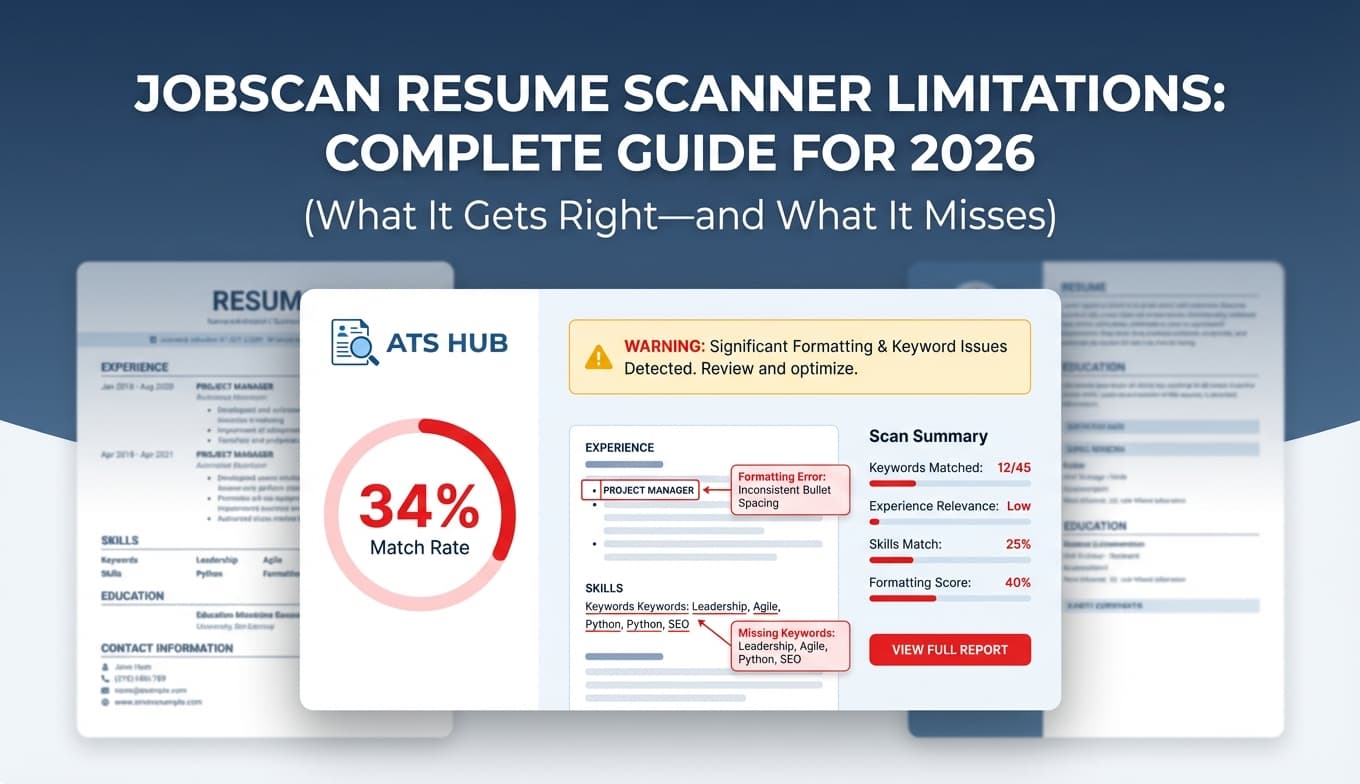
Jobscan’s resume scanner can be helpful for keyword alignment and basic parsing/format checks—but it has real limitations that can lead to wasted time, “score chasing,” and even worse resumes if you don’t know what the tool is actually measuring.
In this guide, you’ll learn:
- The most common (and most expensive) limitations of Jobscan’s match score approach
- Why Jobscan can “miss” skills that are already on your resume
- A step-by-step workflow to use Jobscan without overfitting to a single score
- Practical alternatives and complements (including an ATS-focused workflow inside JobShinobi)
What is Jobscan’s resume scanner?
Jobscan is an ATS-focused resume optimization tool that compares:
- Your resume
- A specific job description
…then returns a match rate and recommendations (keywords, section completeness, formatting red flags).
Used correctly, this can be a fast way to:
- Detect missing role-specific terms (tools, certifications, methodologies)
- Catch parsing-unfriendly formatting (especially for certain file types)
- Turn a generic resume into a tailored resume faster
Used incorrectly, it becomes a trap: a never-ending loop of “rescan → tweak → rescan” that produces unnatural, keyword-stuffed resumes.
Why Jobscan resume scanner limitations matter in 2026
1) Most ATS don’t work exactly the same way
Career centers regularly emphasize that ATS are primarily systems to collect, parse, and organize applications, and the way employers filter varies widely. (Confidence: High — broad consensus in career services)
Source: Tufts Career Center — https://careers.tufts.edu/resources/everything-you-need-to-know-about-applicant-tracking-systems-ats/
Implication: Even if Jobscan “mimics an ATS,” it can’t perfectly represent your target company’s configuration, filters, knockout questions, ranking logic, or recruiter behavior.
2) Humans still decide fast
The HR Dive summary of eye-tracking research suggests recruiters skim resumes in seconds (~7.4 seconds on an initial scan). (Confidence: Medium)
Source: HR Dive — https://www.hrdive.com/news/eye-tracking-study-shows-recruiters-look-at-resumes-for-7-seconds/541582/
Implication: Optimizing solely for a tool’s score can hurt human readability—which is the opposite of what you want once your resume lands in front of a recruiter.
3) Jobscan itself encourages score targets (which can be misused)
Jobscan guidance commonly cited around the web suggests aiming for a high match rate (often ~75–80%). (Confidence: Medium — primary pages were not fully accessible in this environment; confirmed via multiple SERP citations)
Example source surfaced in search: https://www.jobscan.co/blog/what-jobscan-match-rate-should-i-aim-for/
Implication: Match rate can be a useful signal, but it’s not proof you’ll pass screening, and it’s not the same thing as being qualified.
The core limitations of Jobscan’s resume scanner (and what to do instead)
Limitation #1: Jobscan is a simulation, not your employer’s ATS
What happens: You treat Jobscan’s score as if it equals “the ATS decision.”
Reality: ATS behavior varies by vendor and by company configuration. Some systems rank candidates; others rely more on recruiter searches; many decisions happen via filters outside what a public tool can replicate.
How to use Jobscan anyway:
- Use it to catch obvious keyword gaps and formatting risks
- Don’t assume a “low score” = auto-reject
- Don’t assume a “high score” = interview
Pro tip: Use Jobscan as a drafting assistant, then do a “human skim test” (more on that below).
Limitation #2: Keyword matching can be too literal (synonyms + context get lost)
A classic complaint: “It says I’m missing skills that are already on my resume.”
This can happen when the scanner expects:
- Exact phrasing (“project management” vs “program delivery”)
- Specific tool names (“Tableau” vs “data visualization tools”)
- A skill in the ‘Skills’ section even if it appears in bullets
Jobscan’s own support content highlights that wording differences and formatting can affect what the scanner detects. (Confidence: Medium — from support snippets and common support framing)
Example surfaced in search: https://support.jobscan.co/hc/en-us/articles/41334900375571-Why-do-my-results-say-I-m-missing-skills-when-they-re-already-on-my-resume
Fix (without keyword stuffing):
- Add the exact tool name at least once (e.g., “Tableau”)
- Pair synonyms: “Program management (project management)”
- Place core hard skills in a dedicated Skills section using simple separators (commas, bullets)
Limitation #3: Job description quality can wreck your “match rate”
Jobscan treats the job description like a truth source. But job descriptions often:
- List “wishlist” requirements
- Mix multiple roles (e.g., PM + analyst + ops)
- Include company boilerplate repeated across postings
Fix: build a “must-have vs nice-to-have” map Before you change your resume, do this quick filter:
-
Must-have signals
- Repeated keywords (3+ times)
- Keywords in first half of the posting
- Explicit requirements (“must,” “required,” “minimum”)
-
Nice-to-have signals
- “Preferred,” “bonus,” “nice to have”
- Long lists of tools with no context
Then optimize primarily for must-haves—without forcing every “nice-to-have” into your resume.
Limitation #4: Formatting checks depend on file type and clean structure
Jobscan support notes common reasons you can’t run a scan include:
- Unsupported file format
- Scan limit reached
- Corrupt/damaged file (or hidden formatting issues)
(Confidence: Medium — support snippet is explicit)
Source: Jobscan support — https://support.jobscan.co/hc/en-us/articles/41334642533523-Why-can-t-I-perform-a-resume-scan
Also, Jobscan support frequently emphasizes that some files (like scanned PDFs) may not process well. (Confidence: Medium)
Related: https://support.jobscan.co/hc/en-us/articles/41334611347091-Why-can-t-I-upload-my-resume-to-scan
Fix checklist:
- Export a clean .DOCX from Word/Google Docs (when possible)
- If using PDF, ensure it’s text-based, not scanned
- Re-save the file (sometimes “Print to PDF” creates a cleaner text layer)
- Remove unusual embedded objects (icons, text boxes, shapes)
Limitation #5: Multi-column layouts, tables, headers/footers can break parsing
Many career centers warn against tables/columns because ATS parsing may scramble reading order.
Santa Clara University’s career center lists ATS formatting mistakes (including tables) in its Jobscan-related toolkit. (Confidence: Medium — career center guidance is consistent, though ATS behavior varies by system)
Source: SCU Career Center — https://www.scu.edu/careercenter/toolkit/job-scan-common-ats-resume-formatting-mistakes/
Practical rule: If it doesn’t read correctly when copied into a plain-text editor, it’s a risk.
Safer formatting defaults:
- One-column layout
- Standard section headings (“Experience,” “Education,” “Skills”)
- No header/footer for critical info (contact, job titles, dates)
- Minimal graphics
Limitation #6: Scan limits can change how you work (and increase “rescan anxiety”)
Jobscan’s support documentation explains that free scans are credited monthly and that once you hit the scan limit, you may be blocked until scans reset. (Confidence: High — explicit support documentation snippet)
Sources:
- https://support.jobscan.co/hc/en-us/articles/360056018654-When-do-I-get-my-free-monthly-scans
- https://support.jobscan.co/hc/en-us/articles/41334642533523-Why-can-t-I-perform-a-resume-scan
Jobscan’s plan page also describes free scan allotments (commonly shown as 5 free scans). (Confidence: Medium — plan details can change; verify on-page)
Source: https://app.jobscan.co/plan
Fix: Reduce “rescan loops” with a batching workflow:
- Make changes in sets of 5–10
- Only rescan after you’ve updated:
- Skills section
- 2–3 bullets
- A headline/summary (if used)
Limitation #7: Privacy tradeoffs (your resume contains sensitive data)
Some universities explicitly recommend not uploading personally identifiable information (PII) when using resume scanning tools. (Confidence: Medium — institution guidance, not a universal policy)
Source: UC Berkeley iSchool career guidance — https://www.ischool.berkeley.edu/careers/students/jobscan
What to remove before uploading anywhere (recommended):
- Street address
- Date of birth
- Full phone number (optional: use a masked/alternate number)
- Reference contact details
- Any sensitive IDs
Limitation #8: Match rate can push you into keyword stuffing (and worse writing)
This is the most damaging limitation because it’s behavioral.
If you chase a perfect score, you’ll tend to:
- Copy/paste chunks of the job description
- Repeat keywords unnaturally
- Inflate skills you can’t defend
- Lose measurable outcomes in your bullets
Fix: Use a “keyword + proof” rule.
Every time you add a keyword, add evidence:
- Tool keyword: “Tableau” → “Built Tableau dashboards tracking weekly funnel conversion”
- Method keyword: “A/B testing” → “Designed A/B tests improving signup conversion by 12%”
- Concept keyword: “stakeholder management” → “Aligned roadmap with Sales/CS leadership weekly”
How to use Jobscan effectively: a step-by-step workflow (without overfitting)
Step 1: Run a “plain-text parse test” first
Before scanning, copy your resume into a plain-text editor.
You’re checking:
- Do headings stay attached to the right section?
- Do dates and companies stay aligned?
- Do bullets stay under the right job?
If it’s messy in plain text, Jobscan (and an ATS parser) may struggle too.
Pro tip: If your resume is complex, create a simplified “ATS-safe version” used only for online applications.
Step 2: Identify the role’s keyword clusters (not single words)
Instead of chasing 40 isolated keywords, group them:
- Core function: “project management,” “roadmap,” “delivery”
- Tools: “Jira,” “Confluence,” “SQL”
- Domain: “fintech,” “B2B SaaS,” “HIPAA”
- Seniority signals: “cross-functional,” “mentored,” “owned”
Then ensure each cluster appears naturally.
Step 3: Update the highest-impact areas first
These spots often influence both scanners and humans:
- Skills section
- Most recent role
- Role titles / headline
- Summary (optional, but useful for pivots)
Pro tip: If you’re changing older roles to chase keywords, you’re usually optimizing the wrong place.
Step 4: Keep the resume human-readable (use the 7.4-second test)
Using the recruiter skim insight (~7.4 seconds) as a constraint, do this:
- A recruiter should instantly see:
- Your current title/level
- 2–3 core strengths
- Key tools
- One standout measurable win
Source for skim-time context: HR Dive — https://www.hrdive.com/news/eye-tracking-study-shows-recruiters-look-at-resumes-for-7-seconds/541582/
Step 5: Validate with at least one second signal
Because match rate tools can disagree, validate via:
- A second scanner (Resume Worded, Enhancv, etc.)
- A real ATS upload preview (many ATS portals show a parsed preview)
- A human reviewer (coach, mentor, career services)
Goal: You’re not trying to “game Jobscan.” You’re trying to produce a resume that survives parsing and converts with humans.
Best practices checklist (the “Jobscan limitations” antidote)
-
Treat match rate as a compass, not a verdict
Use it to find gaps; don’t make it your KPI. -
Optimize for must-haves, not everything
Job descriptions are often inflated. Prioritize repeated/required terms. -
Prove every keyword
Keywords without outcomes read like fluff. -
Keep formatting boring
The flashiest designs can be the hardest to parse. -
Batch changes to avoid scan-limit loops
Especially important if you’re on a limited scan plan.
Source: Jobscan support — https://support.jobscan.co/hc/en-us/articles/41334642533523-Why-can-t-I-perform-a-resume-scan -
Protect your privacy
Remove PII before uploading.
Source: UC Berkeley iSchool — https://www.ischool.berkeley.edu/careers/students/jobscan
Common mistakes to avoid (these are caused by Jobscan limitations)
Mistake 1: Copying job description bullets into your resume
Why it backfires: It can increase match rate, but recruiters can spot it—and it weakens credibility.
Fix: Translate requirements into your achievements using the same keywords.
Mistake 2: Ignoring parsing warnings because “it looks fine”
Why it backfires: ATS parsing doesn’t “see” design the way you do.
Fix: Use plain-text testing and keep a simple ATS-safe layout.
Reference formatting pitfalls: SCU Career Center — https://www.scu.edu/careercenter/toolkit/job-scan-common-ats-resume-formatting-mistakes/
Mistake 3: Trying to hit 100%
Why it backfires: Perfect alignment often means keyword stuffing or misrepresenting experience.
Fix: Aim for strong alignment on must-haves and keep phrasing natural.
Tools to help with resume scanner limitations (including Jobscan alternatives)
No single tool is “the ATS.” A strong workflow usually combines:
- A resume builder that maintains clean structure
- A scanner that highlights gaps
- A system to track applications and iterate based on results
JobShinobi (ATS-focused resume building + analysis + tracking)
JobShinobi is built for job seekers who want ATS-friendly resumes and less manual job search admin.
What it can help with (supported features):
- Build resumes in LaTeX and compile to PDF inside the app (useful for consistent, clean formatting)
- AI resume analysis with ATS-focused scoring + detailed feedback
- Resume-to-job matching (paste a job description or URL, get match insights)
- Job application tracking, including an email-forwarding workflow that can auto-log application emails (this email processing is Pro-gated)
Pricing (accurate): JobShinobi Pro is $20/month or $199.99/year. The pricing page mentions a “7-day free trial,” but trial mechanics are not fully verifiable in code, so treat that as plan-dependent.
Internal links:
- Pricing/subscription: /subscription
- Resume area (if applicable to your site structure): /dashboard/resume
Other commonly used tools (neutral mentions)
- Resume Worded (scanner + feedback; also publishes comparisons)
Example: https://resumeworded.com/blog/jobscan-vs-resume-worded/ - Enhancv / Rezi / Teal / Huntr (varied mixes of builder + tailoring + tracking)
How to choose: If you’re struggling with Jobscan limitations, prioritize a tool that:
- Produces consistently parseable output
- Shows why a suggestion matters (not just a score)
- Helps you iterate across many applications without losing your mind
Key takeaways
- Jobscan is useful for keyword gap discovery and basic formatting risk checks, but it’s not a perfect stand-in for every ATS.
- The biggest limitation is overfitting: chasing match rate can make your resume less readable and less credible.
- Use a repeatable workflow: plain-text parse test → keyword clusters → prove keywords with outcomes → validate with a second signal.
- Protect your privacy by removing unnecessary PII before uploading resumes to any scanner.
- If you want a more end-to-end system (resume building + analysis + job tracking), tools like JobShinobi can reduce the “scan loop” problem—without claiming to be your employer’s ATS.
FAQ (People Also Ask)
How many free scans do you get with Jobscan?
Jobscan’s plan page commonly shows 5 free scans and ongoing monthly credits for free users (details can change). For the most current rules, check Jobscan’s plan page and support docs.
Sources: https://app.jobscan.co/plan and https://support.jobscan.co/hc/en-us/articles/360056018654-When-do-I-get-my-free-monthly-scans
Confidence: Medium (plan details can change; support policy is more stable)
Why can’t I perform a resume scan in Jobscan?
Jobscan support lists common causes like unsupported file format, scan limit reached, or a corrupt/damaged file (including hidden formatting issues).
Source: https://support.jobscan.co/hc/en-us/articles/41334642533523-Why-can-t-I-perform-a-resume-scan
Confidence: High (direct support documentation)
Is Jobscan resume scanner accurate?
It can be accurate for surface-level matching (keywords, some parse issues), but it can’t perfectly replicate every employer ATS configuration. Treat results as directional—then validate with an ATS upload preview or a second tool.
Confidence: High (industry reality; tools vary)
What is a good match rate on Jobscan?
Jobscan commonly cites targets around 75–80% in its educational content (often repeated by third parties). Use that as a guideline—not a guarantee—and avoid keyword stuffing to reach arbitrary numbers.
Example source surfaced in search: https://www.jobscan.co/blog/what-jobscan-match-rate-should-i-aim-for/
Confidence: Medium (primary page not fully accessible here; echoed widely)
How to trick resume scanners?
Don’t. “Tricking” scanners usually means keyword stuffing or hiding text—tactics that can backfire with humans and sometimes violate application policies. Instead:
- Use exact tool names where truthful
- Prove skills with outcomes
- Keep formatting simple
Confidence: High
Is Jobscan safe to use?
Any resume upload involves a privacy tradeoff. Some universities recommend avoiding unnecessary personally identifiable information (PII) when using scanning tools. Consider removing address and other sensitive details before uploading.
Source: https://www.ischool.berkeley.edu/careers/students/jobscan
Confidence: Medium (institutional guidance; risk tolerance varies)