Recruiters often make an initial “fit / no fit” decision extremely fast—about 7.4 seconds in The Ladders eye-tracking study. (Confidence: High — primary study PDF cited directly.)
Source: The Ladders Eye-Tracking Study (PDF) https://www.theladders.com/static/images/basicSite/pdfs/TheLadders-EyeTracking-StudyC2.pdf
If your Word resume (DOCX) doesn’t parse cleanly, those 7 seconds can disappear into:
- scrambled sections (education showing up under experience),
- missing job titles,
- broken dates,
- keywords that are on your resume but aren’t being “seen” by the scanner.
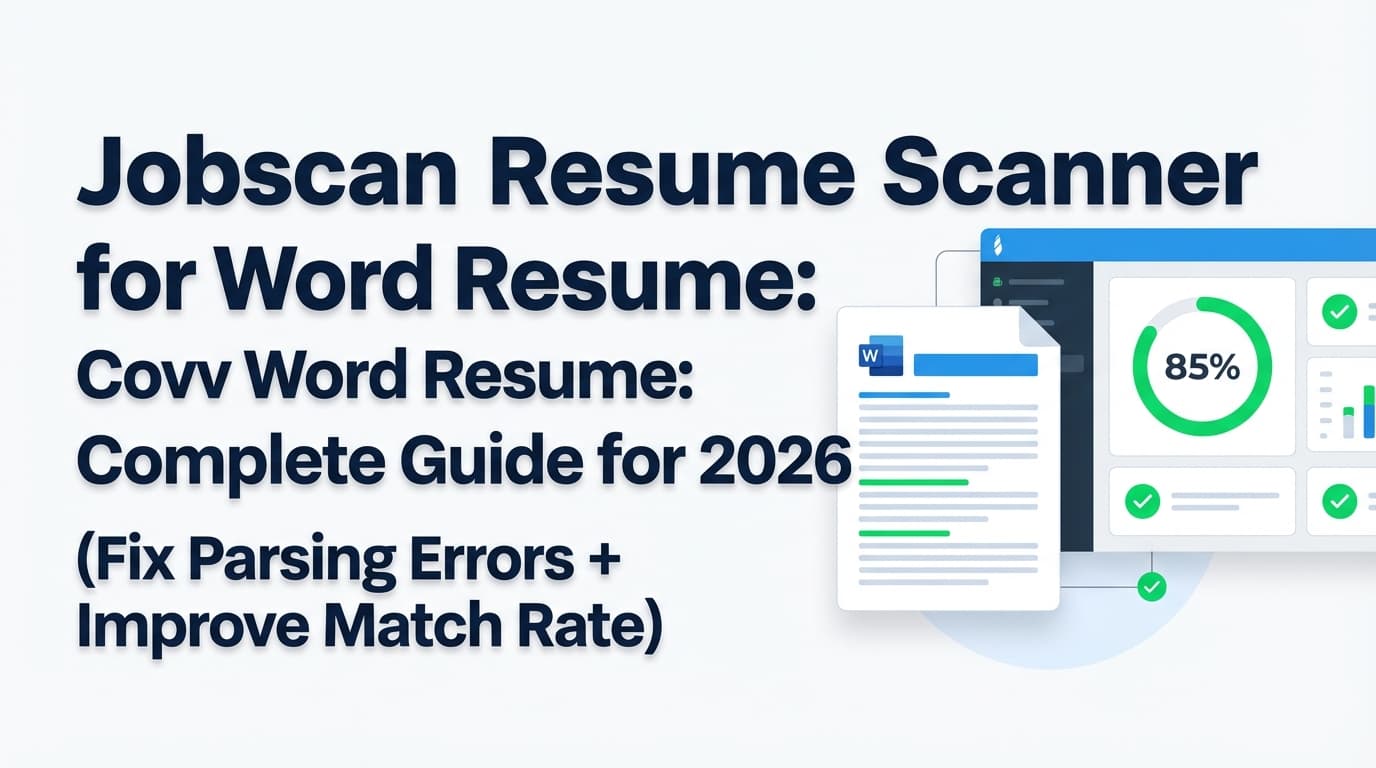
This guide is a practical, step-by-step walkthrough for using Jobscan resume scanner for a Word resume, with specific fixes for the most common DOCX formatting and parsing issues.
In this guide, you’ll learn:
- How to prep a Word resume so Jobscan (and many ATS parsers) can read it correctly
- A step-by-step Jobscan scanning workflow for DOCX resumes
- How to troubleshoot “can’t parse” / missing sections / wrong match rate issues
- How to increase match rate without keyword stuffing
- A final pre-apply checklist + tools that can help you tailor faster
What is the Jobscan resume scanner (and what does “for a Word resume” mean)?
A resume scanner is a tool that compares your resume to a job description and returns feedback like:
- keyword matches / keyword gaps,
- formatting or parsing risks,
- section completeness,
- and sometimes a single score (often called a match rate).
Using Jobscan resume scanner for a Word resume typically means you’re scanning a DOCX version of your resume (or pasting text copied from Word), then pasting a job description to see how well your resume aligns.
Important reality check: scanners are simulations, not the employer’s ATS
Different companies use different ATS platforms, settings, and workflows. A scanner score is best used as:
- a debugging tool (parsing + formatting),
- a keyword gap finder (missing hard skills, tools, certifications),
- and a consistency check across applications.
Not as a promise that you’ll get an interview if you hit a certain number.
Why Word resume formatting still matters in 2026
Even though ATS technology has improved, formatting issues remain a top reason resumes get misread—especially with complex Word templates.
Also, ATS usage is widespread: one industry roundup reports 70% of large companies use an ATS and 75% of recruiters use an ATS or similar recruiting technology. (Confidence: Medium — reported in one major industry roundup, often echoed elsewhere but varies by survey.)
Source: SelectSoftwareReviews ATS statistics https://www.selectsoftwarereviews.com/blog/applicant-tracking-system-statistics
Translation: Your resume likely gets parsed before a human sees it—so your Word file needs to be both:
- machine-readable, and
- human-readable once it reaches a recruiter.
How to use Jobscan resume scanner for a Word resume (step-by-step)
Below is a repeatable workflow you can use for every application.
Step 1: Start with the right “base” Word resume file
Before you scan anything, make sure you’re working from a clean master DOCX:
- single-column layout
- standard headings
- no tables for layout (more on that below)
If your current resume is built using a fancy Word template (two columns, icons, text boxes), create a “scanner-safe” version first.
Pro tip: Name your files clearly:
Firstname_Lastname_Resume_Master.docxFirstname_Lastname_Resume_[Company]_[Role].docx
Step 2: Paste the job description (full posting, not just the summary)
Use the complete job post when possible, including:
- requirements
- responsibilities
- “nice to have”
- tools/tech stack
- certifications
This gives the scanner the best input for keyword extraction.
Step 3: Upload DOCX or paste text from Word—choose based on what you’re testing
You’re usually testing two different things:
- Formatting/parsing (can a system read your resume structure?)
- Content match (do your skills and keywords align to the role?)
Rule of thumb:
- If you’re troubleshooting missing sections or scrambled content → upload the DOCX (format matters).
- If you’re iterating quickly on wording → paste text (faster edits), but you may lose format signals.
Step 4: Review the results in this order (don’t chase the score first)
A practical sequence:
-
Parsing/structure issues first
If the scanner can’t reliably detect your sections, keyword feedback will be noisy. -
Hard-skill keyword gaps next
These are usually the biggest drivers of match rate and searchability. -
Job title alignment
Make sure your resume headline/target role matches the posting (without lying). -
Soft skills last
Soft skills help, but they’re rarely the main reason you’re filtered out early.
Step 5: Make changes in Word (DOCX) with “parser rules” in mind
Then rescan. Expect 2–4 iterations per role when you’re learning the process.
The Word resume prep checklist (before you scan)
If you do only one thing from this guide, do this checklist.
1) Use a single-column layout (no sidebars)
Multi-column designs can cause parsers to read content out of order.
2) Avoid headers and footers for critical info
Some career services guidance explicitly warns against putting key info in headers/footers (especially contact details). (Confidence: Medium — recommended by multiple career offices; behavior varies by ATS.)
Source (PDF): UIC Career Services “Ensure Your Resume Is Read” https://careerservices.uic.edu/wp-content/uploads/sites/26/2017/08/Ensure-Your-Resume-Is-Read-ATS.pdf
Do instead: Put your name + phone + email + LinkedIn on the first lines of the document body.
3) Don’t use tables for layout (especially for skills)
Tables are one of the most common causes of:
- missing skills,
- broken spacing,
- or scrambled reading order.
Replace table-based skills with:
- a simple bulleted list, or
- a comma-separated “Skills” line, or
- grouped lists (Tools / Languages / Platforms) using normal text.
4) Use standard section headings
Stick to headings most parsers recognize:
- Summary
- Skills
- Experience (or Work Experience)
- Education
- Certifications
- Projects (optional)
Avoid creative labels like “Where I’ve Been” or “My Journey”.
5) Use standard bullets (not icons)
Avoid icon bullets or special symbols. Use:
•(standard bullet)-(hyphen)- simple Unicode characters sparingly
6) Keep fonts boring
Common options: Calibri, Arial, Times New Roman. (Jobscan and career centers commonly recommend standard fonts; exact “best” varies.) (Confidence: Medium)
7) Make dates consistent
Pick one format and keep it consistent:
MM/YYYYorMonth YYYY
Common Jobscan + Word resume problems (and how to fix them)
Problem 1: “Jobscan can’t parse my resume” (or it says sections are missing)
This is usually caused by layout complexity, not your content.
Fixes (try in this order):
- Save a new copy of the DOCX (fresh file)
- Remove tables and text boxes
- Move contact info out of headers/footers into the body
- Remove columns and sidebars (convert to single column)
- Rebuild the Skills section as plain text + bullets
If you want a fast self-test:
Copy your resume content and paste it into a plain text editor (Notepad/TextEdit). If the order is chaotic or content disappears, parsers will struggle too. Career offices often recommend a plain-text conversion as a quick ATS test. (Confidence: Medium)
Example guidance: MIT CAPD ATS-friendly resume page https://capd.mit.edu/resources/make-your-resume-ats-friendly/
Problem 2: Your education or job titles don’t show up correctly
Usually caused by:
- unusual heading labels,
- dates placed in tables,
- or text boxes / columns.
Fix: Put entries in a consistent pattern:
Company — Title
City, ST (optional)
Month YYYY – Month YYYY
- Bullet
- Bullet
Problem 3: Your match rate is “too low” even though you’re qualified
This often happens when:
- your resume uses different wording than the job post (synonyms don’t always map),
- key tools are missing from Skills,
- or the tool is overweighting keywords you don’t actually have.
Fix (ethical + effective):
- Add missing hard skills you truly have, in the right section.
- Mirror the employer’s naming for tools when accurate (e.g., “Google Analytics 4 (GA4)”).
- Add context (where you used the skill) in bullets, not just a keyword dump.
Problem 4: You’re tempted to keyword-stuff to hit 90–100%
Don’t.
Jobscan itself has cautions around chasing extreme scores and commonly recommends targets like ~75%+ (often referenced as a practical threshold), and also discusses aiming around 80% in guidance. (Confidence: High — supported by Jobscan guidance + a university career resource referencing the same threshold.)
Sources:
- Jobscan match rate guidance https://www.jobscan.co/blog/what-jobscan-match-rate-should-i-aim-for/
- WGU career resource referencing 75% target https://careers.wgu.edu/resources/jobscan-information-for-faculty/
Practical target: Aim for “strong alignment” while keeping the resume readable and truthful.
How to raise your Jobscan match rate (without wrecking your resume)
Below are the highest-leverage tactics for most job seekers.
1) Match the target job title (strategically)
If the posting says “Data Analyst”, don’t lead with “Business Intelligence Specialist” unless that’s truly your title and the roles are clearly equivalent.
Good compromise:
Headline: Data Analyst | BI & SQL | Tableau
(Only include what you actually do.)
2) Promote the right skills into the Skills section
Many scanners heavily weight Skills. If a tool is truly core to your experience, list it there.
Example (good):
- SQL, Python, Tableau, Looker, dbt, BigQuery, Excel
Example (bad):
- “Hardworking, team player, synergy, go-getter…”
3) Add missing keywords in context inside experience bullets
Keyword lists help, but context helps humans and can help parsers.
Before (weak):
- Worked on dashboards and reports.
After (stronger):
- Built Tableau dashboards to track weekly retention and activation, improving reporting turnaround time by 40%.
4) Translate acronyms and variants
Many job descriptions include both “ATS” and “Applicant Tracking System” style variants.
Use both where relevant:
- “Applicant Tracking System (ATS)”
- “Google Analytics 4 (GA4)”
- “Search Engine Optimization (SEO)”
5) Don’t ignore “requirements” just because you have them
If the job asks for “stakeholder management” and you’ve done it, use the phrase (truthfully) somewhere.
Word resume formatting: DOCX vs PDF (what should you upload?)
This is one of the most common ATS questions, and the honest answer is: it depends.
- Some sources argue PDF preserves formatting better for humans.
- Some argue DOCX is safer for parsing in older systems.
- Many ATS platforms can read both if the PDF is text-based and the layout is simple.
Jobscan has published guidance suggesting their tests show differences between ATS parsing performance by format (PDF vs DOCX), and other sources make different recommendations. (Confidence: Medium — conflicting guidance across sources; safest approach is to follow the employer’s instructions and use a simple layout.)
Related reading: Jobscan “Resume PDF vs Word” page (may be paywalled/blocked in some tools) https://www.jobscan.co/blog/resume-pdf-vs-word/
General file format guidance: Indeed resume file format https://www.indeed.com/career-advice/resumes-cover-letters/resume-file-format
Practical rule:
- If the employer says “DOCX only” → submit DOCX
- If the employer says “PDF only” → submit PDF
- If they don’t specify:
- if applying through a portal that “parses” and autofills → DOCX often reduces formatting surprises
- if emailing a recruiter directly → PDF preserves formatting
A “clean Word resume” template structure (copy/paste outline)
Use this structure to rebuild a scanner-safe DOCX quickly.
NAME LASTNAME
City, ST • Phone • Email • LinkedIn URL • Portfolio (optional)
SUMMARY
2–3 lines. Who you are + niche + proof.
SKILLS
Tools: …
Technical: …
Methods: …
EXPERIENCE
Company — Title | City, ST
Month YYYY – Month YYYY
- Achievement + metric + tool
- Achievement + metric + tool
- Ownership + outcome
PROJECTS (optional)
Project Name — Tools
- What you built + impact
EDUCATION
School — Degree
Month YYYY – Month YYYY
CERTIFICATIONS (optional)
Certification Name — Issuer — Year
How to validate your resume without relying on any one scanner
1) Plain-text test (fast)
Paste your resume into Notepad/TextEdit:
- If content order breaks → fix formatting
- If sections disappear → remove tables/text boxes/headers
2) ATS autofill test (real-world simulation)
Upload your resume to a major job board profile builder (if you use them) and see what gets misread:
- job titles
- company names
- dates
- skills
Then fix the DOCX.
3) Human skim test (7-second scan)
Remember the recruiter scan-time stat (7.4 seconds). (Confidence: High)
Source: The Ladders PDF https://www.theladders.com/static/images/basicSite/pdfs/TheLadders-EyeTracking-StudyC2.pdf
Print your resume or view it on a phone:
- Can someone identify your role, level, and core tools instantly?
- Are the top 2 bullets in your most recent job impressive?
Common mistakes to avoid (especially with Word resumes)
Mistake 1: Using a two-column Word template because it “looks modern”
It can look great to humans, but it’s a frequent parsing risk.
Mistake 2: Putting contact info in the header
Some career services guidance warns ATS may miss header/footer content. (Confidence: Medium)
Source: UIC PDF https://careerservices.uic.edu/wp-content/uploads/sites/26/2017/08/Ensure-Your-Resume-Is-Read-ATS.pdf
Mistake 3: “White text keyword hack”
Besides being unethical, it can backfire and get you rejected if detected. Also, it doesn’t help you with human review.
Mistake 4: Chasing 100% match rate and rewriting your resume into nonsense
A strong, readable resume with honest alignment beats a keyword-stuffed document.
Mistake 5: Tailoring only the Skills section
Great tailoring usually touches:
- headline/summary
- skills
- top bullets in your most recent experience
- projects (if relevant)
Tools that help with resume scanning + tailoring (honest overview)
You have options depending on what you need: scanning, editing, matching, or tracking.
Resume scanning / match feedback
- Jobscan: A popular scanner for comparing a resume to a job description and identifying keyword/formatting issues. (Use it as a guide, not a guarantee.)
- Resume Worded: Offers scanning and feedback; also publishes comparison content and scanner guidance.
Tracking applications (so you don’t lose your mind)
If you’re applying at volume, the “hidden” problem is operational: you forget where you applied, who replied, and which resume version you sent.
-
JobShinobi: Combines an ATS-focused resume workflow with job tracking. You can:
- build resumes using LaTeX templates and compile to PDF in-app,
- run AI resume analysis (including ATS/keyword-focused scoring and feedback),
- run job matching by pasting a job URL or description,
- and (with JobShinobi Pro) forward job-related emails to automatically log applications in a tracker.
Pricing: JobShinobi Pro is $20/month or $199.99/year. The marketing site mentions a 7-day free trial, but trial enforcement mechanics aren’t clearly verified in the app logic, so treat the trial as potentially subject to change.
Internal links: /login and /subscription
When JobShinobi is a good fit: If you’re tired of Word formatting weirdness and want a more controlled resume build system plus tracking.
When it’s not: If you only want a lightweight “upload DOCX and get a score” scanner (JobShinobi is a broader resume + job search workflow tool).
A repeatable workflow for each application (10–20 minutes)
Use this to tailor quickly without spiraling:
- Paste job description into your notes
- Highlight:
- tools/tech
- must-have requirements
- role outcomes (what they want you to deliver)
- Update resume:
- headline (target title)
- skills list (truthful alignment)
- 2–3 bullets in your most relevant job
- Scan in your tool of choice (Jobscan or another)
- Fix:
- parsing/format issues first
- then keyword gaps
- Save final:
Lastname_Firstname_Company_Role.docx- export PDF if needed
Key takeaways
- A Word resume can work great for ATS if it’s simple: single-column, standard headings, no tables/text boxes.
- Use Jobscan (and similar scanners) to find parsing failures and keyword gaps, not as a magic interview meter.
- A match rate target around 75–80% is commonly recommended in Jobscan guidance and echoed by career resources—don’t destroy readability chasing 100%. (Confidence: High)
- Validate with a plain-text test + human skim test so your resume works in the real world.
- If the job search volume is high, pair resume tailoring with a tracking system so you don’t lose context across applications.
FAQ (People Also Ask–style)
Can ATS read Word documents (DOCX)?
Usually yes—many ATS systems accept DOCX, and DOCX can be a safe choice for parsing. The bigger issue is how the Word file is formatted (tables, columns, headers, text boxes). (Confidence: High)
Does ATS prefer DOCX or PDF?
It depends on the employer’s ATS and how the PDF was created. If the PDF is text-based and the layout is simple, many ATS can parse it. If the PDF is image-based (scanned) or highly designed, parsing can fail. When in doubt, follow the job posting’s instructions. (Confidence: Medium — varies by ATS and source guidance.)
Why is my resume not parsing correctly in Jobscan (or an ATS)?
Common causes:
- tables used for layout,
- two-column templates,
- headers/footers holding key information,
- text boxes, icons, or unusual bullets,
- inconsistent headings or date formatting.
Start by converting to a single-column, plain-text-friendly structure and retest. (Confidence: High)
What is a good match rate on Jobscan?
Jobscan commonly references targets around 75%+, and also discusses aiming around 80% in its own guidance. Career resources referencing Jobscan often echo ~75% as a reasonable target—without needing 100%.
Sources: https://www.jobscan.co/blog/what-jobscan-match-rate-should-i-aim-for/ and https://careers.wgu.edu/resources/jobscan-information-for-faculty/ (Confidence: High)
Is Jobscan resume scanner free?
Jobscan offers some level of free access (they market “free ATS resume checker” messaging), but limits and paid tiers may apply depending on the tool and usage. Always confirm current limits on Jobscan’s official pages. (Confidence: Medium — pricing/free limits change over time and can vary by feature.)
How do I test if my resume is ATS-friendly without any tool?
Two quick checks:
- Plain-text test: paste into Notepad/TextEdit and see if the order stays intact.
- Autofill test: upload to a job board profile builder and see what fields get misread.
If either test breaks, simplify formatting (single column, no tables/text boxes). (Confidence: High)
Do tables break ATS parsing?
They can. Some parsers handle simple tables, but many resume issues come from table-based layouts (especially multi-column tables used to align dates/skills). The safest approach is to avoid tables for layout in resumes meant for ATS uploads. (Confidence: Medium — behavior varies, but risk is well-documented across career services guidance and scanner troubleshooting.)