Recruiters decide fast. In an eye-tracking study (2018) from The Ladders, the average initial resume screen clocked in at 7.4 seconds—a number widely repeated in hiring coverage. Confidence: MEDIUM (primary source is The Ladders PDF; widely cited/republished).
Sources: The Ladders eye-tracking PDF (https://www.theladders.com/static/images/basicSite/pdfs/TheLadders-EyeTracking-StudyC2.pdf) and HR Dive summary (https://www.hrdive.com/news/eye-tracking-study-shows-recruiters-look-at-resumes-for-7-seconds/541582/)
That speed changes how you should “optimize”:
- Your resume must be parsable and keyword-aligned (ATS + recruiter skim).
- Your LinkedIn profile must be searchable and consistent (recruiter sourcing + credibility check).
- Your story must match across both—or you raise doubts.
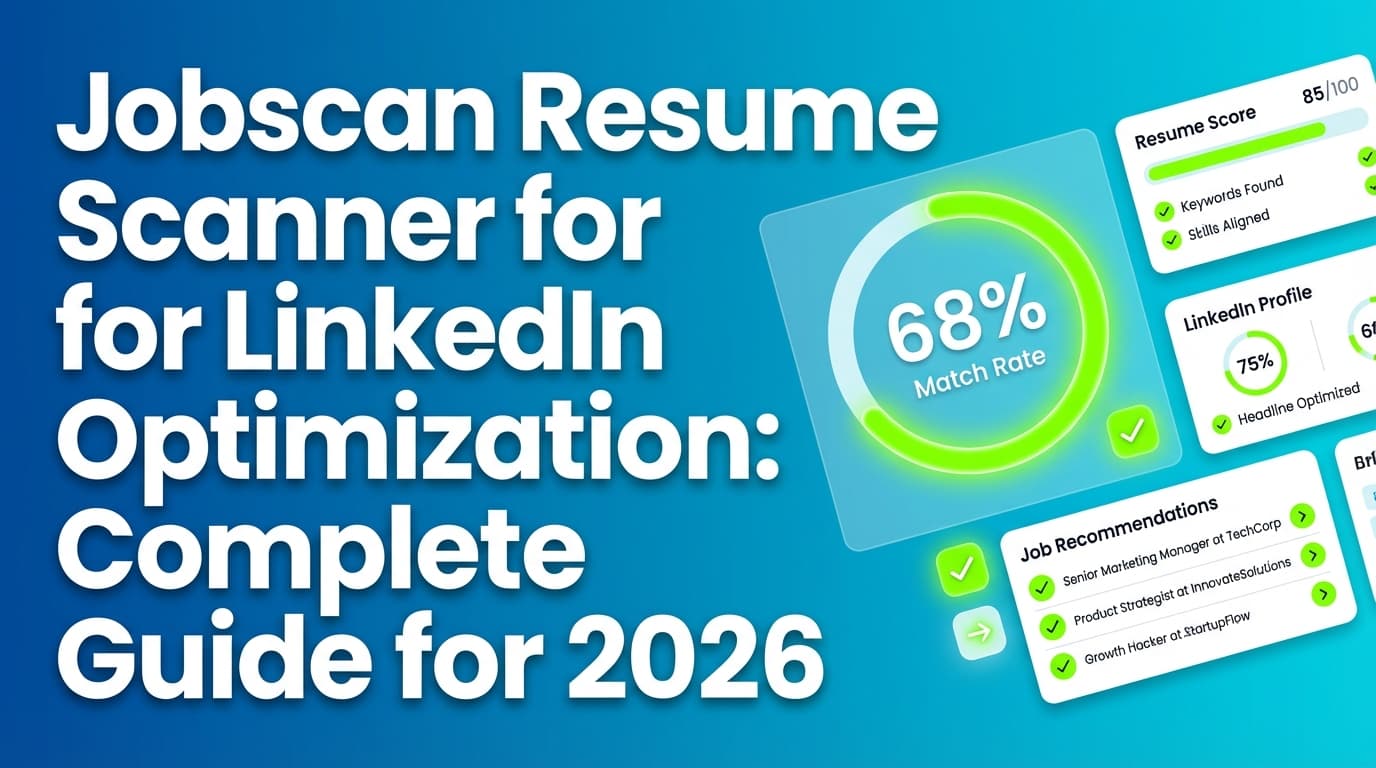
This is why people search “jobscan resume scanner for linkedin optimization”: they want a repeatable workflow to align keywords across resume + LinkedIn without sounding fake, stuffing buzzwords, or chasing meaningless scores.
In this guide, you’ll learn:
- What “LinkedIn optimization” actually means (and what scanners can’t tell you)
- A step-by-step process to turn Jobscan-style scan results into a LinkedIn keyword strategy
- Exactly where to place keywords (headline, About, experience, skills) with templates and examples
- Common mistakes (including the “ATS myth” nuance job seekers miss)
- Tools (including JobShinobi) that help you tailor faster—accurately and honestly
What is “Jobscan resume scanner for LinkedIn optimization”?
Definition: It’s a workflow where you use a resume scanner (like Jobscan) to identify keyword gaps and role alignment issues against a job description, then apply those insights to your LinkedIn profile so recruiters can find you and trust you.
Important clarification: LinkedIn is not an ATS
- An ATS (Applicant Tracking System) manages applications and often enables filtering/searching.
- LinkedIn is a professional network with its own search and ranking behavior.
What’s similar: recruiters use both as search systems, and both are strongly influenced by keywords (plus relevance signals).
Jobscan reports that 98.4% of Fortune 500 companies used a detectable ATS in 2024. Confidence: MEDIUM (single primary source; widely echoed but usually attributed back to Jobscan).
Source: https://www.jobscan.co/blog/fortune-500-use-applicant-tracking-systems/
Jobscan also cites a survey of 384 recruiters where over 99.7% use keyword filters to search for candidates inside their ATS. Confidence: MEDIUM (single primary source; credible but not independently replicated in the same wording).
Source: https://www.jobscan.co/blog/8-things-you-need-to-know-about-applicant-tracking-systems/
Bottom line: If your resume and LinkedIn aren’t keyword-aligned and readable, you’re harder to find and easier to reject quickly.
Why LinkedIn optimization matters in 2026 (with stats)
-
LinkedIn has more than 1 billion members in 200+ countries/territories. Confidence: HIGH (official LinkedIn source).
Source: https://about.linkedin.com/ -
Recruiters skim quickly: 7.4 seconds average initial resume screen (The Ladders 2018). Confidence: MEDIUM.
Sources:
- https://www.theladders.com/static/images/basicSite/pdfs/TheLadders-EyeTracking-StudyC2.pdf
- https://www.hrdive.com/news/eye-tracking-study-shows-recruiters-look-at-resumes-for-7-seconds/541582/
-
ATS usage is near-universal in large companies: 98.4% of Fortune 500 had detectable ATS in 2024. Confidence: MEDIUM.
Source: https://www.jobscan.co/blog/fortune-500-use-applicant-tracking-systems/ -
LinkedIn’s recruiting research surveyed 1,453 recruiting professionals (and 498 hiring managers) in its Future of Recruiting report. Confidence: MEDIUM (single official report).
Source (PDF): https://business.linkedin.com/content/dam/me/business/en-us/talent-solutions/resources/pdfs/future-of-recruiting-2024.pdf -
LinkedIn allows you to add up to 100 skills to your profile. Confidence: HIGH (LinkedIn Help documentation).
Source: https://www.linkedin.com/help/linkedin/answer/a549047
Implication: Resume optimization helps your application; LinkedIn optimization helps your discoverability and credibility—especially in roles where recruiters source candidates rather than only reviewing inbound applications.
How to use Jobscan resume scanner for LinkedIn optimization (step-by-step)
Step 1: Pick a single target role (or your keywords will blur)
If you try to optimize for “Product / Data / Ops / Marketing,” your profile reads like a generic list of skills, and recruiters can’t categorize you.
Choose:
- One role title
- One seniority level
- One domain (optional but helpful)
Examples:
- “Data Analyst (Product Analytics)”
- “Frontend Engineer (React/TypeScript)”
- “Project Manager (Healthcare IT)”
Pro tip: If you’re pivoting, pick the next credible role you can defend with proof—not the role that requires years you don’t have.
Step 2: Build a keyword architecture from 5–10 job postings (before scanning)
A resume scan is only as good as the job description you feed it. If you scan one random posting, you’ll overfit to that company’s wording.
Create a “keyword architecture” using 5–10 postings for the same target role.
Keyword Architecture Template (copy/paste)
Create 4 buckets:
- Target Titles & Variants
- Primary title: ________
- Common variants: ________, ________
- Hard Skills / Tools (search terms)
- Tools: ________, ________, ________
- Systems/platforms: ________, ________
- Methods / Competencies
- Examples: forecasting, A/B testing, stakeholder management, ETL, SEO, CRM…
- Outcomes / Metrics
- Examples: conversion rate, churn, latency, cost reduction, cycle time, revenue impact…
Now mark each keyword:
- Core (appears in most postings) = goes everywhere (resume + LinkedIn)
- Variant (appears sometimes) = rotate per application
Pro tip: Your goal is not “more keywords.” Your goal is “the right keywords backed by proof.”
Step 3: Run a resume scan—and interpret it like a strategist (not a student)
Most resume scanners (including Jobscan) generally surface:
- Match rate / score
- Missing keywords
- Suggestions by section (summary/skills/experience)
- Formatting or readability flags (depends on tool)
Use scan results to answer two questions:
-
What keywords do I have experience with but didn’t name?
Add them—with proof (project, outcome, tool usage). -
What keywords are missing because I don’t have them?
Do not add them. That’s not optimization; that’s misrepresentation.
What match rate should you aim for?
Jobscan has published that it “generally recommend[s]” 80%, while noting many users succeed at 75%. Confidence: MEDIUM (primary source: Jobscan).
Source: https://www.jobscan.co/blog/what-jobscan-match-rate-should-i-aim-for/
Practical guidance: Treat match rate as a diagnostic. A 90% resume that reads like keyword soup can underperform a 75% resume that’s clear, quantified, and credible.
Step 4: Convert scan outputs into a LinkedIn keyword plan (the “distribution model”)
LinkedIn is not graded like a resume scanner. You win on LinkedIn by placing keywords in high-signal sections that recruiters (and LinkedIn search) rely on.
Use this distribution table:
| Keyword type | Best LinkedIn placements | Why it works |
|---|---|---|
| Target title | Headline, first 2 lines of About, (accurate) role titles | Recruiters search titles first |
| Tools/hard skills | Skills section + Experience bullets + About | Searchability + credibility |
| Domain keywords | About + Experience | Helps you appear in niche searches |
| Outcomes/metrics | Experience + Featured | Converts “keywords” into proof |
LinkedIn optimization section-by-section (with limits, templates, and examples)
1) Headline: your #1 discovery line
Many career resources cite a 220-character headline limit (limits may vary by interface). Confidence: LOW (not confirmed via LinkedIn Help in our sources; widely referenced).
If you want a safe approach: aim for ~180–200 characters.
Headline formula (keyword-forward, not cringey)
[Target Role] | [2–4 hard skills] | [Domain] | [Outcome]
Example — Data Analyst
Data Analyst | SQL, Python, Tableau | Product & GTM Analytics | Dashboards + Forecasting to improve conversion and retention
Example — Frontend Engineer
Frontend Engineer | React, TypeScript, Next.js | Performance & Design Systems | Accessible UI builds that ship fast
Common mistake: “Open to Work | Hardworking | Team Player”
These aren’t search terms—and they don’t differentiate you.
2) About: write for humans, seed keywords for search
LinkedIn notes the About section has 2,600 characters max. Confidence: HIGH (LinkedIn Talent blog).
Source: https://www.linkedin.com/business/talent/blog/product-tips/linkedin-profile-summaries-that-we-love-and-how-to-boost-your-own
About template (copy/paste)
I’m a [target role] focused on [domain/problem space], using [top tools] to drive [outcomes].
Recent wins:
- [Result]: Improved [metric] by [number]% by [method/tool]
- [Result]: Built [artifact: dashboard/pipeline/campaign] used by [# users/stakeholders]
- [Result]: Partnered with [teams] to ship [deliverable] on [timeline]
Core skills: [keyword cluster: tools + methods]
Currently exploring: [target roles] in [domain] (open to [location/remote]).
Pro tip: “keyword + proof” beats “keyword list”
If a scan says you’re missing “stakeholder management,” don’t paste the phrase 5 times. Add one line that proves it:
- “Partnered with Sales Ops and RevOps stakeholders to define weekly pipeline metrics…”
3) Experience: where keywords become believable
Your experience section is the bridge between “search terms” and “trust.”
Rewrite pattern: Task → Outcome + tool + scope
Before (task-y)
- Responsible for reports and dashboards.
After (searchable + credible)
- Built SQL reporting and Tableau dashboards that reduced weekly reporting time by 30% and improved pipeline visibility for Sales Ops.
Experience bullet checklist (fast but effective)
- Start with an impact verb
- Include a tool (if relevant)
- Add a metric (even directional)
- Mention scope (team size, user count, data volume, budget)
4) Skills: maximize relevance (LinkedIn allows up to 100)
LinkedIn Help states you can add up to 100 skills. Confidence: HIGH.
Source: https://www.linkedin.com/help/linkedin/answer/a549047
Skills strategy
- Add your top 10–20 hard skills first (tools recruiters search)
- Add methods/competencies next
- Keep skills consistent with your resume (mismatches cause doubt)
Good skill examples (specific):
- “SQL”, “Python”, “Tableau”, “Looker”, “A/B Testing”, “ETL”, “Salesforce”, “React”, “TypeScript”, “AWS”, “Jira”
Weak skill examples (generic):
- “Hard worker”, “Great communicator” (these belong in proof-based bullets, not the Skills list)
5) Featured: your proof engine (often ignored, highly persuasive)
Scanners measure keyword overlap; recruiters look for evidence.
Use Featured for:
- Portfolio site
- Case study doc
- GitHub repo
- Slide deck
- Writing sample
- Certification link (only if relevant)
Pro tip: Add 1 “proof artifact” per signature claim in your About section.
The “Two-Loop System” (the unique angle that prevents score-chasing)
Most people do: scan → tweak resume → stop.
A better system:
Loop A: Resume loop (ATS + job description)
- Scan resume vs job description
- Fix genuine gaps (skills you have but didn’t name)
- Improve proof (metrics, tools, scope)
- Save:
- A base resume (core keywords)
- A tailored resume (role-specific variants)
Loop B: LinkedIn loop (recruiter search + credibility)
- Pull top keyword gaps + important keywords from the scan
- Add them across:
- Headline (3–6 keywords max)
- About (5–12 keywords, but in sentences)
- Experience (where you can prove them)
- Skills (10–40 keywords depending on role)
- Add proof to Featured
Why this works: It stops you from “winning the scan” while staying invisible—or looking spammy—on LinkedIn.
Measuring LinkedIn optimization (so you’re not guessing)
LinkedIn provides “Search Appearances” analytics showing how often you appeared in search. Confidence: HIGH (LinkedIn Help).
Source: https://www.linkedin.com/help/linkedin/answer/a553050/view-your-profile-search-appearances
Simple weekly measurement routine (10 minutes)
Track:
- Search appearances trend (up/down)
- Top search terms you appeared for
- Top companies/roles viewing (if visible to you)
Then adjust:
- Headline keywords if you’re showing up for the wrong role
- About keywords if you’re missing key terms from your target postings
- Experience bullets if you need proof for your claims
Pro tip: Don’t rewrite daily. Make one change, wait 1–2 weeks, then compare directionally.
15 best practices for Jobscan-style LinkedIn optimization (without keyword stuffing)
- Use one target title consistently (headline, About, resume).
- Use title variants if job postings use them (“Data Analyst” + “Product Analyst”).
- Prioritize hard skills recruiters filter on (tools, platforms, certifications).
- Write “keyword + proof” (a keyword without evidence reads like fluff).
- Repeat keywords naturally across sections (headline + About + experience + skills).
- Avoid keyword lists in About (reads spammy; low credibility).
- Quantify outcomes where possible (time saved, growth %, users, $ impact).
- Use the same language as job postings—but not copy/paste (translate into your results).
- Keep your top 2 experiences updated (most recruiters won’t read 10 roles deep).
- Add Featured proof for big claims (portfolio, project, case study).
- Make your current role title accurate (don’t inflate titles to match searches).
- Maintain alignment with your resume (dates/titles/scope shouldn’t conflict).
- Tailor lightly, not constantly (optimize core; rotate variants per target).
- Use the scan score as a diagnostic, not a goal.
- If you’re pivoting, explain it in About (bridge your story with transferable proof).
Common mistakes to avoid (and the ATS reality check)
Mistake 1: Treating the scanner score as “truth”
Scanners approximate keyword overlap. They don’t know:
- the hiring manager’s true priorities
- which skills are “must-have” vs “nice-to-have”
- how the company configured its ATS filters
Fix: Use scan results to find missing real skills and improve clarity. Keep human readability sacred.
Mistake 2: Keyword stuffing your About section
If your About reads like:
“SQL SQL SQL Tableau Tableau stakeholder management cross-functional synergy…”
…it may contain terms, but it damages trust.
Fix: Turn keywords into sentences tied to outcomes.
Mistake 3: Optimizing for ATS but forgetting LinkedIn discovery
If you only tailor resumes, you’re playing defense (apply and wait).
LinkedIn optimization adds offense (get sourced).
Fix: Use the two-loop system (resume loop + LinkedIn loop).
Mistake 4: Copy/pasting job descriptions into your profile
Recruiters notice. It also makes you indistinguishable.
Fix: Translate requirements into proof (“I did X using Y to achieve Z”).
Mistake 5: Resume and LinkedIn don’t match
Mismatch triggers skepticism:
- Different titles
- Conflicting dates
- Different seniority signals
- Claims on LinkedIn not backed by resume bullets
Fix: Harmonize the story. If there’s a nuance (e.g., internal vs external title), clarify in About or experience description.
Examples: turning scan insights into LinkedIn updates (3 scenarios)
Scenario A: Your scan shows missing keywords (that you actually have)
Scan says missing: “A/B testing”, “experiment design”, “SQL”
LinkedIn update plan:
- Headline: add “A/B Testing” (if core to role)
- About: one sentence referencing experimentation
- Experience: one bullet proving an experiment + metric
- Skills: add “A/B Testing”, “Experiment Design”, “SQL”
Experience bullet example:
- Designed and analyzed A/B tests using SQL to measure checkout conversion, improving conversion by X% over Y weeks.
Scenario B: Your scan shows keywords you don’t have
Scan says missing: “Snowflake”, “dbt”
You don’t have them.
LinkedIn update plan:
- Do not add them.
- Instead, add adjacent truthful terms you do have (e.g., “data modeling”, “ETL”, “BigQuery”).
- If those tools are core in many postings, that’s a learning plan—not a keyword plan.
Scenario C: Your scan suggests “role title mismatch”
You’re applying for “Product Analyst” but your LinkedIn says “Business Analyst” with no product context.
LinkedIn update plan:
- Headline: “Product/Business Analyst” (only if truthful)
- About: clarify product analytics focus
- Experience: add product metrics and experiments (if applicable)
- Featured: add a dashboard/case study showing product work
Tools to help with Jobscan-style LinkedIn optimization (honest and accurate)
Keyword + resume-to-job alignment tools
- Jobscan: widely used for resume-to-job description keyword matching and LinkedIn optimization tooling/resources (based on Jobscan’s own published pages and tutorials visible in SERPs). Use it to identify keyword gaps, then apply them thoughtfully to LinkedIn.
- Resume Worded (LinkedIn Review): AI-driven LinkedIn review with examples for headlines and summaries.
Source: https://resumeworded.com/linkedin-review/ - Pursue Networking (keyword/SEO guide): strong deep-dive on LinkedIn profile keywords and placement strategies.
Source: https://pursuenetworking.com/blog/linkedin-profile-keywords-seo-guide/
Where JobShinobi fits (natural mention; no inflated claims)
If your biggest bottleneck is tailoring quickly without losing control of formatting, JobShinobi can help on the resume side:
- Build resumes in LaTeX and compile to PDF inside the app.
- Get AI resume analysis (including ATS-focused scoring/feedback).
- Run resume-to-job matching against a job URL or pasted description (to identify gaps and tailoring suggestions).
- Track job applications (including email-forwarding automation—Pro required).
Pricing (accurate): JobShinobi Pro is $20/month or $199.99/year. The marketing/pricing copy mentions a “7-day free trial,” but the exact trial mechanics are not clearly verifiable in code—treat it as “mentioned,” not guaranteed.
Internal links: /dashboard/resume, /#pricing
What JobShinobi is not: a LinkedIn posting/scheduling tool. It won’t publish to LinkedIn for you; you’d apply the keyword architecture manually to your profile.
Key takeaways
- “Jobscan resume scanner for LinkedIn optimization” is best treated as a system: scan → keyword architecture → LinkedIn distribution → measurement.
- Use scan results to add real keywords you can prove, not to chase a perfect score.
- LinkedIn optimization is mostly about headline + About + experience + skills, supported by proof in Featured.
- Measure results using Search Appearances and adjust every 1–2 weeks.
- Consistency across resume + LinkedIn reduces doubt and increases recruiter confidence.
FAQ (People Also Ask–style)
Is Jobscan resume ATS-friendly?
A scanner can help improve ATS compatibility by flagging keyword gaps and common formatting/readability issues, but “ATS-friendly” depends on the specific ATS and how it’s configured. Use scanner output to improve clarity and keyword alignment—then keep formatting simple and human-readable.
What is a good match rate on Jobscan?
Jobscan has published guidance recommending 80%, while noting many job seekers see success at 75%. Confidence: MEDIUM (primary source: Jobscan).
Source: https://www.jobscan.co/blog/what-jobscan-match-rate-should-i-aim-for/
How do you do LinkedIn profile optimization?
A practical approach:
- Choose one target role
- Add role + key skills to your headline
- Write an About that leads with your target + proof
- Update Experience with outcomes + tools
- Fill Skills with relevant hard skills (LinkedIn allows up to 100)
- Add proof in Featured
- Measure with Search Appearances
Source: LinkedIn Search Appearances Help doc: https://www.linkedin.com/help/linkedin/answer/a553050/view-your-profile-search-appearances
Can I pay someone to optimize my LinkedIn profile?
Yes—many career coaches and resume writers offer LinkedIn optimization. If you do, make sure they:
- build a keyword map from real job postings
- keep everything truthful and defensible
- update experience bullets with proof (not just buzzwords) You can also DIY with the templates in this guide and validate keyword direction using a resume scanner.
How do I make an “ATS-friendly” LinkedIn profile?
LinkedIn itself isn’t an ATS, but you can make your profile search-friendly by ensuring your target keywords appear naturally in:
- Headline
- About (especially first 2 lines)
- Experience bullets (with proof)
- Skills list
Then keep your resume aligned so recruiters see a consistent story.
What’s the fastest way to improve LinkedIn search appearances?
Start with the highest-leverage changes:
- Rewrite your headline with your target role + 3–5 key skills
- Rewrite the first 2 lines of About (target role + niche)
- Add 2–3 experience bullets that include the core tools/keywords and measurable outcomes Then check Search Appearances weekly and iterate.