Most large employers use applicant tracking systems (ATS)—and Jobscan reports it detected an ATS for 97.8% of Fortune 500 companies in 2025. (Source: Jobscan ATS Usage Report; Confidence: High)
https://www.jobscan.co/blog/fortune-500-use-applicant-tracking-systems/
That’s why job seekers obsess over “ATS-friendly resumes”… and why Google Docs resumes sometimes become a problem: they look clean to you, but they can export into a file that parses weirdly in scanners (and in some ATS).
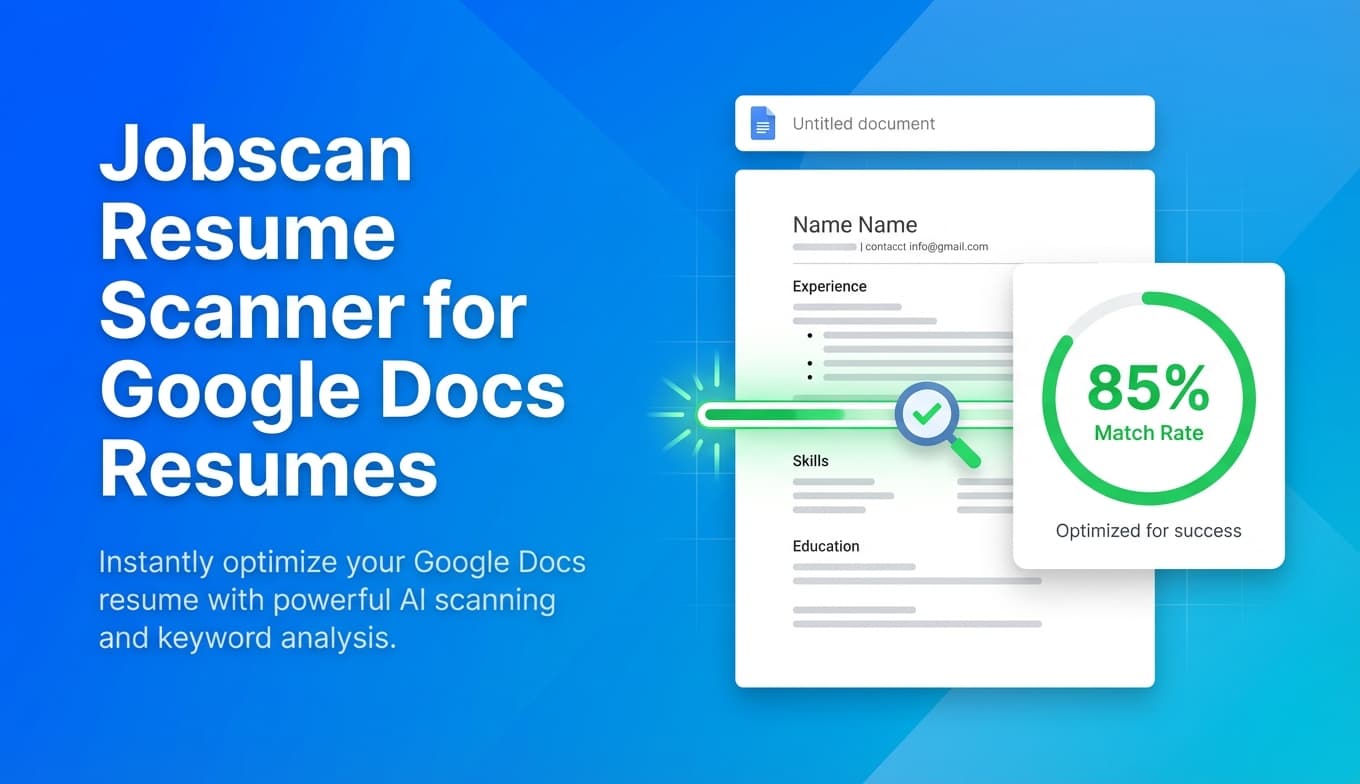
This guide is specifically for people who write resumes in Google Docs and want to run them through Jobscan’s resume scanner without getting misleading errors, scrambled sections, or missing dates.
In this guide, you’ll learn:
- How to prep a Google Docs resume so Jobscan (and ATS parsers) can read it reliably
- The right way to export from Google Docs (PDF vs. DOCX) depending on your situation
- How to interpret Jobscan feedback without “keyword stuffing” your resume
- Common Jobscan parsing issues and exactly how to fix them in Google Docs
- Alternative tools/workflows if you’re tired of fighting Google Docs formatting
What is Jobscan’s resume scanner (and what does it actually do)?
Jobscan’s resume scanner is an ATS-style checker that compares your resume against a job description and generates feedback on things like:
- Keyword match / missing skills
- Section headings and structure
- Formatting signals that may cause parsing problems
Think of it as a simulation: it’s not “the ATS,” but it’s designed to approximate how ATS parsing and recruiter keyword searches might work. (Confidence: High — this is the standard limitation across resume scanners.)
Important limitation: not all ATS work the same
Different employers use different systems (Workday, Greenhouse, iCIMS, Taleo, Lever, etc.), and those systems can parse PDFs/DOCX differently. Your goal is not to “beat Jobscan.” Your goal is to:
- produce a resume that parses cleanly, and
- align your resume language to the role so a recruiter can quickly say “yes.”
This matters because recruiters skim fast. The Ladders’ eye-tracking research is widely cited as showing recruiters spend about 7.4 seconds on an initial resume scan. (Source: TheLadders Eye-Tracking Study PDF; Confidence: Medium–High)
https://www.theladders.com/static/images/basicSite/pdfs/TheLadders-EyeTracking-StudyC2.pdf
Are Google Docs resumes ATS-friendly?
They can be—but only if you build them with ATS parsing in mind.
Google Docs itself isn’t the enemy. The problems usually come from:
- Tables and multi-column layouts used to “make it look modern”
- Headers/footers containing contact info (ATS may ignore these)
- Icons/special characters that export oddly
- The way your resume exports to PDF or .docx (which affects parsing)
Indeed’s ATS guidance explicitly recommends avoiding headers, tables, and graphics in ATS resumes. (Source: Indeed ATS resume template guidance; Confidence: Medium — specific ATS behavior varies.)
https://www.indeed.com/career-advice/resumes-cover-letters/ats-resume-template
Why this matters in 2026 (the stakes are real)
Here are three research-backed signals that ATS-style optimization is not just paranoia:
-
ATS adoption is high. HR.com reports 78% of HR professionals use an ATS. (Source: HR.com “Future of Recruitment Technologies 2025–26”; Confidence: Medium)
https://www.hr.com/en/resources/free_research_white_papers/hrcoms-future-of-recruitment-technologies-2025-26_mgdxak1f.html -
ATS usage is extremely common among large employers. Jobscan reports an ATS detected for 97.8% of Fortune 500 companies. (Source: Jobscan; Confidence: High)
https://www.jobscan.co/blog/fortune-500-use-applicant-tracking-systems/ -
The market is growing. Global Market Insights estimates the ATS market was $2.7B in 2024. (Source: Global Market Insights; Confidence: Medium — market sizing varies by firm.)
https://www.gminsights.com/industry-analysis/applicant-tracking-system-market
Translation for job seekers: you need a resume that parses cleanly and reads clearly. Jobscan can help—but only if you feed it a file that won’t break the scan.
How to use Jobscan’s resume scanner with a Google Docs resume (step-by-step)
Step 1: Start from an ATS-safe Google Docs layout (before you scan)
Before you export anything, make sure your Google Doc is built in a way that won’t confuse parsers.
Use this ATS-safe structure:
- Single column
- Standard headings: Summary, Skills, Experience, Education, Projects, Certifications
- Plain text bullets (no icons)
- Dates in a consistent format (e.g.,
Jan 2023 – May 2025or01/2023 – 05/2025)
Avoid these common Google Docs traps:
- Tables (especially “skills tables”)
- Text boxes / sidebars
- Two-column headers created with a table
- Putting contact info in the actual Google Docs Header area
Pro tip: If your resume uses a two-column look, rebuild it into one column before you start optimizing keywords. Otherwise you’ll chase “missing sections” errors that are really formatting issues.
Step 2: Run a quick “parser sanity check” (before Jobscan)
This isn’t perfect, but it catches a lot of common problems.
- In Google Docs, press
Ctrl+A/Cmd+A - Copy
- Paste into a plain text editor (Notepad / TextEdit)
If the content becomes jumbled (dates floating, bullets broken, sections out of order), you likely have table/column formatting problems. (Confidence: Medium — useful early warning, not a definitive test.)
Step 3: Export from Google Docs the right way (DOCX vs PDF)
Google Docs supports downloading in multiple formats. (Source: Google Docs Help; Confidence: High.)
https://support.google.com/docs/answer/49114
In your Google Doc:
- File → Download → Microsoft Word (.docx)
or - File → Download → PDF Document (.pdf)
Which format should you use for Jobscan?
Jobscan’s own tutorial notes that formatting checks depend on uploading a file (pasting text won’t show formatting warnings the same way). (Source: Jobscan tutorial; Confidence: Medium.)
https://www.jobscan.co/jobscan-tutorial
Practical guidance:
- If Jobscan is flagging formatting: try .docx first
- If your DOCX export shifts spacing: try PDF
- If both parse poorly: simplify the Google Doc layout (Step 1)
Step 4: Upload your resume to Jobscan (don’t paste first)
Inside Jobscan’s scanner:
- Upload the exported .docx or .pdf
- Paste the job description (or use the job link option if provided)
Why upload matters: pasting text strips out many layout details—so you might miss issues until you apply.
Step 5: Read results in the right order (formatting first, keywords second)
Use this order to avoid wasted work:
-
Parsing / formatting warnings
Fix anything that makes sections appear “empty,” dates missing, or job titles scrambled. -
Core role match (title + must-have skills)
Confirm your resume reflects the role you’re applying for. -
Keyword gaps (only the relevant ones)
Add missing keywords only if they truthfully match your experience. -
Impact improvements
Quantify results, tighten bullets, remove fluff.
Pro tip: If you change formatting after keyword edits, re-scan. Formatting changes can push keywords into headers/tables where parsers might ignore them.
Step 6: Iterate using a “master resume + targeted copy” workflow
If you apply to multiple roles, don’t overwrite one resume again and again.
Use this workflow:
- Keep a Master Resume (Google Doc)
- Create a copy for each target job:
Resume - Data Analyst - Acme - Jan 2026Resume - Marketing Manager - BetaCo - Jan 2026
This prevents you from optimizing one resume so hard it stops fitting other roles.
Fixing common Jobscan issues with Google Docs resumes (with specific fixes)
Issue 1: “Work Experience appears empty” (or sections look missing)
Likely causes:
- Experience is inside a table
- Multi-column layout
- Non-standard headings
Fix:
- Replace tables with normal text:
- Company + Title on one line
- Dates on the same line using tab stops (not tables)
- Use standard headings like
WORK EXPERIENCE,EDUCATION,SKILLS
Issue 2: Dates aren’t recognized
Likely causes:
- Dates placed in a header/footer
- Dates inside a table cell
- Inconsistent date formatting
Fix checklist:
- Put dates in the document body
- Use one format consistently:
MM/YYYY – MM/YYYYorMon YYYY – Mon YYYY
- Avoid icons or unusual separators
Issue 3: Skills aren’t being detected
Likely causes:
- Skills arranged in a table
- Multi-column skill lists
- Unusual symbols separating skills
Fix: Use a simple list:
Skills: SQL, Python, Excel, Tableau, Power BI, A/B testing, stakeholder management
Or categories:
Skills
- Data: SQL, Python, Excel
- BI: Tableau, Power BI
- Analytics: A/B testing, cohort analysis
Issue 4: The scan “wants” every keyword (and it feels wrong)
Job descriptions include boilerplate and “nice-to-haves.”
Filter keywords using this rule: add a keyword only if:
- You’ve done it hands-on, or
- You can credibly explain it in an interview, or
- It’s a true close equivalent (and you name that equivalent)
Avoid: pasting the job description into your resume or creating a “keyword dump.”
Issue 5: PDF upload looks garbled
Likely cause: layout tricks don’t export cleanly.
Fix:
- Try DOCX instead of PDF (or vice versa)
- Remove text boxes, shapes, icons, tables
- Stop using manual spacing to “push” text down the page
Best practices: Getting value from Jobscan without obsessing over the score
1) Mirror the job title (without lying)
Jobscan’s “Interview Rates Study” is based on analysis of nearly 1 million job applications. (Source: Jobscan; Confidence: Medium — self-reported study.)
https://www.jobscan.co/blog/interview-rates-study/
Safe way to apply this: Use a headline like:
Data Analyst | SQL | Tableau | Product Analytics
Don’t change your official job titles to match the posting.
2) Put keywords in bullets (not just in Skills)
ATS and humans both respond better to proof.
- Weak: “Used Tableau.”
- Strong: “Built Tableau dashboards to track weekly retention cohorts, reducing reporting time by 40%.”
3) Use synonyms and natural phrasing
Include both the keyword and the plain-English version where it helps:
- “ETL (data pipelines)”
- “stakeholder management (cross-functional partners)”
4) Keep headings boring (boring is ATS-friendly)
Avoid creative headings like “My Journey.” Use: Experience, Education, Skills.
5) Don’t overfit to one scanner
Treat Jobscan as one test environment. Your resume also needs to:
- Upload cleanly into Workday-style forms
- Read well as a PDF attachment
- Make sense when skimmed in seconds
(Confidence: High.)
Example: Tailoring a Google Docs resume using Jobscan feedback (without keyword stuffing)
Imagine the job description emphasizes:
- SQL, Tableau, stakeholder management, dashboards, A/B testing
Before (too generic)
Data Analyst | XYZ
- Created reports for leadership.
- Worked with teams to improve business outcomes.
- Analyzed data and presented insights.
After (optimized and credible)
Data Analyst | XYZ
- Wrote SQL queries to build weekly KPI reporting and troubleshoot data quality issues across product analytics tables.
- Built Tableau dashboards for retention and conversion tracking, cutting manual reporting time by 40%.
- Partnered with Product and Marketing stakeholders to define metrics, interpret experiments, and present A/B test results.
What changed:
- Keywords are natural (not stuffed)
- Bullets show outcomes and scope
- Nothing is copied verbatim from the job post
Google Docs formatting checklist (Jobscan-friendly)
Layout
- Single column
- No tables (including skills tables)
- No text boxes or sidebars
- No contact info in headers/footers
Structure
- Standard headings (Summary, Skills, Experience, Education)
- Dates are consistent and in the body text
Export
- Download as .docx and/or PDF
- Open exported file to confirm formatting
- Quick plain-text paste test for ordering
Tools to help with Jobscan + Google Docs resumes (honest options)
Jobscan
Good for:
- Keyword gap analysis
- Surfacing formatting red flags (when you upload a file)
Limitations:
- Not identical to every employer ATS
- Can encourage “score chasing” if you’re not careful
JobShinobi (a format-stable alternative when Google Docs becomes the bottleneck)
If Google Docs formatting keeps wasting your time, JobShinobi supports a different workflow:
- Build resumes in LaTeX using templates and compile to PDF in-app. (Confidence: High — supported.)
- Get AI resume analysis with ATS-focused scoring and detailed feedback. (Confidence: High — supported.)
- Do resume-to-job matching by pasting a job URL or description. (Confidence: High — supported.)
- Track job applications and export your tracker to Excel (.xlsx). (Confidence: High — supported.)
- Track job applications by forwarding emails to a unique address — requires Pro membership. (Confidence: High — Pro-gated.)
Pricing (accurate): JobShinobi Pro is $20/month or $199.99/year. (Confidence: High.)
Marketing mentions a 7-day free trial, but trial mechanics aren’t clearly verifiable from code—so check current availability rather than assuming it applies. (Confidence: Medium.)
Key takeaways
- Google Docs resumes can work with Jobscan, but tables/columns/headers are the usual reason scans break.
- Upload a DOCX/PDF file to Jobscan for the most useful formatting feedback.
- Fix parsing issues first, then tailor keywords.
- Don’t chase 100% match rate—write credible, quantified bullets.
- If Google Docs formatting keeps causing “scanner noise,” consider a format-stable resume workflow.
FAQ
Are Google Docs resumes ATS-friendly?
Yes, if they’re simple: single column, no tables, no header/footer content, and standard headings. (Confidence: High.)
What resume format works best with Jobscan?
Usually a clean DOCX or PDF exported from a simple layout. If parsing fails, try switching formats and simplifying the Google Doc. (Confidence: Medium.)
Why does Jobscan say my work experience is empty?
Most often because your experience is in a table or multi-column layout. Convert it to plain text with standard headings and re-export. (Confidence: Medium–High.)
Is it better to upload DOCX or PDF from Google Docs?
Try DOCX if PDF parsing is messy; try PDF if DOCX export shifts formatting. Always verify by opening the exported file. (Confidence: Medium.)
How do I download my Google Docs resume as a Word doc or PDF?
In Google Docs: File → Download → Microsoft Word (.docx) or PDF Document (.pdf). (Source: Google Docs Help; Confidence: High.)
https://support.google.com/docs/answer/49114