Your job search already lives in your inbox—confirmations, recruiter replies, interview logistics, rejections, and the occasional “just circling back.” The problem is that your inbox is also… everything else.
That’s not just a feeling. Global email traffic exceeds 361 billion emails per day in 2024 (Radicati Group executive summary). (Confidence: High — primary research PDF)
Source: https://www.radicati.com/wp/wp-content/uploads/2024/10/Email-Statistics-Report-2024-2028-Executive-Summary.pdf
If you’re applying to a lot of roles, “I’ll just search later” quickly turns into:
- missing an interview request
- forgetting where you applied
- losing track of follow-ups
- getting emotionally drained by rejection emails mixed into your day
This guide shows you a repeatable job-tracking system using Gmail labels—plus filters, multiple inboxes, and search operators—so you can keep your job search organized without building a complicated spreadsheet first.
In this guide, you’ll learn:
- A job-search label system you can set up in under 20 minutes
- How to automatically label (and optionally archive) application emails with filters
- How to use Gmail search operators like a lightweight CRM
- Common mistakes that make label systems fall apart (and how to avoid them)
- When to outgrow Gmail labels—and what to use next
What is job tracking in Gmail with labels?
Job tracking in Gmail with labels means using Gmail’s labeling + filtering features to:
- categorize job-search emails (applications, interviews, offers, rejections, follow-ups),
- make them searchable by status and company, and
- create a reliable workflow so nothing important gets buried.
Unlike folders, Gmail labels are tags you can apply to messages. One email can have multiple labels (e.g., Job Search/Interview + Company/Acme). (Confidence: High — Gmail labels are designed as labels, not folders)
Source: https://support.google.com/mail/answer/118708
Why job tracking in Gmail matters in 2026
1) Most employers use systems that make response timing unpredictable
A widely cited benchmark: 98.4% of Fortune 500 companies used a detectable ATS in 2024, based on Jobscan’s research. (Confidence: Medium — single research org, but frequently referenced and method described)
Source: https://www.jobscan.co/blog/fortune-500-use-applicant-tracking-systems/
That matters because ATS-driven workflows can increase delays, “no response” outcomes, and lots of automated emails—making organization critical.
2) Candidate communication is inconsistent (so you need your own tracking)
JobScore’s candidate experience roundup reports:
- 65% of candidates don’t receive consistent communication during the hiring process. (Confidence: Medium — secondary compilation page, but within their research roundup)
Source: https://www.jobscore.com/articles/candidate-experience-statistics/
If you aren’t tracking, it becomes hard to know:
- who you should follow up with,
- which roles are stale,
- where you’re actively interviewing.
3) Speed matters—and email clutter slows you down
HR Dive reports:
- 80% of candidates want faster response times from employers, and
- 70% of job seekers would not respond to an application that took longer than 15 minutes to complete (as a signal of friction/experience). (Confidence: Medium — single publication citing research; use as directional)
Source: https://www.hrdive.com/news/job-candidates-want-faster-response-times-from-recruiters-ghosting/635448/
You can’t control employer speed—but you can control whether you see and respond to the emails that move you forward.
4) Gmail gives you more structure than you think
Gmail supports:
- up to 5,000 labels (Confidence: High)
- up to 100 custom label colors (Confidence: High)
Source: https://support.google.com/mail/answer/118708
You don’t need thousands. But it’s nice to know Gmail can handle a structured system.
How to do job tracking in Gmail with labels: step-by-step
Step 1: Choose a label system (keep it simple)
You’ll see two common approaches:
A) Status-first labels (recommended for job seekers)
Best if you want one place to see “what needs action.”
Example label tree:
Job Search/0 - To ApplyJob Search/1 - AppliedJob Search/2 - Follow UpJob Search/3 - InterviewJob Search/4 - OfferJob Search/5 - RejectedJob Search/Receipts & Portals(accounts, password resets, etc.)
B) Company-first labels
Best if you’re deep in multi-stage loops at a few companies.
Example:
Company/Acme/AppliedCompany/Acme/InterviewCompany/Globex/Applied
This looks clean—until you’ve applied to 80 companies and your sidebar becomes a scroll marathon.
Pro tip: Start with status-first, and add company labels only for your top active threads (e.g., the 5–10 companies you’re most engaged with).
Step 2: Create the labels in Gmail
On desktop Gmail:
- In the left sidebar, scroll down and click More
- Click Create new label
- Name it
Job Search(orJob Search/Appliedif you’re nesting) - Create the rest
Google’s help doc walks through creating and managing labels. (Confidence: High)
Source: https://support.google.com/mail/answer/118708
Naming convention that stays sane:
- Use numbers to force sorting:
0 - To Apply,1 - Applied, etc. - Use consistent verbs: “Applied” vs “Application Submitted” vs “Sent” will fragment your system
- Avoid overly specific labels you won’t reuse
Step 3: Color-code labels (optional, but helpful)
Color helps when you scan quickly.
A simple color scheme:
- Green =
InterviewandOffer - Yellow =
Follow Up - Gray =
Applied - Red =
Rejected
Gmail supports custom colors (up to 100 color combinations). (Confidence: High)
Source: https://support.google.com/mail/answer/118708
Pro tip: Don’t use too many colors. 4–6 is enough.
Step 4: Create filters that auto-label job emails
This is the core automation: filters apply labels automatically (and can optionally skip the inbox).
Google’s official filter guide shows how filters can label, archive, delete, star, and forward mail. (Confidence: High)
Source: https://support.google.com/mail/answer/6579
4A) Filter 1: “Application confirmation” → label as Applied
Create a filter that matches common phrases in confirmations.
Examples to test in the Gmail search bar:
subject:("application received" OR "thank you for applying" OR "we received your application")("thank you for applying" OR "application received") (from:(jobs OR talent OR recruiting OR greenhouse OR lever))
Then:
- Click the sliders icon (Show search options) in Gmail’s search bar
- Enter your criteria (e.g., Has the words / Subject)
- Click Create filter
- Choose:
- ✅ Apply the label:
Job Search/1 - Applied - (Optional) ✅ Skip the Inbox (Archive it)
- ✅ Apply the label:
- Click Create filter
Pro tip: Don’t “Skip Inbox” until you’ve watched it run for 2–3 days. Misfilters happen.
4B) Filter 2: “Interview scheduling” → label as Interview
Examples:
subject:("interview" OR "schedule" OR "availability" OR "phone screen" OR "technical screen")"would you be available" AND ("interview" OR "call")
Action:
- Apply label:
Job Search/3 - Interview - Consider also starring it (optional)
4C) Filter 3: “Rejection” → label as Rejected (and optionally keep it out of sight)
Rejections are emotionally heavy, and they can derail your day.
Common phrases:
"we regret to inform you""not moving forward""pursue other candidates""not selected"
Action:
- Apply label:
Job Search/5 - Rejected - Optional: Skip Inbox (Archive)
You can also create a filter that sends these to a label and keeps them out of your primary flow. (Many job seekers do this to protect focus.)
Step 5: Add a “Follow Up” workflow (so you don’t forget)
Labels aren’t just filing—they’re a queue.
Here are two ways to create a follow-up queue:
Option A: Label-based follow-up (simple)
- When you send an application or reply to a recruiter, apply
Job Search/2 - Follow Up - Once you get a response, remove
Follow Upand apply the next status label
Option B: Label + Snooze (more time-based)
- Apply label
Follow Up - Snooze the thread to resurface in 3–7 days
This keeps your inbox from becoming a task list, while still preventing drop-offs.
Step 6: Use “Multiple Inboxes” to see job search status at a glance (desktop)
Gmail’s Multiple Inboxes layout lets you create sections based on searches (including labels).
You can build a “job search dashboard” in Gmail like:
label:"Job Search/3 - Interview" is:unreadlabel:"Job Search/2 - Follow Up"label:"Job Search/1 - Applied" newer_than:14d
How to enable:
- Gmail Settings (gear icon) → See all settings
- Inbox tab
- Inbox type → Multiple Inboxes
- Add your searches as panes
If you’re new to it, look up “multiple inboxes based on labels” help threads and tutorials—Gmail’s setup is search-query driven.
Pro tip: Keep it to 3–5 panes. More becomes noise.
Step 7: Learn 8 Gmail search operators that make job tracking easy
When labels alone aren’t enough, search operators turn Gmail into a lightweight CRM.
Google’s “Search in Gmail” and “Refine searches” docs list operators like subject:, after:, and more. (Confidence: High)
Sources:
Use these operators for job tracking:
-
Search within a label
label:"Job Search/3 - Interview"
-
Search by sender
from:[email protected]
-
Search by domain
from:(*@greenhouse.io OR *@lever.co)
-
Search subject lines
subject:(interview OR schedule)
-
Search date ranges
after:2026/01/01 before:2026/02/01
-
Search recency
newer_than:7d
-
Unread in a label
label:"Job Search/3 - Interview" is:unread
-
Exclude rejections when scanning
label:"Job Search" -label:"Job Search/5 - Rejected"
Pro tip: Save searches as bookmarks (or just keep a note in Google Keep). You’ll reuse them daily.
A complete example system (labels + filters + searches)
If you want a plug-and-play system, use this.
Label set (copy this)
Core
Job Search/0 - To ApplyJob Search/1 - AppliedJob Search/2 - Follow UpJob Search/3 - InterviewJob Search/4 - OfferJob Search/5 - Rejected
Optional
Job Search/RecruitersJob Search/ReferralsJob Search/AssessmentsJob Search/Receipts & Portals
Filters (start with these 4)
-
Applied confirmations → Applied
- Has the words:
("thank you for applying" OR "application received" OR "we received your application") - Apply label:
Applied
- Has the words:
-
Interview scheduling → Interview
- Subject:
(interview OR schedule OR availability OR phone screen) - Apply label:
Interview
- Subject:
-
Assessments → Assessments
- Has the words:
(assessment OR hackerrank OR codility OR take-home OR "online test") - Apply label:
Assessments
- Has the words:
-
Rejections → Rejected
- Has the words:
("we regret" OR "not moving forward" OR "not selected") - Apply label:
Rejected
- Has the words:
Saved searches (use these weekly)
-
Where do I need to respond today?
label:"Job Search/3 - Interview" (is:unread OR newer_than:3d) -
Who should I follow up with?
label:"Job Search/2 - Follow Up" older_than:5d -
What did I apply to this month?
label:"Job Search/1 - Applied" after:2026/01/01 before:2026/02/01
Best practices (what the best Gmail label systems do differently)
1) Treat labels as “states,” not “categories”
A job application can only be in one state at a time (Applied → Interview → Offer/Rejected). If you label everything as “Job Search,” you still don’t know what to do next.
Use one primary status label per thread.
2) Use one “holding label” for messy stuff
Job searching creates weird emails: password resets, confirmation codes, “finish your profile,” newsletters, marketing.
Create:
Job Search/Receipts & Portals
This keeps the operational noise out of your actual pipeline.
3) Prefer labeling threads, not individual messages
Recruiting happens in threads. Label the thread, and you maintain context.
4) Build a weekly review habit (10 minutes)
Every week:
- Open
label:"Job Search/2 - Follow Up" - Send follow-ups
- Remove the Follow Up label once resolved
- Check if any “Applied” threads should be moved to “Stale” or left alone
A label system without a review habit slowly turns into an attic.
5) Don’t over-automate on day one
Filters are powerful, but they’re “set and forget”—until you forget they exist.
Start with:
- Applied
- Interview
- Rejected
After a week, add Assessments, Recruiters, etc.
Common mistakes to avoid (and how to fix them)
Mistake 1: Too many labels (the “perfect taxonomy” trap)
If you need a decision tree to pick a label, you’ll stop labeling.
Fix: Cap yourself at 6–10 core labels. Add more only after you feel pain consistently.
Mistake 2: Filters that are too broad
Example: filtering everything with the word “application” can mislabel newsletters, internal HR emails, and unrelated items.
Fix: Combine signals:
- subject phrase + known sender domains
- keywords +
from:constraints
Mistake 3: Archiving too aggressively
If you “Skip Inbox” too early, you may miss time-sensitive interview emails.
Fix: Run filters with label-only first. Add “Skip Inbox” after you trust them.
Mistake 4: Not applying labels to sent mail / replies
Your follow-up workflow breaks if only inbound email is labeled.
Fix: When you reply, label the thread immediately:
- Apply
Follow Up - Remove it when you get a response
Mistake 5: Assuming labels = a full job tracker
Labels don’t automatically capture:
- application date
- job URL
- role title normalization
- stage metrics (response rate, time-to-interview, etc.)
Fix: Use labels for inbox control, but consider a tracker tool when you want analytics and structured data.
Advanced: retroactively label older job emails
If your inbox is already full of job-search emails, you can clean up past messages.
Workflow:
- Search for a set of emails (example):
("thank you for applying" OR "application received") older_than:30d - Select results (you may need to “Select all conversations that match this search”)
- Apply a label (e.g.,
Job Search/1 - Applied)
Bonus: When creating a filter, Gmail often offers an option like “Also apply filter to matching conversations” during filter setup/edit. Use it to backfill.
(Exact UI text can vary, but the concept is widely used in Gmail workflows.)
Mobile tips (so you can label on the go)
If you live on your phone during a job search, you’ll want labeling to be easy.
Google’s Android instructions for labeling:
- Touch and hold one or more emails → More → Label as → select label (Confidence: High)
Source: https://support.google.com/mail/answer/118708?co=GENIE.Platform%3DAndroid
Practical tip: On mobile, don’t try to manage 15 labels. Keep your “mobile set” to 5–8.
When Gmail labels aren’t enough (and what to do next)
Gmail labels are great for visibility and triage. They’re weaker for:
- structured tracking (dates, role titles, links)
- deduplication (same company, multiple threads)
- analytics (response rate, interview conversion)
- exporting a clean record
A lightweight next step: use a job tracker tool (while keeping your Gmail system)
If you want to keep Gmail as your source of truth but also want a structured tracker, consider tools that:
- capture job title + company + status
- keep a dashboard view
- support exports
Where JobShinobi fits (honest use-case)
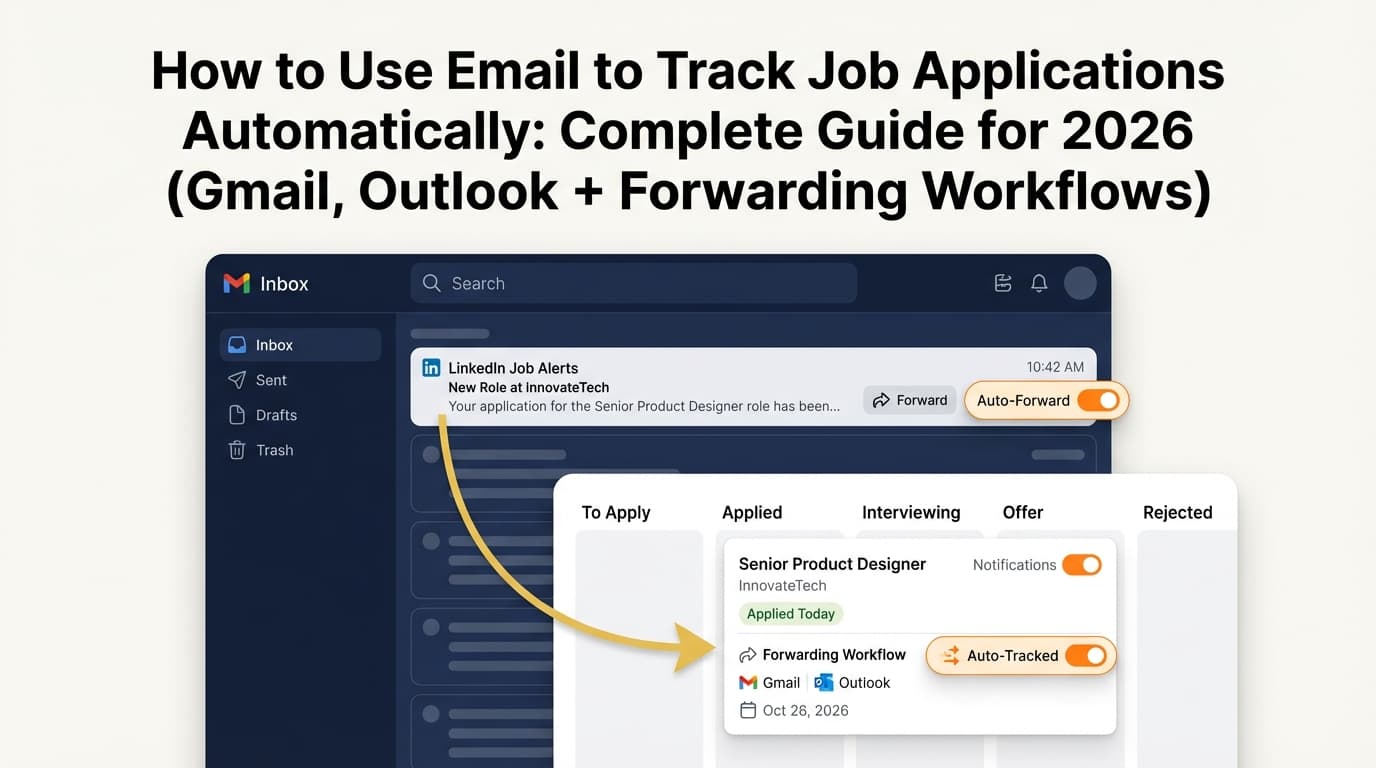
If you’re using Gmail labels primarily because manual tracking is exhausting, JobShinobi is built around removing that manual entry.
JobShinobi Pro includes an email-forwarding workflow where you forward job-related emails to your unique JobShinobi address and it parses job application details and logs them into a job application tracker. (Confidence: High — supported by product constraints/code evidence)
Important accuracy notes:
- Email processing is Pro-gated (it won’t process forwarded emails unless you’re a Pro member). (Confidence: High)
- Pricing is $20/month or $199.99/year for Pro. (Confidence: High)
- The pricing page/marketing mentions a “7-day free trial,” but trial enforcement details are not fully verified in code, so treat it as something to confirm during checkout. (Confidence: Medium)
If you want to see a dashboard tracker view instead of living in label searches, you’d use the in-app tracker (and you can still keep your Gmail labels for personal organization).
Internal links:
- Job tracker:
/dashboard/job-tracker - Subscription:
/subscription
Tools to help with job tracking in Gmail (without overcomplicating things)
Here are tool categories you’ll see commonly, with a realistic take.
-
Gmail filters + labels (built-in): Best “free” solution because you’re already using Gmail. Great for triage, not great for analytics.
-
Automation tools (e.g., Zapier/Bardeen-style workflows): Can label emails and send data elsewhere. Helpful if you’re comfortable managing automations.
-
Job tracker apps: Best when you need structured data, statuses, and exports.
-
JobShinobi (Pro): Useful if you want email-forwarding → automatic job application tracking plus a job tracker dashboard. (Pro is $20/month or $199.99/year; email processing requires Pro.)
Key takeaways
- A good “job tracking in Gmail with labels” system is status-first: Applied → Follow Up → Interview → Offer/Rejected.
- Gmail filters can automatically apply labels (and optionally archive), so your workflow doesn’t rely on willpower.
- Search operators (
label:,from:,subject:,after:,newer_than:) make Gmail act like a lightweight CRM. - Avoid over-automation early; build confidence with a few high-signal filters first.
- If you want structured tracking + analytics, consider pairing Gmail labels with a dedicated job tracker.
FAQ (People Also Ask)
Can I automate labels in Gmail?
Yes. Gmail lets you automate labeling using filters—rules that apply a label when incoming email matches criteria (sender, subject, keywords, etc.).
Source: https://support.google.com/mail/answer/6579
How to effectively use labels in Gmail for job applications?
Use labels as statuses, not general categories. A simple set like Applied, Follow Up, Interview, Offer, Rejected is easier to maintain than dozens of labels. Combine it with filters so labeling happens automatically.
What happens when you label an email in Gmail?
Labeling tags an email (or thread) so it appears under that label in the sidebar and becomes easier to find via search. Labels are different from folders, and a message can have multiple labels.
Source: https://support.google.com/mail/answer/118708
How do you create a label rule in Gmail?
Create a filter:
- Use the search box to define criteria (or open an email → “Filter messages like these”)
- Click Create filter
- Choose Apply the label (and optionally Skip Inbox, Star, etc.) Source: https://support.google.com/mail/answer/6579
Do Gmail filters work retroactively on existing emails?
They can, if you choose the option to apply the filter to matching conversations during filter creation/edit (wording varies by UI). Otherwise, filters primarily apply to new incoming messages.
What’s the fastest way to find interview emails in Gmail?
Use a label + unread search like:
label:"Job Search/3 - Interview" is:unread
Or search by subject:
subject:(interview OR schedule OR availability)
How many labels can I create in Gmail?
Gmail allows up to 5,000 labels.
Source: https://support.google.com/mail/answer/118708