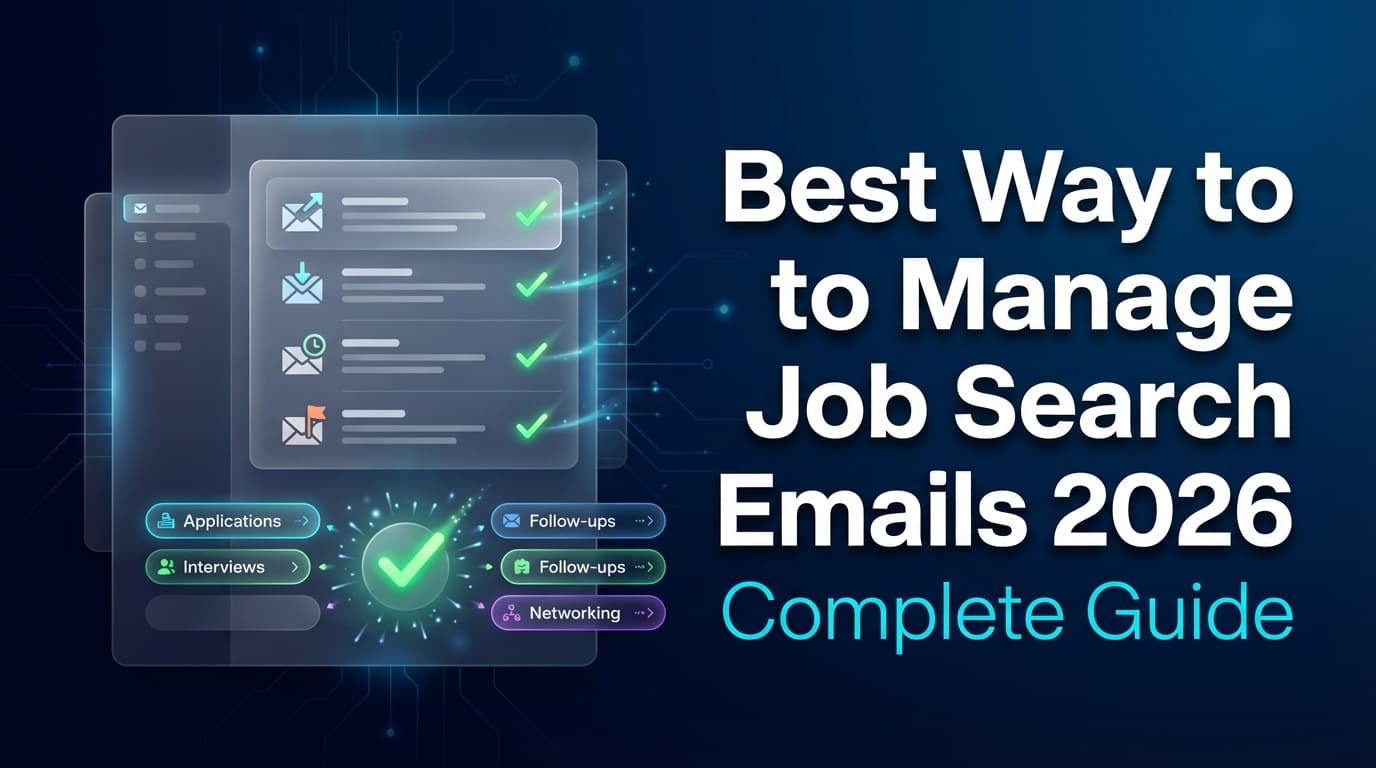
Your job-search inbox gets overwhelming for a reason: email volume is objectively high, and job search emails mix urgent (interview scheduling) with noisy (job alerts) and emotionally draining (rejections).
To put inbox overload in perspective, Microsoft reports the average worker receives 117 emails per day, and most are skimmed in under 60 seconds (Source: Microsoft WorkLab, Confidence: High — https://www.microsoft.com/en-us/worklab/work-trend-index/breaking-down-infinite-workday). When you’re applying to dozens of roles, that “skim-speed” reality is exactly how interview invites get missed.
In this guide, you’ll learn:
- A simple folder/label system built specifically for job searching (not generic “Inbox Zero” advice)
- The best Gmail filters and Outlook rules for job applications, interviews, offers, and rejections
- A follow-up workflow that keeps you consistent (even when employers don’t respond)
- How to reduce job-alert noise and spot job scams before they waste your time
- When it’s worth using a tool to automatically track job applications from forwarded emails
What is job search email management?
Job search email management is the process of turning your inbox from a messy stream of messages into a job-search “control center” where you can:
- Capture every job-related email (applications, recruiter outreach, interview scheduling, assessments, offers, rejections)
- Categorize it into a small set of statuses you can act on
- Follow up at the right times (without relying on memory)
- Track key details (company, role, date applied, last contact, next step) in a place that’s easy to review
In other words: it’s a lightweight job search CRM you can actually stick with.
Why managing job search emails matters in 2026
1) Email noise is increasing, and you’re scanning faster than ever
Microsoft’s analysis of the “infinite workday” highlights not only volume (117 emails/day) but also reading behavior (skimmed in under 60 seconds) and broader broadcast noise: mass emails with 20+ recipients are up 7% (Source: Microsoft WorkLab, Confidence: High — https://www.microsoft.com/en-us/worklab/work-trend-index/breaking-down-infinite-workday).
Practical impact: if your inbox isn’t automatically sorting messages, everything looks equally urgent—and you’ll eventually ignore all of it.
2) Ghosting is common, even after interviews
Greenhouse reports 61% of job seekers have been ghosted after a job interview (Source: Greenhouse, Confidence: High — https://www.greenhouse.com/blog/greenhouse-2024-state-of-job-hunting-report).
Practical impact: you need an organized follow-up system and a way to track “last touched” dates, because silence is the default in many processes.
3) Job scams are rising—and email is a primary attack surface
The FTC has repeatedly warned about job scams. In its “Top scams of 2024” breakdown, the FTC notes job scams and fake employment agency losses grew from $90 million to $501 million between 2020–2024 (Source: FTC Consumer Advice, Confidence: High — https://consumer.ftc.gov/consumer-alerts/2025/03/top-scams-2024). The FTC also reports job scam losses were more than $220 million in the first six months of 2024 (Source: FTC press release, Confidence: High — https://www.ftc.gov/news-events/news/press-releases/2024/12/new-ftc-data-show-skyrocketing-consumer-reports-about-game-online-job-scams).
Practical impact: a “best way to manage job search emails” system in 2026 must include scam triage, not just folders.
How to manage job search emails: Step-by-step system (Gmail + Outlook)
This system is designed for high-volume applicants who want something realistic: low effort, easy to maintain, and hard to break.
Step 1: Create a dedicated job search email (or at least separate your signal)
You have two good options:
- Best: Create a dedicated email address used only for job searching.
- Second-best: Keep your current email, but create a strict label/folder + rule system that isolates job-search messages from everything else.
Naming tip: keep it professional and simple (e.g., [email protected]).
Why this matters: job alerts + newsletters + personal receipts train you to ignore your inbox. A “job-only” inbox keeps you responsive without increasing anxiety.
Step 2: Use a status-based folder/label system (not company-based)
A folder for every company seems logical… until you apply to 80 roles and stop filing messages entirely.
Use statuses instead. Here’s a simple taxonomy that works:
Recommended folders/labels
JOBSEARCH / 0 - ACTION (Today)JOBSEARCH / 1 - APPLIEDJOBSEARCH / 2 - INTERVIEWJOBSEARCH / 3 - OFFERJOBSEARCH / 4 - REJECTEDJOBSEARCH / 5 - CLOSED (No response / withdrew)JOBSEARCH / Alerts (Job boards & newsletters)
Why statuses beat company folders
- You can always search by company name later.
- You can batch-review by stage (e.g., all interviews).
- “Action” stays small and becomes your daily checklist.
Pro tip: Keep it under ~7 categories. If you’re adding more, your system is getting fragile.
Step 3: Set up Gmail filters that auto-sort 70–90% of messages
You’re trying to eliminate manual sorting.
Gmail filter rules (practical examples)
You can build filters from the Gmail search bar and choose actions like “Apply label,” “Skip inbox,” etc.
A) Job alerts → JOBSEARCH / Alerts
Examples:
from:(linkedin.com) (job alert OR jobs)from:(indeed.com) (jobs OR alert)from:(glassdoor.com) (jobs OR alert)
Actions:
- Apply label:
JOBSEARCH / Alerts - Skip Inbox (Archive)
B) Application confirmations → JOBSEARCH / 1 - APPLIED
Examples:
subject:("application received" OR "thank you for applying" OR "application confirmation" OR "we received your application")
Actions:
- Apply label:
JOBSEARCH / 1 - APPLIED - (Optional) Skip Inbox
C) Interview scheduling → JOBSEARCH / 2 - INTERVIEW + Star
Examples:
subject:(interview OR schedule OR availability OR "phone screen" OR "technical screen")("Calendly" OR "Google Meet" OR Zoom OR "calendar invite")
Actions:
- Apply label:
JOBSEARCH / 2 - INTERVIEW - Star it
- Do not skip inbox
D) Rejections → JOBSEARCH / 4 - REJECTED
Examples:
subject:("unfortunately" OR "not moving forward" OR "we have decided" OR "other candidates")
Actions:
- Apply label:
JOBSEARCH / 4 - REJECTED - (Optional) Mark as read (only if it’s emotionally helpful, not harmful)
Use Gmail search operators to build better filters
Google documents Gmail’s search operators (like from:, to:, quotes, and OR) and how to combine them (Source: Gmail Help, Confidence: High — https://support.google.com/mail/answer/7190?hl=en).
Operator examples that help in job search:
from:company.comsubject:"interview"("thank you for applying" OR "application received")has:attachment(useful for offer letters or PDFs)
Step 4: Set up Outlook rules + categories (fast, visual triage)
Outlook can do two powerful things for job search:
- Rules that automatically move/categorize incoming emails
- Categories (color labels) that help you see job-search stage at a glance
Microsoft explains how to create and use rules to move messages, mark importance, delete, and more (Source: Microsoft Support, Confidence: High — https://support.microsoft.com/en-us/office/manage-email-messages-by-using-rules-in-outlook-c24f5dea-9465-4df4-ad17-a50704d66c59). Microsoft also documents categories as a way to tag and group messages (Source: Microsoft Support, Confidence: High — https://support.microsoft.com/en-us/office/use-categories-in-outlook-87f27f03-4d9f-48dd-9623-2702692a4480).
Recommended Outlook setup
- Rule: “Job board alerts” → move to
JOBSEARCH - Alerts - Rule: emails with “interview” / “schedule” → category
Interview+ flag - Rule: emails with “offer” → category
Offer+ keep in Inbox
Daily habit (5 minutes):
- Process flagged emails (follow-ups, scheduling, tasks)
- File everything else by status folder
Step 5: Create a daily “Action” workflow (the part people skip)
Folders and filters reduce clutter, but they don’t automatically create outcomes. You still need a small daily ritual.
Daily inbox checklist (10 minutes)
- Review
JOBSEARCH / 0 - ACTION (Today) - Handle anything in
JOBSEARCH / 2 - INTERVIEWfirst (scheduling is time-sensitive) - Confirm your follow-ups due today (from your tracker—more on that below)
- Archive anything that doesn’t require action
Rule of thumb: If an email requires action, it must be either:
- Starred/flagged, or
- moved to your
ACTIONfolder, or - added as a dated task (calendar/to-do)
If it’s not in one of those places, it’s basically invisible.
Step 6: Build a follow-up system (so ghosting doesn’t stall you)
Greenhouse’s ghosting data (61% after interviews) is your reason to systemize follow-ups rather than “play it by ear.”
A simple follow-up cadence that works for most job searches
(Timing varies by industry and seniority; treat as general guidance, Confidence: Medium.)
- After applying (if you have a human contact): follow up 7–10 business days later
- After recruiter screen: thank-you within 24 hours, follow up 3–5 business days after stated timeline
- After interview rounds: thank-you within 24 hours
- If no timeline is given: follow up once after 5 business days, then again after 7–10 business days
The follow-up “rule” that prevents chaos
Every active application should have:
- One next action (email/call/networking message)
- One next date (when you’ll do it)
If you can’t write those down, the opportunity is not under control.
Step 7: Use templates (so you don’t rewrite the same email 50 times)
Templates reduce mental fatigue and keep your tone consistent.
Template 1: Follow-up after applying (with a contact)
Subject: Follow-up: [Role] at [Company] — [Your Name]
Hi [Name],
I applied for the [Role] position on [Date] and wanted to follow up to reiterate my interest. I’m especially excited about [1 specific thing about the team/product/problem].
If helpful, I can share a quick summary of my experience in [relevant area] and how it maps to the role.
Is there a timeline for next steps?
Thank you,
[Your Name]
[Phone] | [LinkedIn]
Template 2: Post-interview thank-you (short and effective)
Subject: Thank you — [Role] interview — [Your Name]
Hi [Name],
Thank you again for your time today. I enjoyed learning more about [specific project/team detail].
I’m excited about the opportunity—especially the chance to contribute to [specific outcome you discussed].
Best,
[Your Name]
Template 3: Polite “checking in” after timeline passes
Subject: Checking in: [Role] next steps — [Your Name]
Hi [Name],
Hope you’re doing well. I wanted to check in on next steps for the [Role] position.
I’m still very interested. If there’s any additional info I can provide, I’m happy to send it over.
Thanks,
[Your Name]
Gmail templates note
Many job seekers store templates in Gmail. Be aware that Gmail “templates/canned responses” capabilities and where they’re available can vary by interface and settings (Confidence: Medium). If you use templates, test them on desktop first.
Step 8: Reduce job-alert noise (without missing opportunities)
Job alerts feel productive, but they can generate a lot of inbox volume.
Best practice
- Route alerts to
JOBSEARCH / Alerts - Review alerts once per day (or even 3x/week) in a batch
- Only move high-potential roles into your “apply” workflow
Turn off or reduce alerts you don’t need
LinkedIn provides instructions for managing job alerts (Source: LinkedIn Help, Confidence: High — https://www.linkedin.com/help/linkedin/answer/a1420165).
Practical strategy: Keep alerts only for:
- 1–3 target titles
- 1–2 locations (or remote)
- a small set of companies you genuinely want
Everything else becomes noise you pay for with attention.
Best practices checklist (the “best way” distilled)
- Use statuses, not company folders.
- Auto-filter job alerts out of your main inbox.
- Never hide interview emails (don’t skip inbox for anything that says “schedule”).
- Create one “Action” queue and clear it daily.
- Always track next step + next date for active roles.
- Use consistent subject lines so your sent mail is searchable.
- Save templates for follow-ups and thank-yous.
- Batch-process alerts instead of reacting all day.
- Archive aggressively once something is closed.
- Treat suspicious job emails as security events (scams are rising).
Common mistakes to avoid (and how to fix them)
Mistake 1: A folder for every company
Why it fails: It’s too much overhead when you’re applying at volume.
Fix: Use a small status taxonomy, then search by company name when needed.
Mistake 2: Letting job alerts mix with recruiter emails
Why it fails: Alerts create “false urgency,” and you start ignoring your inbox.
Fix: Route all alerts to an Alerts folder and batch-review.
Mistake 3: No system for follow-ups (“I’ll remember”)
Why it fails: In a high-volume search, roles blur together and timelines slip.
Fix: Put follow-up dates in a tracker or as tasks—never only in your head.
Mistake 4: Clicking unknown links from “recruiters”
Why it fails: Job scam losses are real and increasing, and job seekers are actively targeted.
Fix: Verify identities and domains before clicking. When in doubt, go directly to the company site and apply/confirm there.
Job scam triage: How to spot fake job emails fast (2026 must-have)
The FTC’s guidance on job scams includes concrete patterns (Source: FTC Consumer Advice, Confidence: High — https://consumer.ftc.gov/articles/job-scams).
Red flags that should trigger “Do not click”
- Sender uses a personal email domain for “company recruiting” (e.g., Gmail/Yahoo) without a clear explanation
- You’re asked to pay money, buy equipment with a check, buy gift cards, or move funds
- They request sensitive data unusually early (SSN, bank info, identity documents) before real interviews
- “Interview” happens only over text chat, and they rush you to accept immediately
- Company name/domain inconsistencies (e.g., lookalike domains)
A practical inbox move: create a quarantine folder
Add:
JOBSEARCH / Suspected Scam
When something feels off, move it there and verify using:
- the company’s official careers page
- the recruiter’s LinkedIn profile (and whether they list the company)
- public reporting (search “company name + scam”)
Tools to help manage job search emails (and when to use them)
You can do a lot with Gmail/Outlook alone. Tools become useful when you need a second layer: tracking, reminders, and analytics.
1) Spreadsheet tracker (simple, effective)
A tracker should include:
- Company
- Role title
- Link to posting
- Date applied
- Current status
- Last contact date
- Next follow-up date
- Recruiter/hiring manager contact
- Notes (interview topics, comp, location, resume version used)
If you want inspiration for a tracker format, many job-search spreadsheet templates exist across career sites (Confidence: Medium). The point isn’t the perfect template—it’s consistency.
2) Job tracker apps (when volume gets high)
Job tracker tools can help you:
- maintain a pipeline view (Applied → Interview → Offer)
- store contacts and notes
- keep follow-up dates visible
3) JobShinobi (email-forwarding automation + tracker)
If your biggest pain is manual tracking from emails, JobShinobi is built around an email-forwarding workflow:
- You can forward job-related emails (application confirmations, rejections, interview-type updates) to your unique JobShinobi forwarding address, and JobShinobi will parse the email content and create/update your job application record in its tracker. (Confidence: High based on documented product behavior.)
- JobShinobi includes a job application tracker with common statuses (Applied / Interview / Rejected / Offer / Accepted) and supports export to Excel (.xlsx). (Confidence: High.)
- Important: JobShinobi’s email processing is restricted to Pro members. JobShinobi Pro pricing is $20/month or $199.99/year. (Confidence: High.)
- The pricing UI mentions a “7-day free trial,” but trial mechanics aren’t clearly verified in enforcement logic—so treat that trial as not guaranteed. (Confidence: Medium.)
Relevant internal pages:
- Job tracker: /dashboard/job-tracker
- Subscription: /subscription
When it’s a fit: You live in your inbox, get lots of auto-emails from ATS/job boards, and want those updates reflected in a tracker without manual copy/paste.
A “best way” workflow you can copy today (30-minute setup)
If you want an exact plan:
Part A — 10 minutes: build folders/labels
Create the 6–7 folders/labels under JOBSEARCH.
Part B — 10 minutes: create rules/filters
- Alerts → Alerts folder (skip inbox)
- Interview keywords → Interview folder + star/flag
- Application confirmations → Applied folder
- Rejections → Rejected folder
Part C — 10 minutes: create your tracker + follow-up fields
Make a sheet with these columns:
- Company | Role | Date applied | Status | Contact | Last touched | Next follow-up | Notes
Then: every time you apply, add a row. Every time you get an interview email, update status + add a next follow-up date.
Key takeaways
- The best way to manage job search emails in 2026 is a status-based inbox system + automation (filters/rules) + a follow-up tracker.
- Microsoft’s email data (117 emails/day; most skimmed under 60 seconds) supports why you must reduce noise and highlight interview messages.
- Ghosting is common (Greenhouse: 61% ghosted after interviews), so follow-ups should be planned, not improvised.
- The FTC reports major increases in job scam losses—so add a scam quarantine process to your email system.
- If manual tracking is your bottleneck, an email-forwarding tracker like JobShinobi can reduce admin work (Pro required; $20/month or $199.99/year).
FAQ (People Also Ask–style)
What is a good way to organize your job search?
Use a two-layer system:
- Email folders/labels by status (Applied, Interview, Offer, Rejected)
- A tracker that stores dates, follow-ups, and notes so you can run your search like a pipeline.
What is a good email address for job searching?
Use a professional format (first + last name), and keep the inbox clean. Example:
[email protected]
Avoid nicknames and random numbers when possible.
How do I stop emails from job sites?
Don’t rely on unsubscribing alone. Instead:
- Create a rule/filter to route job alerts into a separate
JOBSEARCH / Alertsfolder - Batch-review alerts once per day (or a few times per week) You can also manage alert settings in the job site itself (e.g., LinkedIn job alerts settings: https://www.linkedin.com/help/linkedin/answer/a1420165).
How do you politely follow up on a job email?
Keep it short, specific, and low-pressure:
- Reference the role and date
- Reiterate interest
- Ask for timeline/next steps Use the templates above and send during business hours.
How can you tell a fake job offer by email?
Use FTC-style red flags:
- Requests for money or financial accounts
- Pressure tactics and vague job details
- Lookalike domains or personal email accounts FTC guidance: https://consumer.ftc.gov/articles/job-scams
Should I use a job search tracker or just my inbox?
If you’re applying to more than a handful of roles, use a tracker. Inboxes are good for communication, but they’re not designed to show:
- how many roles are in each stage
- what follow-ups are due
- response rates and trends over time